Welcome to the Community space, Treasurer136.
QuickBooks is use for recording purposes. I'll help you record Home depot refund and match it to the transaction you see in the Banking section.
Recording refund depend on how you record your purchase. To reflect the money you received from Home Depot into your debit card account, you can create a vendor credit and bank deposit in QuickBooks Online. I'll show you how.
These are the steps to create a vendor credit:
- Click + New.
- Select Vendor credit.
- In the Vendor dropdown, select your vendor (Home depot).
- Depending on how you record purchases with this vendor, enter the Category details or Item details. Choose the same category or item use for the purchase.
- Once done, hit Save and close.
Here's how to create a bank deposit:
- Click the + New icon.
- Select Bank Deposit.
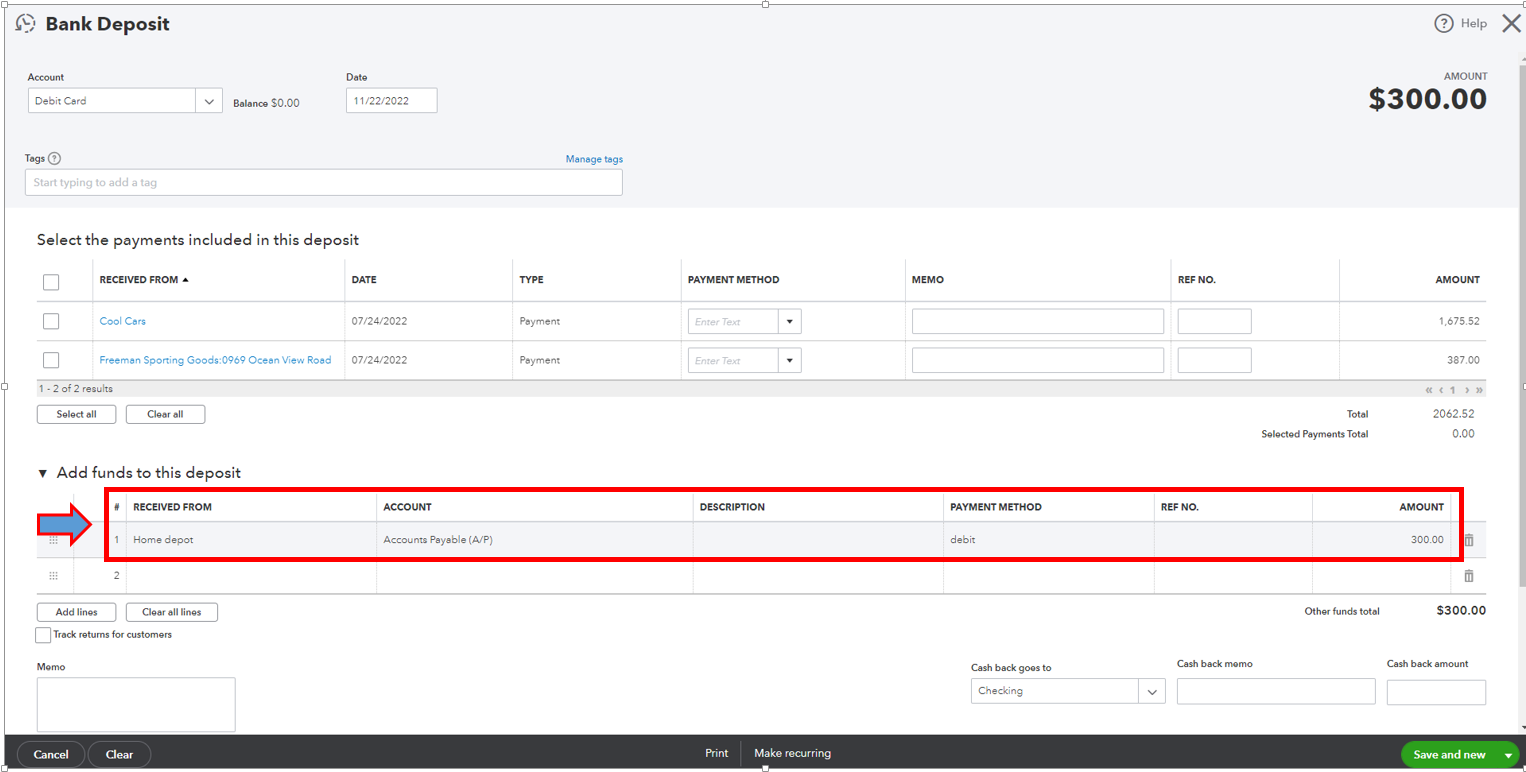
- In the Account dropdown, choose the debit card account where you got the refund.
- In the Add Fund to this deposit, select the vendor (Home depot) on the Received from dropdown, then in the Account column choose Accounts Payable.
- Enter the method used to refund you in the Payment method section and the amount of your refund on the Amount field.
- Once done, hit Save and close.
Then, let's connect the vendor credit and bank deposit using the Pay bills.
Here's how:
- Click + New.
- Select Pay bills.
- Select the bank deposit you just created. You’ll see the amount of the vendor credit in the Credit Applied field. The Total payment should be $0.00.
- Once done, hit Save and close.
After that, you can now match the bank deposit to the transaction you see in the Banking page.
You can read this article as a reference in the future to guide you with the reconciliation process and make sure your QuickBooks balance matches the value on your bank, credit card, or debit card statement. Reconcile an account in QuickBooks Online.
We'll keep an eye on this post, don't hesitate to add any details below if you need further help with refund. We're always available to help you.

