June 24, 2022
Solved

How do I get my out going Invoices to say company name not quickbooks or Intuit . My customers are looking for our name

  • June 24, 2022
  • 1 reply
  • 0 views
Original commenter did not share additional details

Best answer by Archie_B

Welcome to the Community, Mdherring. Let me give you an idea on how to create and personalize your invoice so it shows your company information.


In QuickBooks Desktop, you can create a custom template for your invoices. These templates can be modified so that you have control over how they appear and what details they contain.


To create a template:
 

  1. Go to Lists menu, choose Templates.
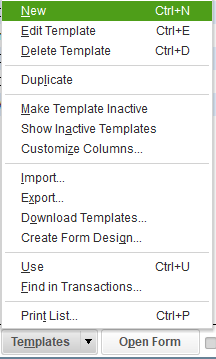
  2. Click on Templates ▼, then hit New, or press Ctrl + N.
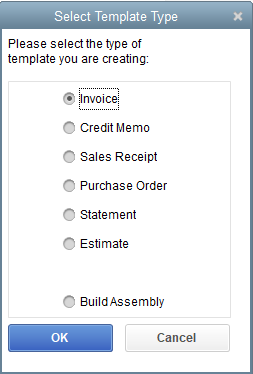
  3. Select Invoice for the form you'd like to customize.
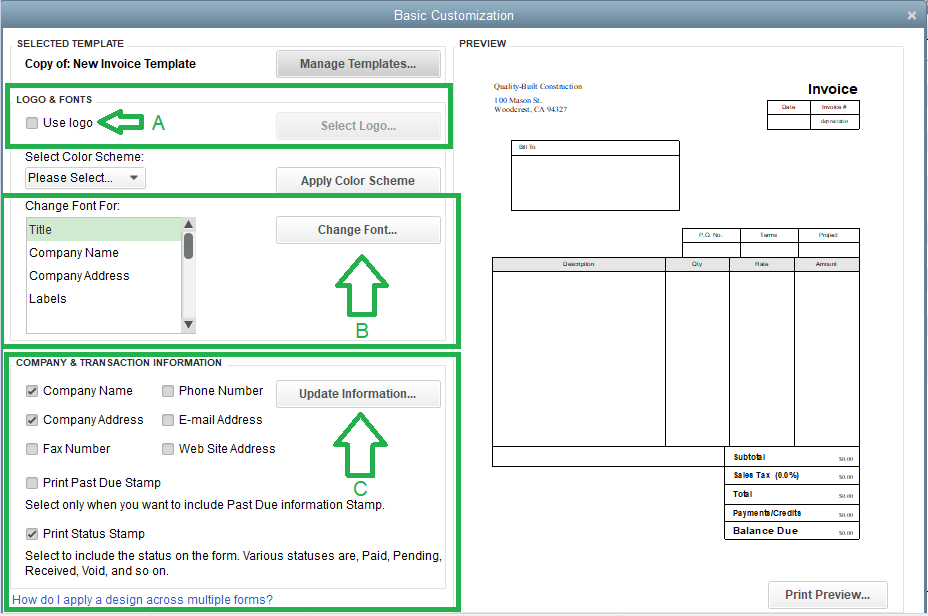
  4. Use the basic customization window to:

    a. Add your logo: By clicking the Use logo checkbox, you can select a company logo that will appear in your form
    b. Change fonts and colors: This section let's you  personalize the fonts and colors used for the form's labels, data, and company name.
    c. Change company & transaction information: In this section, you can add or update the company and contact information you want to appear on the invoice. Just click the Update Information button.

     
  5. Once you’re done, select OK.
  6. Hit Print Preview to see your form. If everything looks good, select Close.
  7. Click on OK.


To apply this template to your invoice, just click on the Template dropdown ▼ and then select the template. I'm adding this article to to learn more on how to use and manage the custom form templates: Use and customize form templates.


You can also check out this link just in case you'll encounter some issues: Fix common issues when you use and customize templates.


Drop your comments for follow-up questions regarding invoices. I'll be in touch. Take care and enjoy your weekend!

1 reply

Archie_BAnswer
June 24, 2022

Welcome to the Community, Mdherring. Let me give you an idea on how to create and personalize your invoice so it shows your company information.


In QuickBooks Desktop, you can create a custom template for your invoices. These templates can be modified so that you have control over how they appear and what details they contain.


To create a template:
 

  1. Go to Lists menu, choose Templates.
  2. Click on Templates ▼, then hit New, or press Ctrl + N.
  3. Select Invoice for the form you'd like to customize.
  4. Use the basic customization window to:

    a. Add your logo: By clicking the Use logo checkbox, you can select a company logo that will appear in your form
    b. Change fonts and colors: This section let's you  personalize the fonts and colors used for the form's labels, data, and company name.
    c. Change company & transaction information: In this section, you can add or update the company and contact information you want to appear on the invoice. Just click the Update Information button.

     
  5. Once you’re done, select OK.
  6. Hit Print Preview to see your form. If everything looks good, select Close.
  7. Click on OK.


To apply this template to your invoice, just click on the Template dropdown ▼ and then select the template. I'm adding this article to to learn more on how to use and manage the custom form templates: Use and customize form templates.


You can also check out this link just in case you'll encounter some issues: Fix common issues when you use and customize templates.


Drop your comments for follow-up questions regarding invoices. I'll be in touch. Take care and enjoy your weekend!

MdherringAuthor
June 26, 2022

I think your step by step instructions and slower pace made it easier to understand once i did it . 

I also lesarned about third party e-mail at this time . So thank you .