I'd be glad to guide you in printing the item details from your expense transaction, Cory. This way, you can conveniently attach them to your receipt.
Here are the steps to follow:
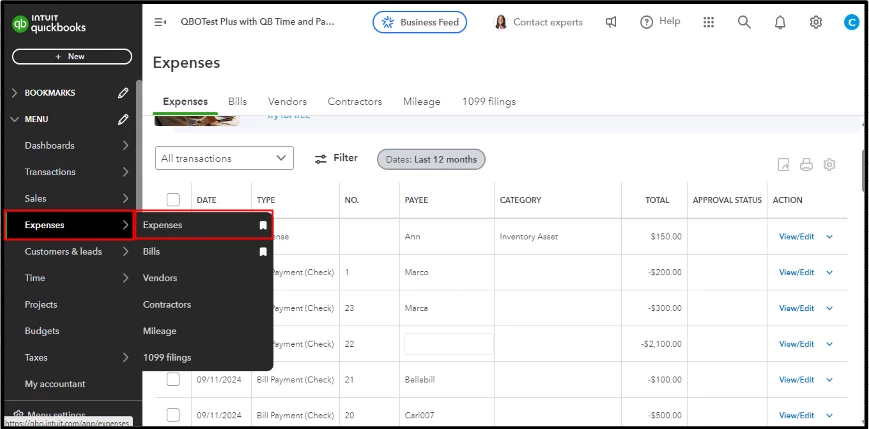
- Go to Expenses and pick Expenses.

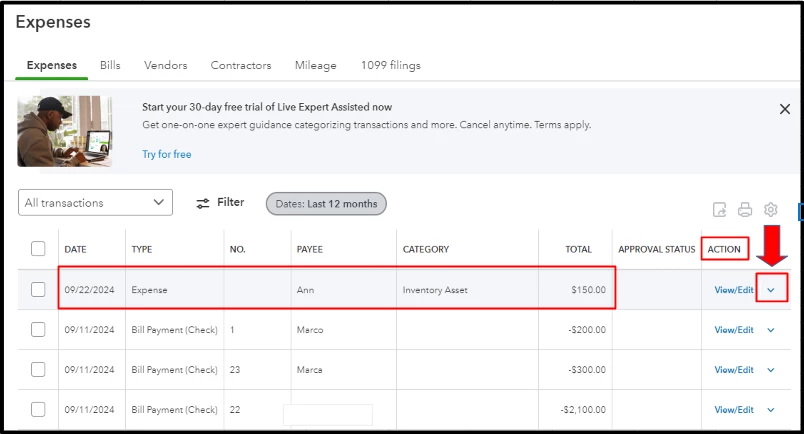
- Locate the expense transaction and tap the dropdown arrow under the ACTION column.

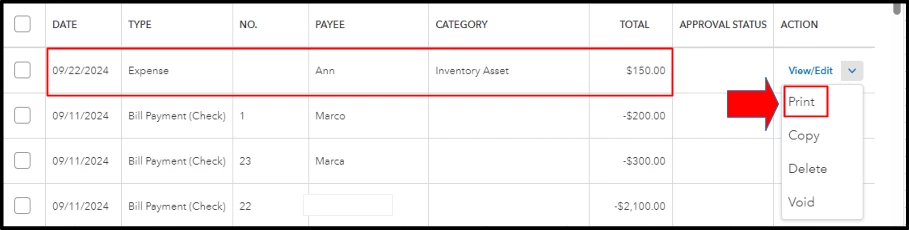
- Select Print.

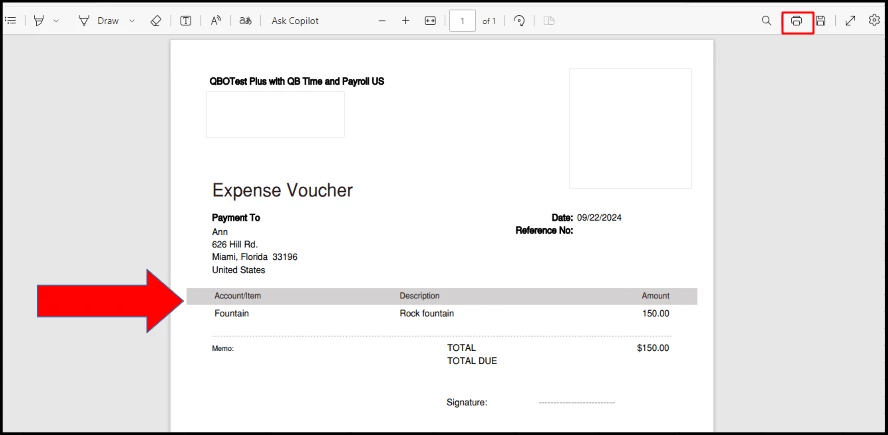
- Tap the Printer icon in the upper right corner.

- Hit Print.
To manage financial obligations in QuickBooks Online (QBO), check out this article: Enter and manage expenses.
Additionally, if you require assistance with data entry, expense categorization, or generating insightful reports, our QuickBooks Live Expert Assisted Team is here to guide you every step of the way. They can help you streamline your expense tracking process, ensuring that every transaction is recorded and categorized correctly for accurate financial reporting.
Printing item details from expenditures in QBO is a straightforward yet vital process that helps you maintain clear records and improve communication with your team and clients, Cory. Should you have further questions about printing transactions or other essential data in QBO, please add a reply below.
Enter your E-mail address. We'll send you an e-mail with instructions to reset your password.