EBayonet
May 3, 2020
Solved

How do I remove the Govt. UID + VAT No. field from the Template?

  • May 3, 2020
  • 1 reply
  • 0 views

I have imported a Template from MS Word and I need to view only the "Company Business Identification Number | Govt. UID" and " Customer Sales Tax Registration | VAT No.", but I the time that I print the Invoice also print the title Govt. UID | VAT No. with the corresponding number.  I only require the information, How is it possible to delete the title "Govt. UID | VAT No."?

Best answer by IamjuViel

Hello, @luis11_2.


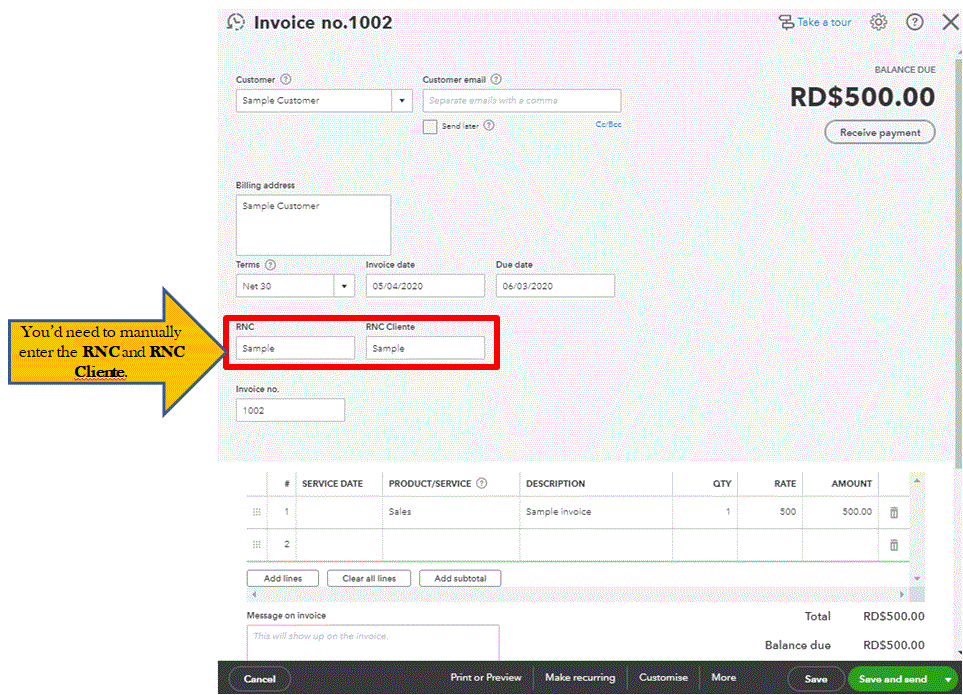
When you map your imported invoice, you can assign both RNC and RNC Clientele field to Custom Field 1 and 2. This way, you can manually enter the information in the invoice. I've attached a screenshot for your visual reference.


Also, you can create your own customise invoice template within QuickBooks. For more detailed steps, you can refer to this article: Customise invoices, estimates, and sales receipts in QuickBooks Online.


Get back to us here if you have other questions about importing a customized sales forms template. I'm always here to help.

1 reply

May 3, 2020

I appreciate you posting here in the QuickBooks Community and sharing a screenshot with your concern, @EBayonet.


You'll want to make sure that the EZ Map Fields are appropriately used when importing custom form styles. Let me show you how it works.


For Company Business Identification Number, you can use <businessnumber> for the format. While Customer's Tax Registration number is <billingtaxnumber>. This way, it'll show the correct corresponding number for the description, instead of the Govt. UID and VAT number.


Once you're done changing the format for the field, you can consider deleting the imported custom form styles and importing it again.


You can open the QuickBooks Online EZ Map Fields Catalog for the appropriate format you'll use in importing custom form styles.


I'm also adding this article for more information: Import custom form styles for invoices or estimates.


As always, feel free to visit our QuickBooks Community help website if you need tips and related articles in the future.


Please keep in touch if there's anything else I can do to help you succeed with QuickBooks. I've got your back. Have a great day and be safe.

EBayonet
EBayonetAuthor
May 3, 2020

Hi Mark_R


I have make the correct match with QuickBooks fields vs MS Word (imported).  I only need to appears at the moment to print the Invoice "RNC: [removed]" instead to "RNC: UID gubern. [removed]"


PD: I'm using QuickBooks Online International.


[name removed]

Dominican Republic