
Solved
how i can see a credit in qb destop?
Original commenter did not share additional details

I'll help you see the credit, @contadora23.
Usually, you can see the customer credit when you receive payments if you retain it as an available credit.
Here's how:

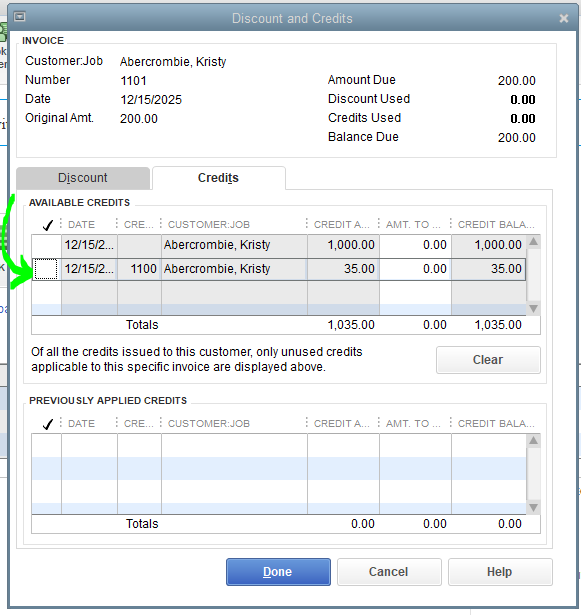
Also, you can see it in the same spot (Discounts and Credits) when you created a refund for a customer's overpayment. You can reference this article for more insights: Give your customer a credit or refund in QuickBooks Desktop.
However, if you're referring to vendor credit, you can go to the Vendors menu and then select Enter Bills. When you tick on the Credit radio button this will show you the credit. You can also scan previous bills and credits created for a specific vendor by clicking the Forward and Backward arrows.
I've added screenshots for visual references.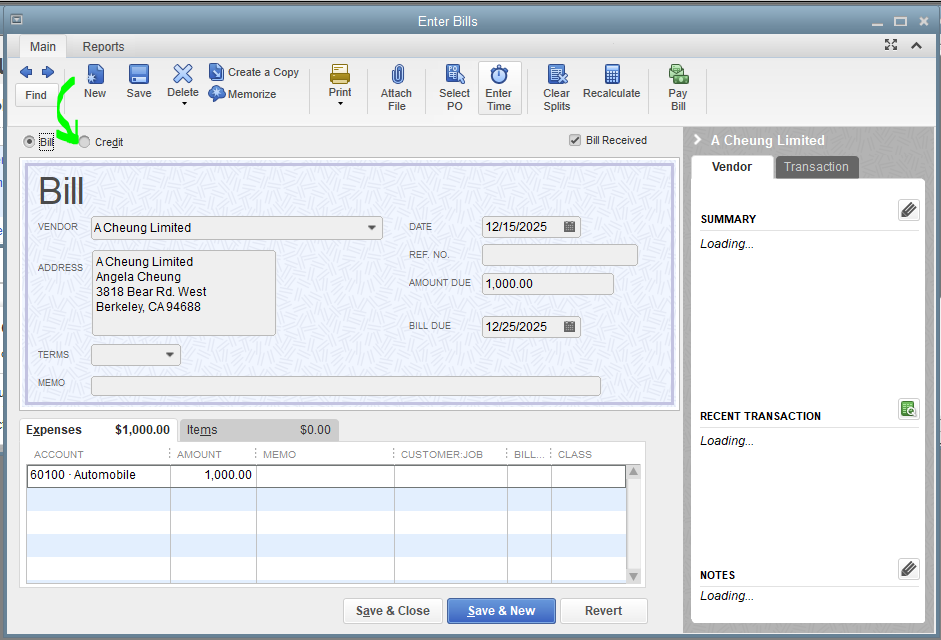

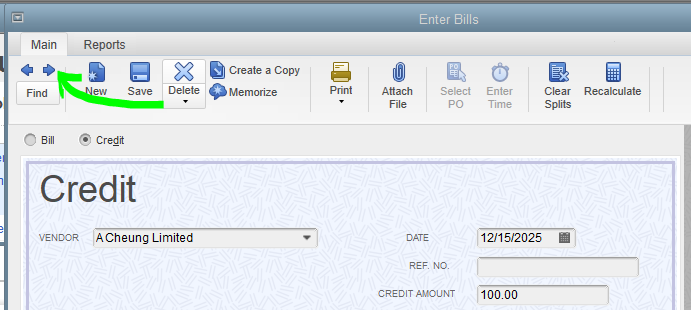
For reference on how to see the available credits and apply them to a bill: Record a vendor refund in Quickbooks Desktop.
Additionally, you can also run reports for Transaction List by Vendor or Transaction List by Customer to see the bill/invoice and the credits applied.
Let me know if you have other concerns with viewing transactions in QuickBooks Desktop. I'm ready to help anytime. Keep safe!
Enter your E-mail address. We'll send you an e-mail with instructions to reset your password.