

March 6, 2024
Question

How to add columns to partial invoice Screen "Choose items and quantities for invoice"

  • March 6, 2024
  • 1 reply
  • 0 views
 

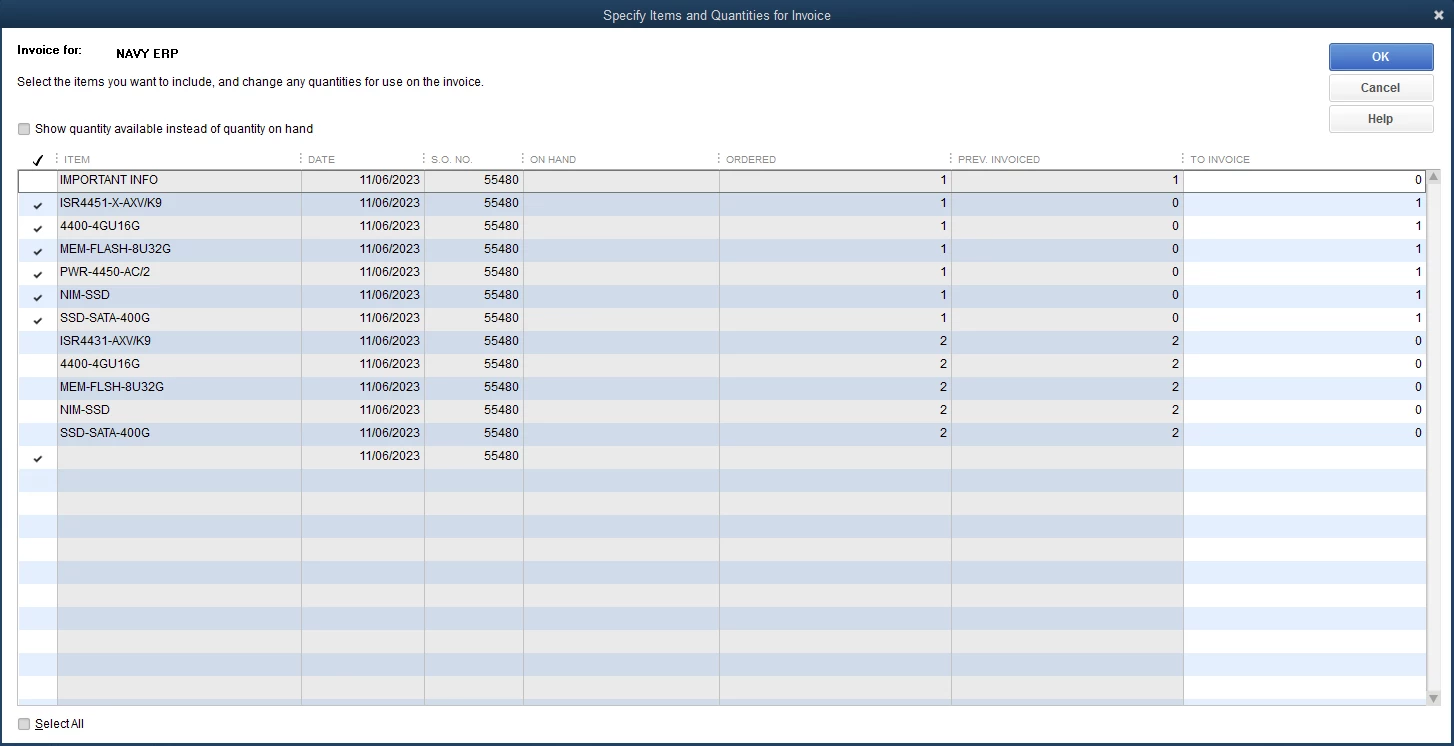
When creating a partial invoice from an sales order, a box appears titled "Specify Items and Quantities for Invoice." How do you add columns to this box? I would like to add Line Item Number, unit price, and extension price. 
1 reply

March 6, 2024

Welcome to the Community space, Matt,


I am here to share some details about adding columns in the partial invoice screen in QuickBooks Desktop (QBDT).


In QBDT, adding columns in the partial invoice screen is unavailable. If you want to add additional columns to your sales order before making it an invoice, consider editing the sales order itself and use the Customize Data layout.


Here's how:


  1. Open your sales order and click Customize Data layout.
  2. After clicking, a new window will pop up. Choose Columns to edit.
  3. Add a column by replacing Other with your preferred column title.
  4. Click OK, once done.


Now, you can create an invoice out of your sales order with the added columns.


Moreover, I'm adding this helpful article as your reference in sending invoices in QBDT: Send online invoices in QuickBooks Desktop.


Come back to this post if you have other concerns about customizing your sales order and invoices in QBDT. I'll be here to lend a hand. Have a good one!

Matt-Author
March 8, 2024

1/2: What effects what flows from the sales order to the partial invoice screen? Or are the columns locked as "Item" "date" "SO#" "On hand" "Ordered" "Prev. Invoiced" "To Invoice"?


The lack of line item numbers makes it cumbersome to partially invoice large orders.


2/2: Maybe you can help me understand why SO# is even included. Is there a situation where it'd be possible to be utilizing the partial invoice function and be pulling data from multiple SOs? 

March 8, 2024

Thank you for always getting back to the Community, Matt. It's my pleasure to provide you with the clarifications you need about the Sales Order to partial invoice flow in QuickBooks Desktop.


In QuickBooks Desktop, when creating a partial invoice from a Sales Order, the columns that appear are predetermined and cannot be customized. These columns include items, Sales Order (SO) number, ordered quantity, previously invoiced quantity, and quantity to be invoiced.


It's worth noting that the unit price or total amount associated with each item won't be displayed on the partial invoice screen itself. The amount will show up in the actual invoice screen, and not in the page in your screenshot. 


The inclusion of the SO number allows for easy identification of the specific Sales Orders that are to be invoiced, especially when dealing with multiple open sales orders. This functionality enables the page in your screenshot to efficiently pull data from multiple Sales Orders when creating invoices, streamlining the invoicing process and ensuring accuracy in billing for various orders.


I also recommend bookmarking these articles related about this topic in QBDT:


Feel free to return to this post if you have any further questions about customizing your sales orders and invoices in QuickBooks Desktop. I'm here to help. Have a wonderful day!