

March 31, 2020
Solved

How to make bulk changes to vendors?

  • March 31, 2020
  • 4 replies
  • 0 views

Coming from desktop to online pro: How can I make bulk changes to my vendors? In desktop I could import an IIF file to add to current vendors and/or use "add multiple vendors" and cut/paste from Excel to make changes to multiple vendors at a time. In QBO it seems I can only import new vendors, not import changes to current vendors (I get an error highlighting the name saying a vendor already exists and no import will happen). Any way in QBO to make bulk changes to vendors (and customers)? Thanks!

Best answer by MarsStephanieL

Hello miller0987,


In QuickBooks Online, the feature for bulk update of your existing vendors is unavailable at this time. I can send this as a feedback to our product developers so that they will make an assessment for future updates.


For now, you can manually edit your Vendor's details to avoid duplicates. Here's how:


  1. Go to the Hamburger icon and select Expenses.
  2. Choose Vendors and click on the Vendor's name.
  3. Click on the Edit button on the top-right corner of the page.
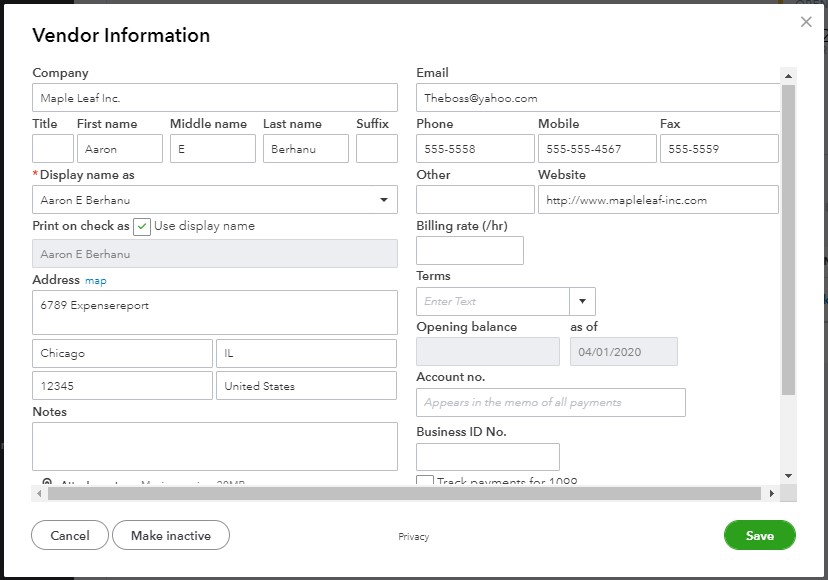
  4. Enter the updated details, verify and click Save. (I added a screenshot to show you where you can update your Vendor's detail).


Let me know if you have questions in mind. I'll around to answer. Take care.


4 replies

Fiat Lux - ASIA
March 31, 2020

Utilize the trial period of this 3rd party migration tool. Export the data out, modify them, and reimport back. Make sure to set some filter to avoid any duplication.

https://transactionpro.grsm.io/qbo


Should you need to purchase it, use promo code 20PERCENTOFF at checkout, valid until April 30th, 2020. 


March 31, 2020

Thanks for the tool info! No native way within QBO however?

MarsStephanieL
March 31, 2020

Hello miller0987,


In QuickBooks Online, the feature for bulk update of your existing vendors is unavailable at this time. I can send this as a feedback to our product developers so that they will make an assessment for future updates.


For now, you can manually edit your Vendor's details to avoid duplicates. Here's how:


  1. Go to the Hamburger icon and select Expenses.
  2. Choose Vendors and click on the Vendor's name.
  3. Click on the Edit button on the top-right corner of the page.
  4. Enter the updated details, verify and click Save. (I added a screenshot to show you where you can update your Vendor's detail).


Let me know if you have questions in mind. I'll around to answer. Take care.


April 22, 2022

Has there been any update for this subject?  We are needing to make bulk changes to vendors and hoping that product development made some changes?

Rose-A
April 22, 2022

Thanks for following up on this thread, GRbhaso.


I know how beneficial this is to your business, however, we haven't added this option yet.


We'd love to hear your feedback. You can send comments and suggestions by selecting the Gear icon, then Feedback. Tell us how it’s going and what we can do to make the Vendors option better.


For the time being, you can visit our blog and register for our Newsletter. This way, you’ll receive email updates about what new changes and features, and hopefully this option would be one of them.


Here's how to register for our Newsletter:


  1. On your QuickBooks Online account, click the User icon at the upper right corner and select Manage your Intuit Account.
  2. Tap Data & Privacy in the left panel.
  3. Select QuickBooks.
  4. Turn on QuickBooks Newsletter.


Additionally, you can visit the following write-up: Expenses and vendors. This will provide you with links on how to manage your company expenses as well as other vendor transactions.


I'm always here should you have any follow-up questions or concerns. Wishing you and your business continued success!

asha_kanta_sharma
July 7, 2020

Simply not possible in QB.

September 15, 2022

I use Enterprise for multiple companies.  I need to know how to make Class changes to a large group of invoices.  

katherinejoyceO
September 15, 2022

Thanks for asking us here in this forum, @TruckingEnterprise.


We can use the Reclassify Transactions tool to makes changes on your classes individually or all at once. 


I'll show you how:

  1. Choose a transaction or Select All, then mark the  Account to checkbox to reclassify by account.
  2. Click the dropdown arrow next to Account to, then find the account where you want to move the transactions.
  3. Select the Class to checkbox to reclassify by class.
  4. Select the dropdown arrow next to Class to, then select a new class for the transactions.
  5. Click Reclassify.


For additional reference, you can visit this link should you need to find and correct transactions that have been assigned to incorrect accounts or classes.


You can bookmark this article in case you need some steps to filter, sort or total reports by Class in the future. 


Feel free to post again if you need more help in reclassifying your transactions. We're always around to be your QuickBooks guide.