Let me clear out the confusion for you, @Blondimlb. Rest assured that I've got the steps to record the $2.60 PayPal reversal fee. This can be done by entering a deposit. It will offset the original charge in the Bank Fee or expense account your client is using. I'll guide you how.
- Go to the + New button from the left menu.
- Click Bank deposit under Other.
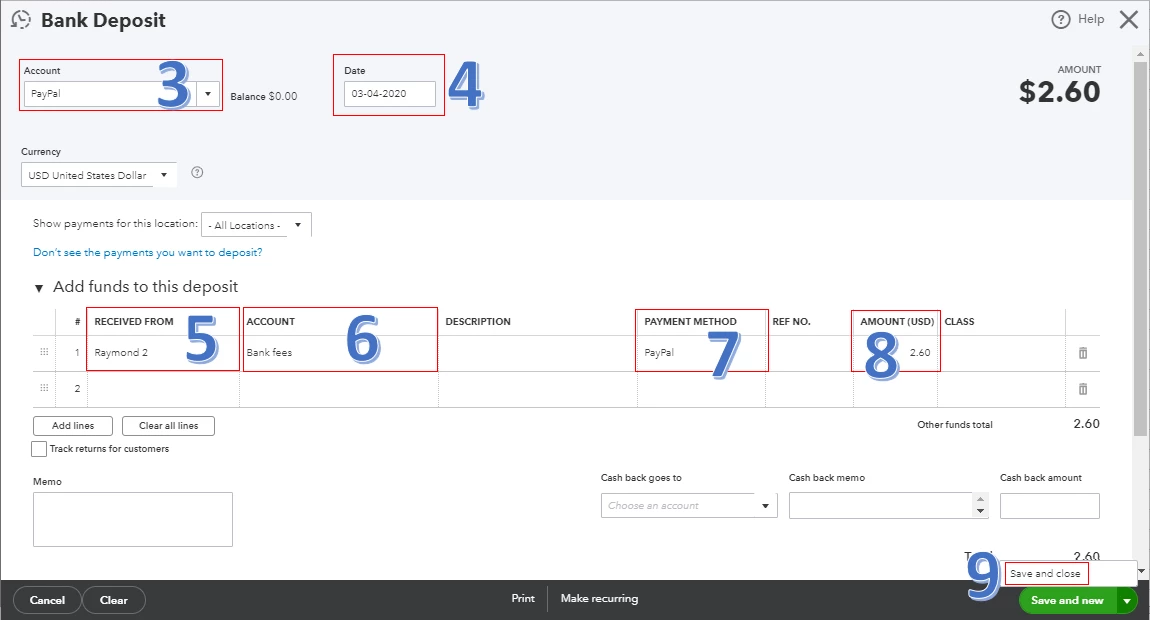
- Choose PayPal as the account.
- Verify the Date.
- Select the customer in the Received From column.
- Choose the appropriate expense account.
- Set the Payment Method.
- Enter 2.60 as the amount.
- Hit Save and close.
The screenshot below shows you the last seven steps. For detailed instructions, check out this article: Record and Make Bank Deposits.
Once done, go to the For Review tab. From there, you'll be able to match the $2.60 Received to the deposit you've just created. This helps you avoid duplicates in the program.
Aside from PayPal transactions, you can edit, assign, and categorize the other ones. This ensures your client's financial records are correct. To learn more about this process, go through this article: Categorizing Downloaded Bank Transactions.
Moreover, it's a great idea to reconcile your client's PayPal account monthly. Doing so will ensure the account in QuickBooks matches your client's bank statement. For more details, visit this article: Reconciling An Account.
Please know that I'm always here to help if you need further assistance. Have a great rest of your day, @Blondimlb.

