April 24, 2019
Solved

how to set up SEP Ira in QB pro desktop payroll enhanced. Just start up

  • April 24, 2019
  • 1 reply
  • 0 views
Original commenter did not share additional details

Best answer by JaneD

Welcome to the Community, johnfilas.


Thank you for choosing QuickBooks Desktop as your partner accounting and tracking your payroll. I'm here to help set up a SEP IRA.


In a few easy steps, you can set up a SEP IRA. This item is used either for employee contribution to 408(k)(6) SEP or company contribution to an employee's 408(k)(6) retirement plans.


To do this task, please follow these steps:

  1. Go to Lists and choose Payroll Item List.
  2. Click on the Payroll Item drop down and select New.
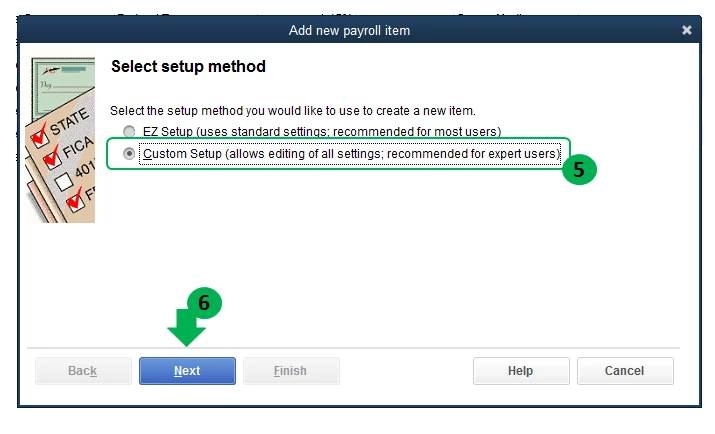
  3. Choose Custom Setup (allows editing of all settings; recommended for expert users) and click on Next.
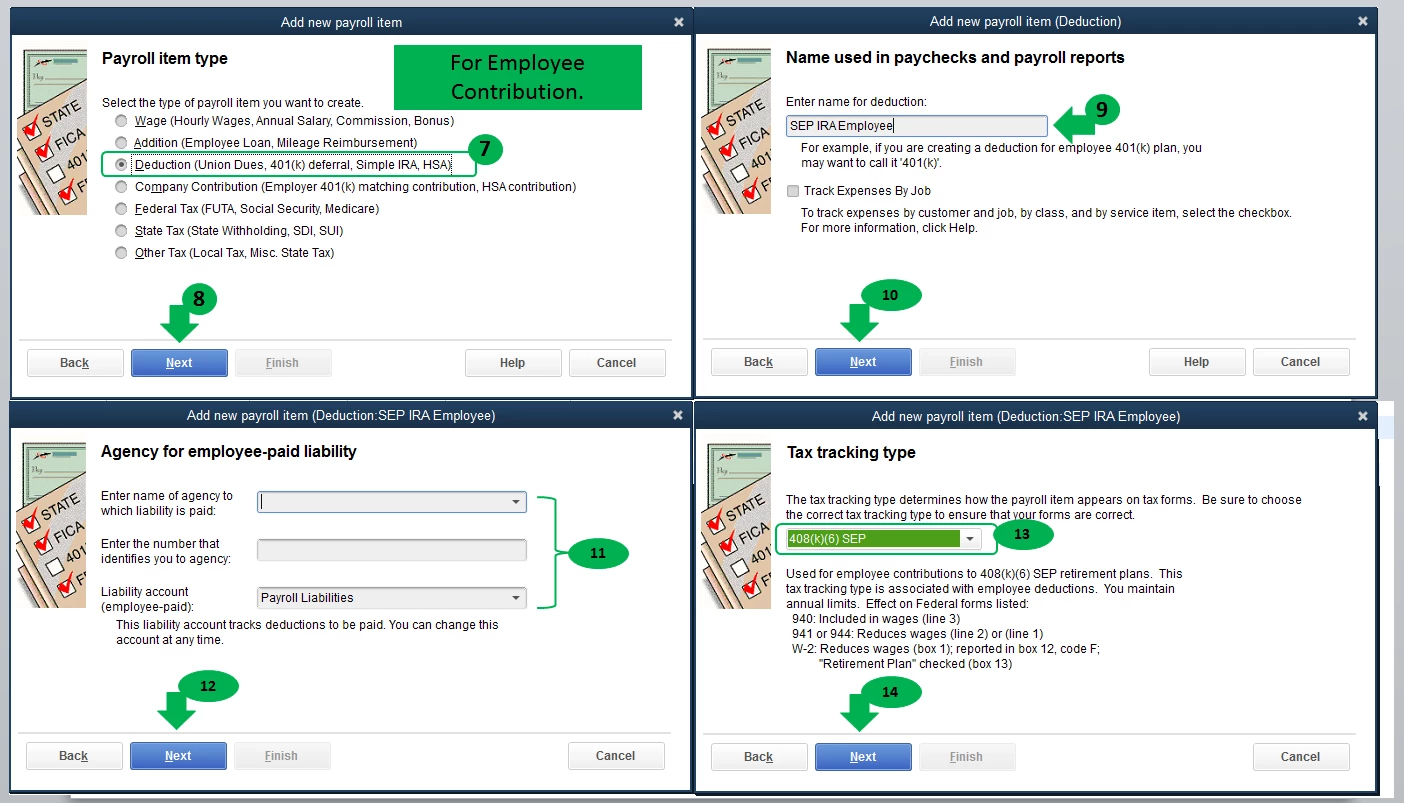
  4. Choose Deduction if this item will be used for employee contribution, enter a name, and select the name of the agency to which liability is paid. Then, choose 408(k)(6) SEP in the Tax tracking type window. 
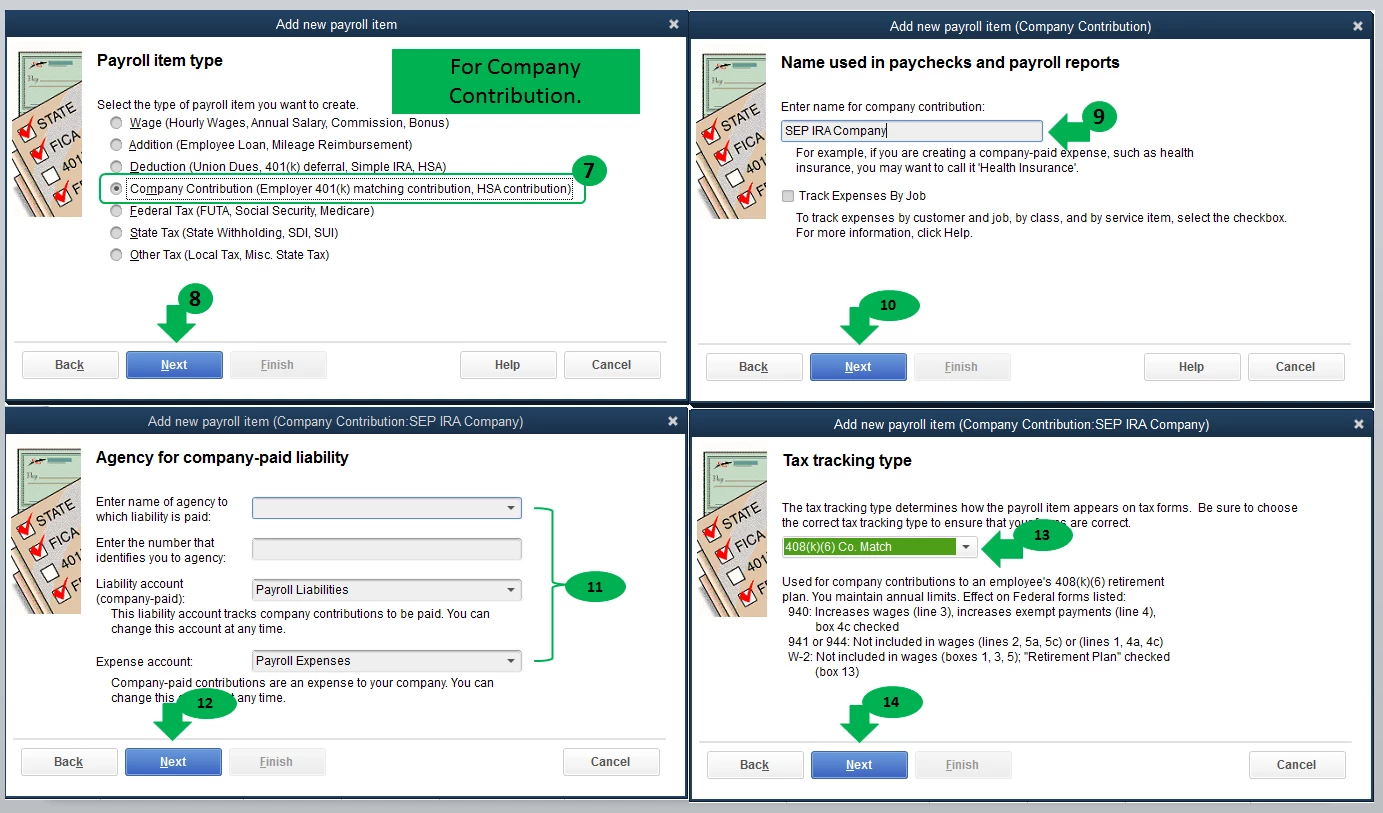
  5. Choose Company Contribution if this item will be used for company, enter a name, select the name of the agency to which liability is paid. Then, choose 408(k)(6) Co. Match in the Tax tracking type window. 
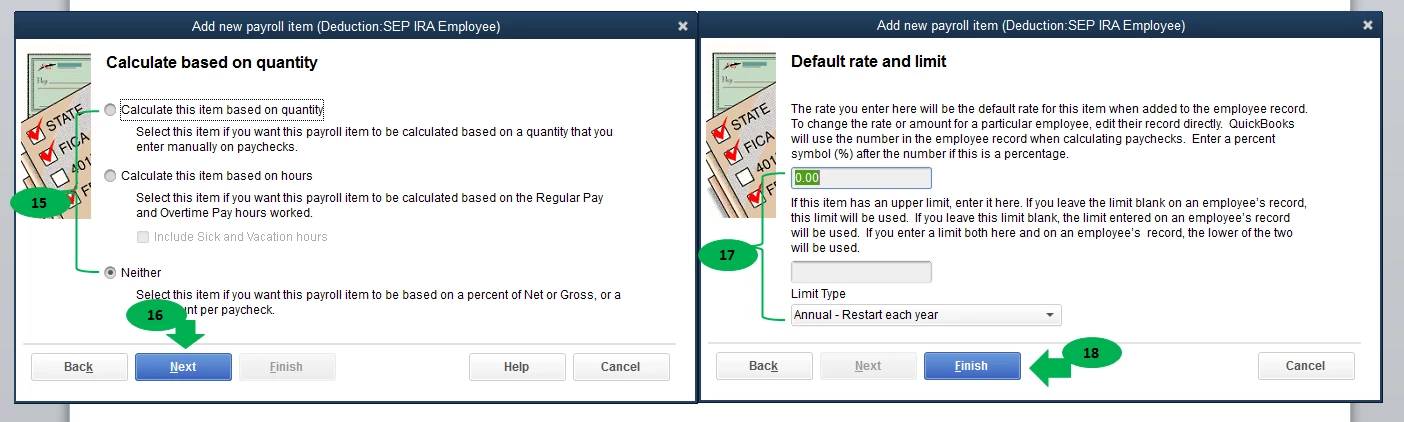
  6. Select your option in the Calculate based on quantity window and click on Next.
  7. Set your default rate and limit and click on Finish.

I've attached some screenshots below to help you with the process.
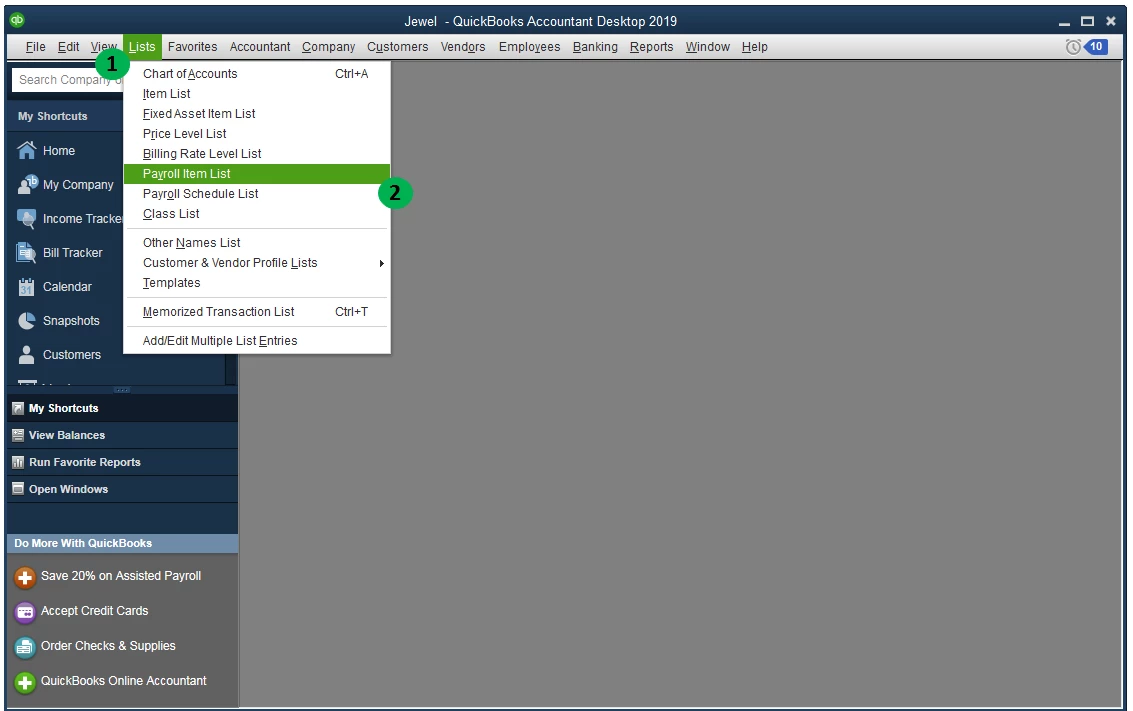


As a reference, you can refer to this article for further guidance: Set up a payroll item for retirement benefits (401(K), Simple IRA, etc.).


This should point you in the right direction. Let me know if you have further questions. I'm always here to help.

1 reply

JaneD
JaneDAnswer
April 25, 2019

Welcome to the Community, johnfilas.


Thank you for choosing QuickBooks Desktop as your partner accounting and tracking your payroll. I'm here to help set up a SEP IRA.


In a few easy steps, you can set up a SEP IRA. This item is used either for employee contribution to 408(k)(6) SEP or company contribution to an employee's 408(k)(6) retirement plans.


To do this task, please follow these steps:

  1. Go to Lists and choose Payroll Item List.
  2. Click on the Payroll Item drop down and select New.
  3. Choose Custom Setup (allows editing of all settings; recommended for expert users) and click on Next.
  4. Choose Deduction if this item will be used for employee contribution, enter a name, and select the name of the agency to which liability is paid. Then, choose 408(k)(6) SEP in the Tax tracking type window. 
  5. Choose Company Contribution if this item will be used for company, enter a name, select the name of the agency to which liability is paid. Then, choose 408(k)(6) Co. Match in the Tax tracking type window. 
  6. Select your option in the Calculate based on quantity window and click on Next.
  7. Set your default rate and limit and click on Finish.

I've attached some screenshots below to help you with the process.
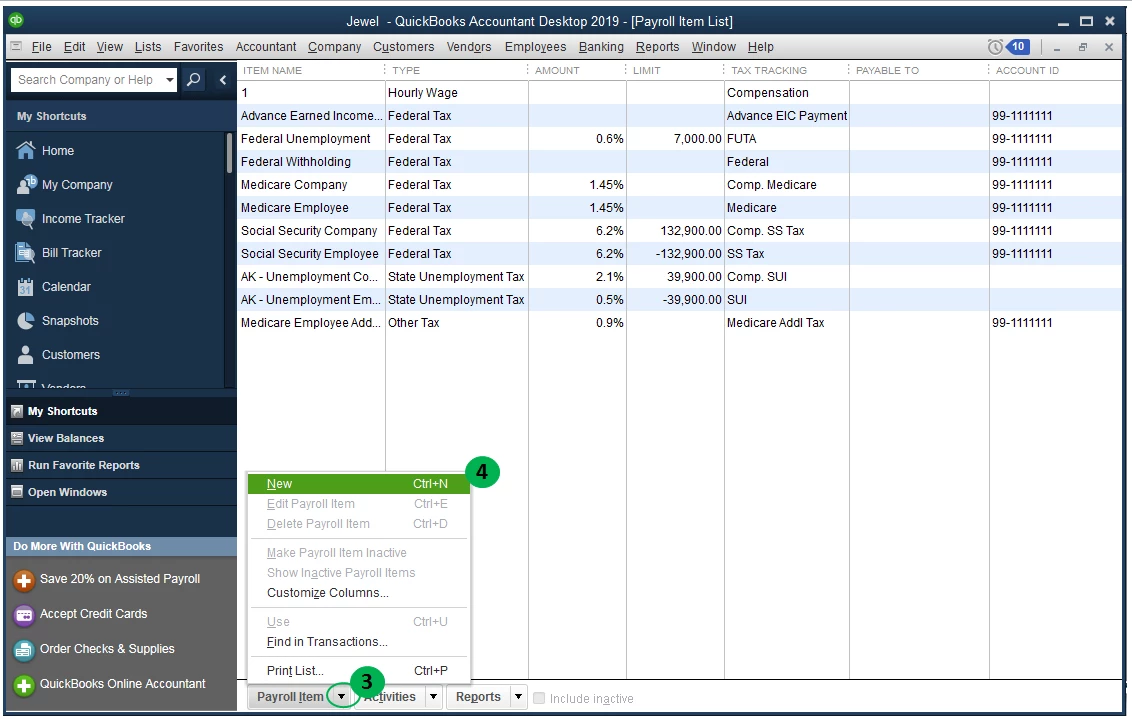


As a reference, you can refer to this article for further guidance: Set up a payroll item for retirement benefits (401(K), Simple IRA, etc.).


This should point you in the right direction. Let me know if you have further questions. I'm always here to help.

johnfilasAuthor
April 25, 2019

How to create a check to provider of SEP i.e. Edward Jons 

JaneD
April 26, 2019

It's good to see you again, johnfilas.


Let me help create a check to your SEP IRA provider in QuickBooks Desktop.


After creating the employee's paycheck, QuickBooks allows you to record a check through the Pay Liabilities window. To do so, you can follow these steps:

  1. Go to Employees and choose Payroll Center.
  2. Select the Pay Liabilities tab.
  3. In the Other Activities section, click on the Create Custom Payments link.
  4. Set the date range and click on OK.
  5. Mark to select the SEP IRA check and click on the Create button.
  6. Then, you can either print the check or click on Save & Close.

For your visual reference, please see attached screenshots.


You can also check this article for more information: Set up and pay scheduled or custom (unscheduled) liabilities.


From there, you'll be able to create a check for the SEP IRA provider.


Please let me know how things go once you've tried these steps. I'll be here to keep helping. Take care.