Despite attempts by Quickbooks Support Staff to "help" or "answer" my question... they fundamentally didn't understand what I was asking, and gave information that was inaccurate.
I was able to solve the problem through Trial & Error... but the software remains very buggy and inconsistent on this process.
Here is the layout that works to import a check from Excel, a check that is a split transaction with more than 1 line item.
| Check No | Payee | Transaction Memo | Print Later | Payment Date | Bank Account | Type | Category | Description | Amount | Customer / Project | Billable | Class |
| 1 | ABC Corp | Project Payments for portions of scope completed | FALSE | 01/31/2025 | Operating Acct | Category Details | Dataset Purchase | Purchased XYZ dataset to use in anlysis | 1.25 | Alpha | FALSE | East |
| 1 | | | | | | Category Details | Equipment Rental | Rented meeting space for project planning | 2.45 | Bravo | FALSE | South |
| 1 | | | | | | Category Details | Printing and Copying | Made copies of project plans | 3.15 | Charlie | FALSE | North |
How you do the import makes a difference, though. The process is buggy, however, and there were minor issues that popup -- so be careful.
Gear/Import Data/Checks - Use CSV
Take the table of info above and export to a CSV. When you then import the CSV file, the first thing you see is the dialog to "Map Your Column Headings". However, QBO will not auto match the Category Detail section, so you have to do it manually every time -- and that is easy, but requires a lot of clicking. THen you will be presented with a preview of your import. It all looks good and when you click SAVE, you will get the precise check entry in your register that you want. Even if you use a check number of "EFT" or "ACH" -- the import will work. The only snag is that it doesn't automatically map column headings. And, of course, you have to export from Excel to a CSV.
Gear/Import Data/Checks - NEW LAYOUT - Use CSV
Take the table of info above and export to a CSV. When you want to import, click on the NEW LAYOUT button at the top. When you then import the CSV file, the first thing you see is the dialog to "Map Your Column Headings". Voila! All of your column headings match perfectly! Then you will be presented with a preview of your import. Here's where it gets a little wonky. The BILLABLE column does not respect what you imported... it checks these items as billable, even though my file had that set to FALSE. 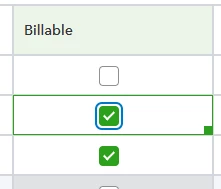
However, it doesn't matter -- because QBO ignores those fields during import and you can't mark anything as billable. It all looks good and when you click SAVE, you will get close to the precise check entry in your register that you want: the check number gets ignored, the Billable gets ignored, and so does the Print Later... the check has no check number and has to be switched from Print Later (fyi, in my case, these are ACH transactions that do not need to be printed). The import seems easier, but the results just ignore some of teh flags in the data. And, you still have to export from Excel to a CSV.
Gear/Import Data/Checks - NEW LAYOUT - Use EXCEL!
Take the table of info above and export to a CSV. When you want to import, click on the NEW LAYOUT button at the top. Now import the original Excel file, not a CSV version of it. You will see the dialog to "Map Your Column Headings". Voila! All of your column headings match perfectly! Then you will be presented with a preview of your import. The BILLABLE column does not respect what you imported... it checks these items as billable, even though my file had that set to FALSE. However, it doesn't matter -- because QBO ignores those fields during import and you can't mark anything as billable. It all looks good and when you click SAVE, you will get close to the precise check entry in your register that you want: the check number gets ignored, the Billable gets ignored, and so does the Print Later... the check has no check number and has to be switched from Print Later. The import seems easier, but the results just ignore some of the flags in the data. But, you don't have to export from Excel to a CSV.


