Thanks for the prompt response, @CharlesQuestion. I'm here to guide you on how to format the file to ensure you can import your invoices into QuickBooks Online (QBO).
Based on your configuration of the product/service item, you must verify that it aligns with the CSV file. If you're not using categories and subcategories, simply modify the service item in the CSV file by removing any associated categories.
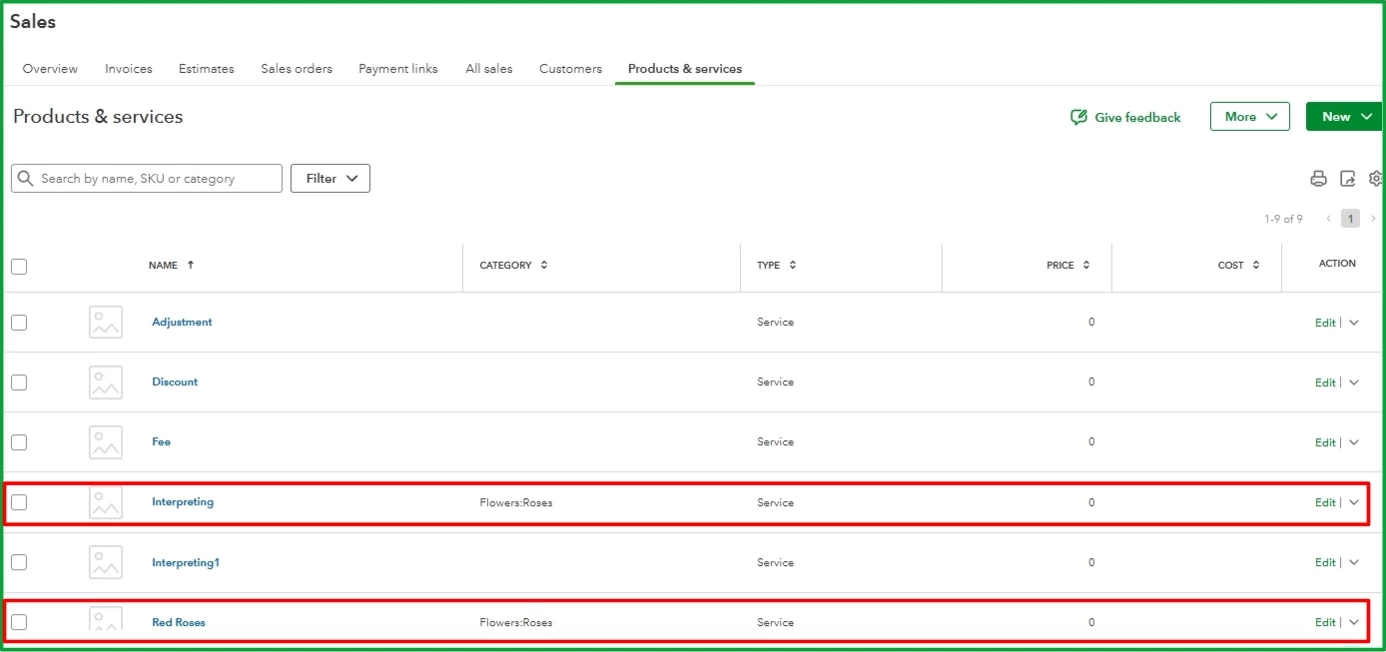
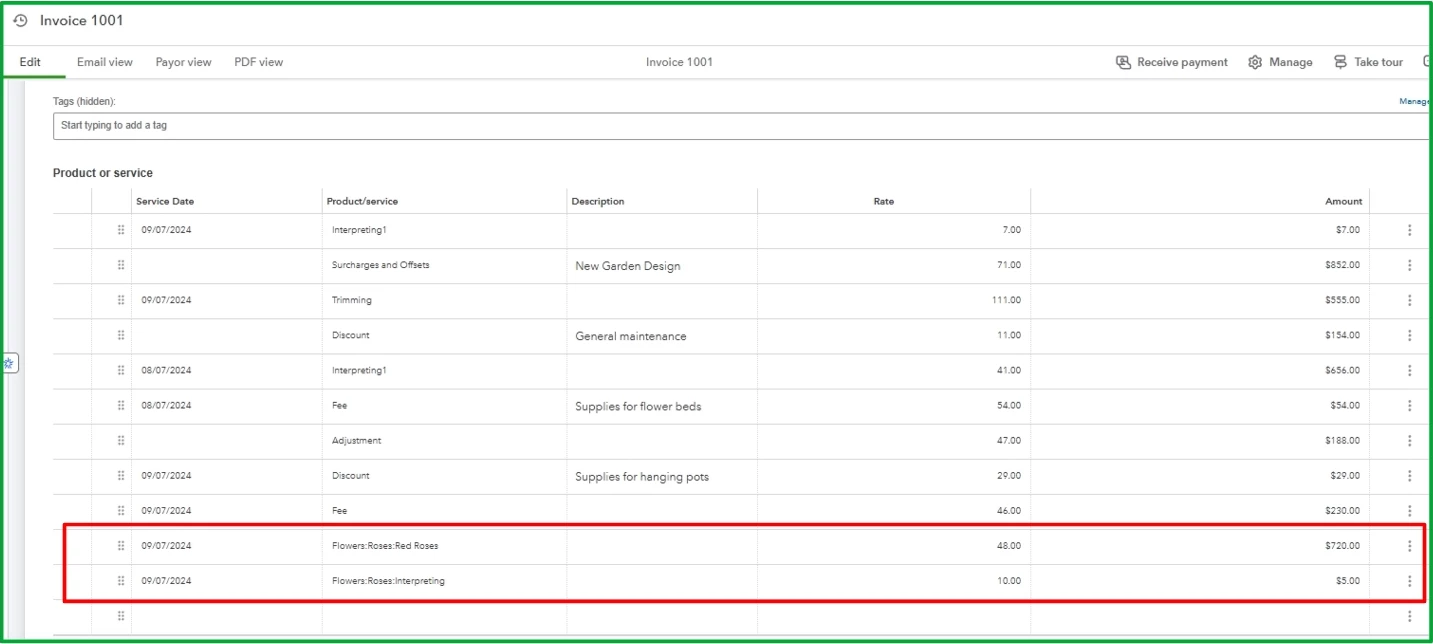
If you're using categories and subcategories, please ensure that you're using the correct format in the CSV file, which is [Name of category]:[Name of sub-category]:[Name of product/service]. For instance, if my service item is Interpreting, Flowers is the category, and Roses are the sub-categories. Then, the format in the Item column would be Flowers:Roses:Interpreting.
Please see the screenshot below for your visual reference:

Once imported, it will appear like this:
However, if it's formatted correctly in your CSV file and the issue persists, I suggest accessing your QBO account using an incognito window to determine whether the problem is with your browser. Here are the shortcut keys:
- Google Chrome: press Ctrl + Shift + N
- Mozilla Firefox: press Ctrl + Shift + P
- Safari: press Command + Shift + N
Once you're in incognito mode, log into your QBO account and import your invoices again. If you're able to import them using a private window, return to your regular browser and clear its cache. Clearing the cache and cookies is the best way to get a clean slate for your browser. Alternatively, using other supported browsers can also be a good option.
Moreover, you'll want to visit this article that outlines how to document your invoice payments to keep correct financial records: Record invoice payments in QuickBooks Online.
I'm all ears and ready to provide further support regarding importing invoices in QBO. I'm just around to promptly assist you. Have a great day!

