

July 27, 2022
Question

intuit data protect
  • July 27, 2022
  • 2 replies
  • 0 views

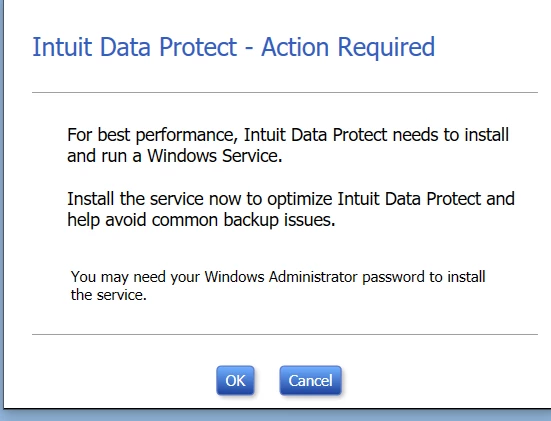
My customer has Intuit Data Protect and it works without any problems. The only issue is when the computer is turned on or restarted she gets a message box saying, “Intuit Data Protect – Action Required”. She must click on OK each time. I set the compatibility to run as an administrator and this prevents the message from appearing. However, Intuit Data Protect does not run. There is no password for her account and the administrator account.

How can this be solved so IDP runs without having to click on OK? This is Windows 10 with all the current updates.

Thanks.

2 replies

July 27, 2022

Thank you for dropping by the Community today, americancomputerenterprises.   


I appreciate you sharing the steps you took to move past the error, especially the outcome. This information will direct our next steps in resolving the issue. I’m here to help and will show you how to accomplish the troubleshooting steps.


Let’s install and run the Windows Service to optimize the performance of your customer’s Intuit Data Protect (IDP). You might want to seek further assistance from an IT professional.


Once completed, notify your customer to turn on the computer to check the error. If the issue persists, download and install the QuickBooks Tool Hub. This built-in utility is used to resolve common errors you encounter when working in QuickBooks.


Here’s how to run the tool:


  1. Make sure to close your QuickBooks.
  2. Then, download the latest version of the QuickBooks Tool Hub and click Save File.
  3. Open the QuickBooksToolHub.exe link.
  4. Follow the on-screen instructions to complete the installation process.
  5. Next, double-click the icon on your desktop to access the tool hub.


Here’s an article that covers all the information you need on how to: Fix common problems and errors with the QuickBooks Desktop Tool Hub.


These resources also provide detailed instructions for configuring the IDP as well as answers to frequently asked questions about the backup tool program.


Feel free to leave a comment below for other QuickBooks concerns or additional questions about IDP. I'm always available to help in any way I can. Have a wonderful day.


September 7, 2023

I made the mistake of accidentally clicking on "online backup" one day.  We have a backup system in place for our server, and I do a local backup of quickbooks every week.  I DON'T WANT TO BE NAGGED TO USE ONLINE BACKUP.  I followed the steps in this forum to try to remove this, but they did now work.  Now, I am getting daily emails asking me if I am having problems with the backup, and to contact support.  I don't want to spend yet another hour on the phone with Intuit support, and I don't want to be nagged about a backup that I don't want to use.


Has anyone successfully gotten rid of these on-line backup popup nag messages?

September 7, 2023

We sincerely appreciate your participation in this discussion, @DawnD12, and for sharing the details of your current situation. I am here today to offer my assistance and guide you through the process of resolving the issue you're facing with the daily emails and persistent reminders about a backup. 


If I may ask, have you set up Intuit Data Protect or currently have an active Intuit Data Protect subscription bundled with your QuickBooks Desktop? If yes, please know that you can always disable or remove it from your computer. If this isn't the process you mentioned you followed in our forum, I'd be glad to show you how:


1. Remove Intuit Data Protect from the Startup folder.

- Windows 10
a. Go to C:\ProgramData\Microsoft\Windows\Start Menu\Programs\StartUp

b. Right-click Intuit Data Protect and select Delete.


2. Stop all IDP processes
a. Open Task Manager.

b. Go to the Processes tab and find the following processes:
•  IntuitDataProtect.exe

• IBUEngHost.exe

• QBIDPService.exe

c. Click the processes one by one and click End Process.


For more information about the process, feel free to check out this article: Disable Intuit Data Protect


I've also included an article that'll help you change your email notification preferences in case you don't want to remove Intuit Data Protect: Change Intuit Data Protect Backup Settings, or view Status and History.


Additionally, I'd like to include that emails from Intuit always come from an email address that ends with @intuit.com. This includes @e.intuit.com. If the daily emails you're getting aren't from Intuit, you can go ahead and report it to our concerned team. However, if the emails are from Intuit and you still want to get rid of them, you can block the sender or move the messages to a separate folder. The process depends on the email application or provider you're using.


Moreover, here's an article I've included to help you recognize official Intuit correspondence and websites: Identify suspicious activity, phishing scams, and potential fraud.


Once again, we sincerely appreciate you taking the time to post your question here. It's customers like you who make our Community forum a valuable resource for everyone. If you have any further inquiries or need assistance managing your data and emails, please don't hesitate to ask. We're always here to lend a helping hand. Wishing you continued success in your future business endeavors!

October 8, 2024

I also keep getting the message, 'For best performance, Intuit Data Protect needs to install and run a Windows Service." I have Windows 10 and I am the administrator. When I click 'ok,' nothing happens and I continue to see the pop up with this message when I turn on my computer. 

October 8, 2024

To disable the pop-up message, it's best to ensure that Intuit Data Protect is properly installed from your computer, @PennyB. Let me help you accomplish this process.


If you haven't downloaded Intuit Data Protect, you'll receive the pop-up message when opening QuickBooks Desktop (QBDT). To remove this, you need to install this and add it as a trusted application.


To do so, here's how:


  1. Click the Windows button from your keyboard, then search for Firewall from the search field.
  2. Go to Allow an app through Windows Firewall, then Allow another app. 
  3. Select Browse and find Program Files(x68)\Common Files\Intuit\Data Protect.
  4. Choose QBIDPservice.exe, then Open.
  5. Select Network types, then Private checkbox, and Add.


Additionally, ensure that Intuit Data Protect is included in your trusted sites. Follow these steps to add them:

 
1. Press the Windows key on your keyboard and enter Internet options in the search box
2. Go to the Security tab and then click on Trusted sites.
3. Add the following websites by either copying and pasting or typing them in manually. Click Add for each site:
 
  • - backup.com
  • - *.intuit.net
  • - *.intuit.com
  • - *.intuitdataprotect.com
  • - *.quickbooks.com
  • - workplace.intuit.com
  • - emerald.backup.com


4. Ensure that the option for Require server verification (https: ) for all sites in this zone is unchecked.

5. Click Close, then OK.

6. Verify if you can access the Intuit Data Protect certificate site, as this is necessary to prevent backup errors.

7. Consider using Intuit Data Protect as backup.


Furthermore, in case the message prompt continues to appear even after following the aforementioned steps, we can proceed with further troubleshooting using the solution I will provide below.


  1. Ensure that IBuEngHost.exe is not active as a Windows user.
  2. Verify that your QBDT and Intuit Data Protect are updated.
  3. Utilize the Intuit Data Protect Diagnostic tool.
  4. Clear out space from the Intuit Data Protect.


For detailed instructions on these steps, please refer to this article: Unable to back up with Intuit Data Protect.


Additionally, I'll include these articles you can read if you want to learn more about managing your backup service in QBDT: 


Feel free to return to this thread if you have more questions about disabling pop-up messages in QBDT. We'll be around to assist you.