May 5, 2020
Solved

Invoice work around to have QBO show as sent,but not actually send the invoice from the QBO system.

  • May 5, 2020
  • 1 reply
  • 0 views

Hello,

Okay... so we have a client that wants us to send the invoices in one zip file instead of via QBO as a single invoice each time we create one.


Here is what I do:

I create invoice and mark "send later" .

I then download the invoice into a folder on our share drive, and hit save and close (or new).


Here is what I need:

To be able to have the 'Status'Column in the feed show as sent WITHOUT actually sending to the client from QBO, instead I will send the saved Invoices I download in zip folder to client.


Is there a work around that will get QBO to mark them as 'sent' without actually sending them?


It was suggested that I send to myself so that it trickes the system that they were sent.

Is that the only workaround anyone knows of?


Thank you so much for your help!

Best answer by DivinaMercy_N

Hello, @sicilianmissy6583.


Thank you for providing information about your concern. As a workaround, you can customize your invoice and add custom field name as Sent. 


Here's how:

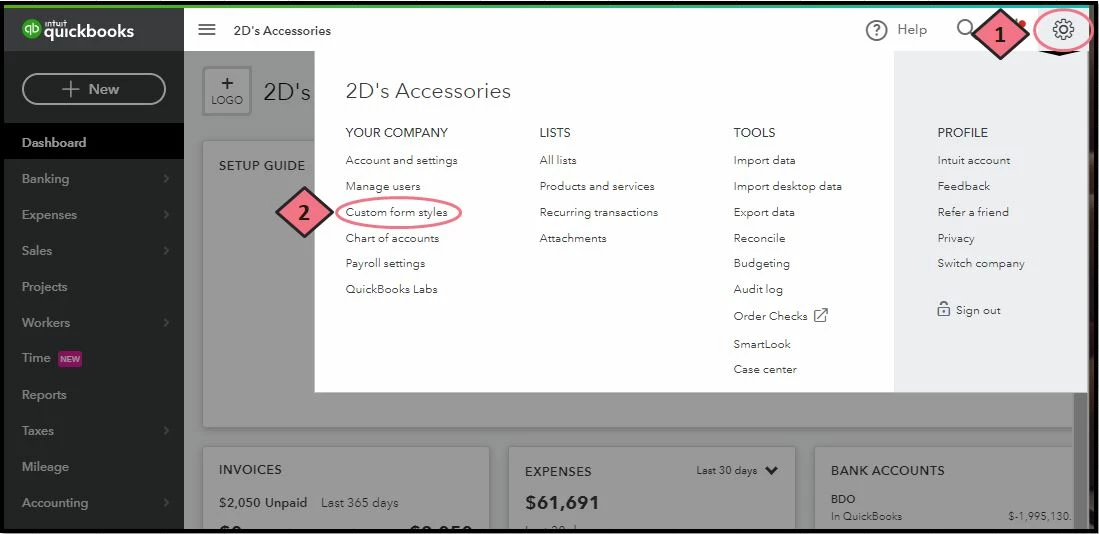
  1. Go to the Gear icon.
  2. Under Your Company, choose Custom form styles
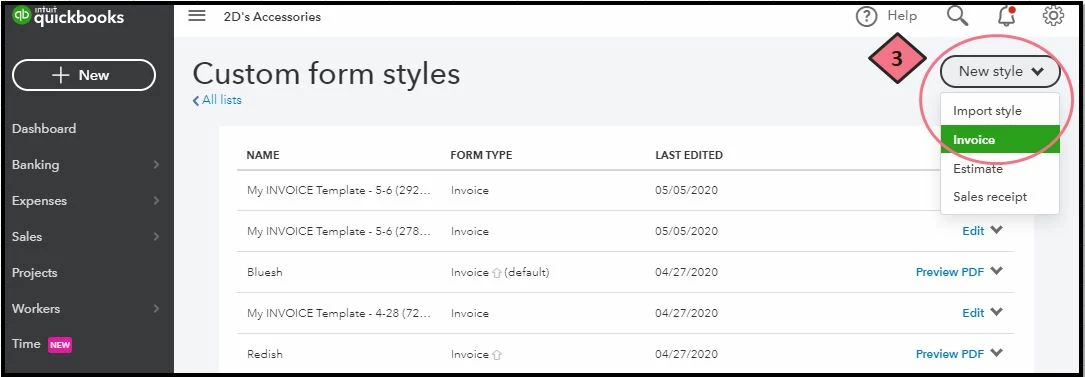
  3. Click the New style drop-down arrow and select Invoice
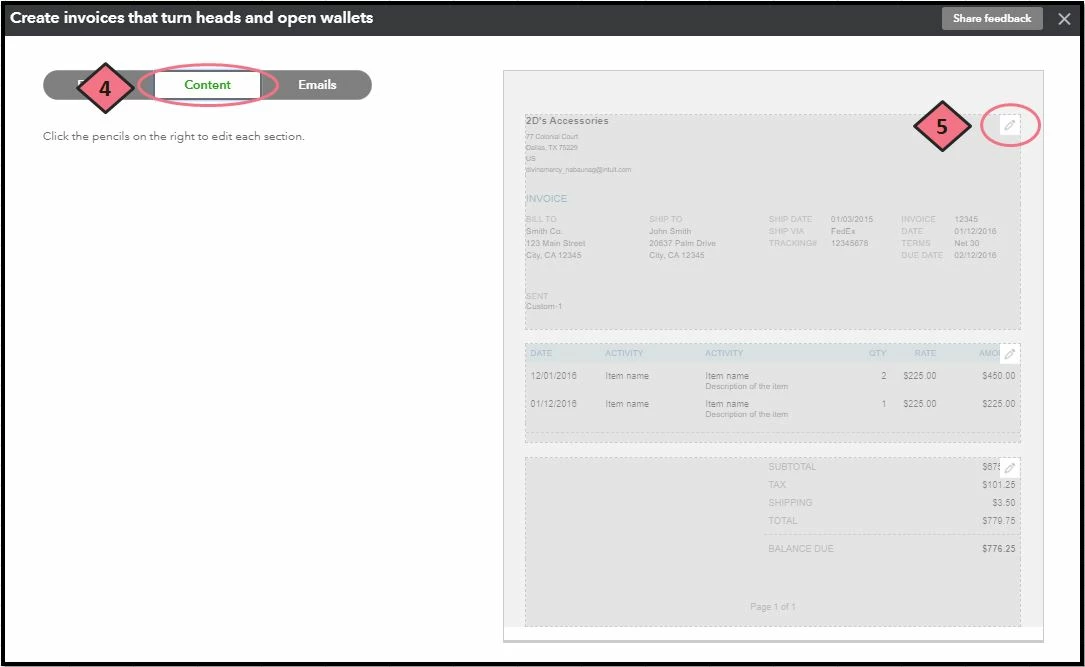
  4. Select the Content tab.
  5. On the Header field, click the pencil icon. 
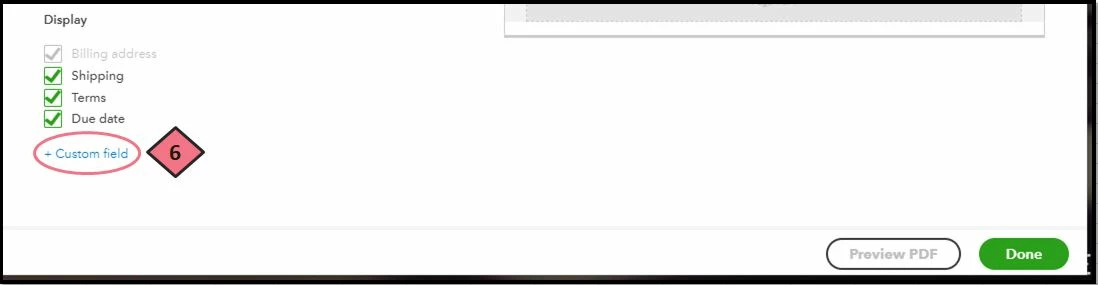
  6. Click the +Custom field option. 
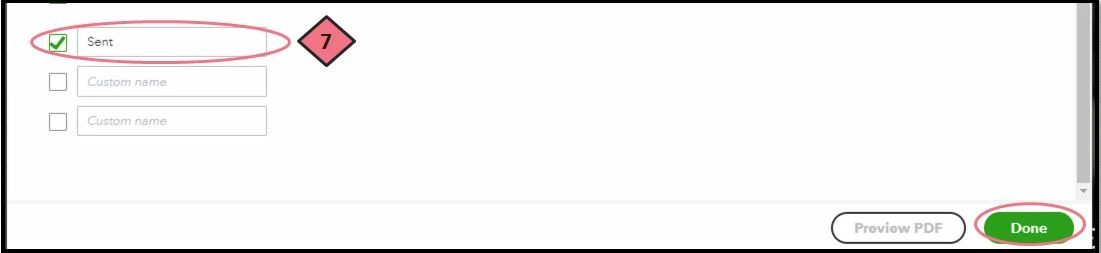
  7. Type Sent and click Done

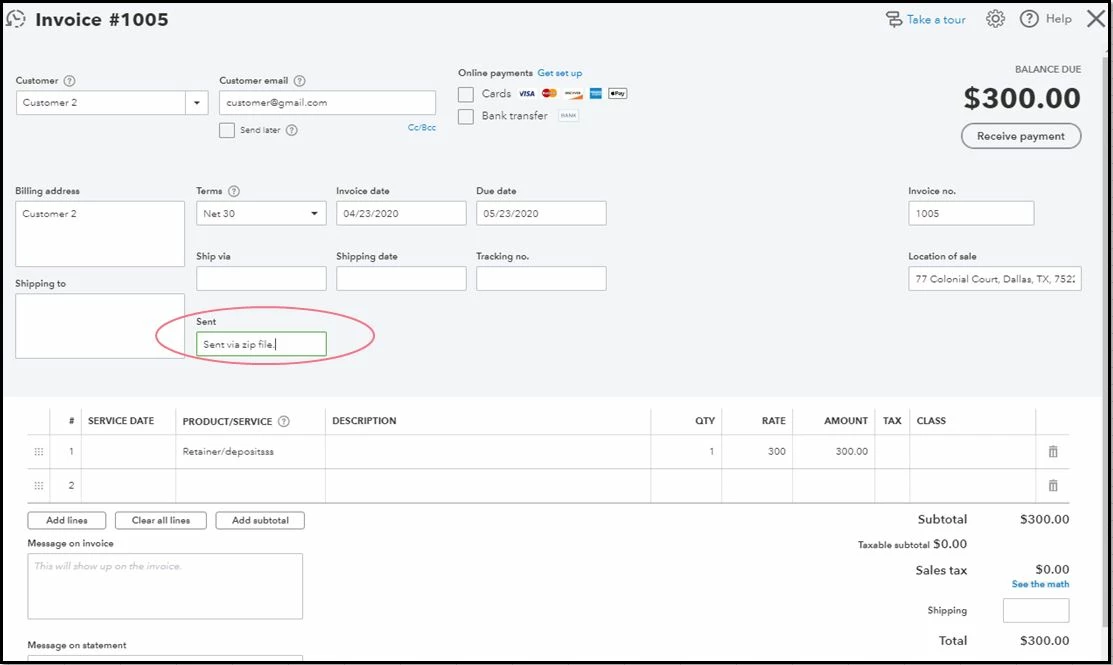
Once finished, open an Invoice and you'll see the Sent field. Then enter a text to indicate that it was sent via zip file and click Save.  


To learn more about customizing your invoice, you can refer to this article link: https://quickbooks.intuit.com/learn-support/getting-started-with-quickbooks/how-to-customize-invoices-in-quickbooks-online/ta-p/170845.


Let me know how it goes and leave a reply below if you have further questions. I'm always here to help. Stay inside and take care always!

1 reply

DivinaMercy_N
May 6, 2020

Hello, @sicilianmissy6583.


Thank you for providing information about your concern. As a workaround, you can customize your invoice and add custom field name as Sent. 


Here's how:

  1. Go to the Gear icon.
  2. Under Your Company, choose Custom form styles
  3. Click the New style drop-down arrow and select Invoice
  4. Select the Content tab.
  5. On the Header field, click the pencil icon. 
  6. Click the +Custom field option. 
  7. Type Sent and click Done

Once finished, open an Invoice and you'll see the Sent field. Then enter a text to indicate that it was sent via zip file and click Save.  


To learn more about customizing your invoice, you can refer to this article link: https://quickbooks.intuit.com/learn-support/getting-started-with-quickbooks/how-to-customize-invoices-in-quickbooks-online/ta-p/170845.


Let me know how it goes and leave a reply below if you have further questions. I'm always here to help. Stay inside and take care always!

May 6, 2020

Thank you so much!

Can you tell me if an Invoice is not sent from the system (QBO) and we only annotate it the way you suggested... will it still reflect in all the appropriate back end COA's and areas of accounting it needs to?

Does that make sense?


In other words, I was thinking that if we did not 'send' it, it would not reflect in the A/R, etc...


What I did was just send them to myself instead of client email so it would trigger the system and reflect as 'sent' in status.


Thank you so much for your help!
 

May 6, 2020

Yes, it'll definitely affect to its correct accounts, sicilianmissy6583.


All saved invoices though they are sent or not will show in the appropriate bank accounts like Accounts Receivable (A/R). I can walk you through on how to review the accounts it's affected to. 

  1. From the left menu, click Sales and select the Invoices tab.
  2. Select an invoice you want to review.
  3. At the bottom menu, select More
  4. Click Transaction journal

It'll show all the accounts the invoice is applied to. You can also view these references to know more about invoicing: 

You can always get back to us if you need anything else. You take care and keep safe always!