

August 27, 2020
Question

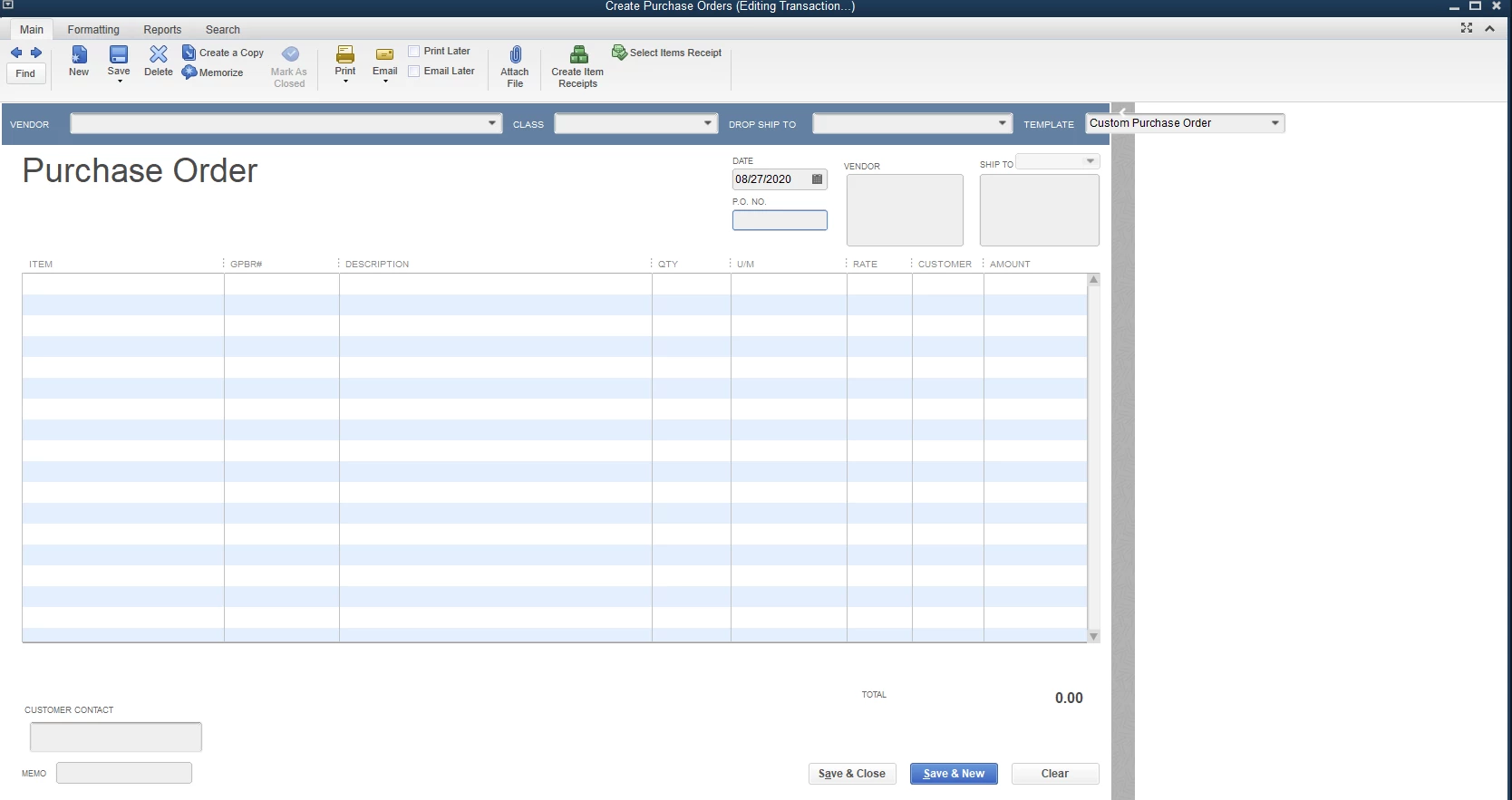
Large white empty space when entering Purchase Orders

  • August 27, 2020
  • 4 replies
  • 0 views

For the last several days we have been experiencing this large white empty space to the side when putting in PO's. Not sure if anyone else has experienced this or has any idea how to remove it. Any help would be appreciated. 
4 replies

Pabz_L
August 27, 2020

Hello, @M00S389.


Let me share some information about the large white space on the Purchase Order window.


The large white space that you see on the right side of the Purchase Order window is a summary of the information of your vendor. 


You’ll notice it when you put the name on the vendor field. It will also show all of the recent transactions that you had with your vendor.


To remove this, you need to click the arrow button at the top of this window pop up. 


Please see the screenshot below. 


To avoid errors or unexpected behaviors while using QuickBook Desktop, you can update your QuickBooks to its latest release: Update QuickBooks Desktop.


Please let me know if you have any other questions. I am here to help. Have a nice day!

M00S389Author
September 28, 2020

I am afraid you are mistaken sir.  The white box is not the summary as you can see from the photos. 

Candice C
September 28, 2020

Thanks for the additional screenshots and clarification, @M00S389


Let's run the repair tool to help resolve this issue when creating a purchase order. Don't worry. It only takes a few easy steps. 


Here's how: 


  1. Back up your company file
  2. Restart your computer. 
  3. Go to the Windows Start menu, and then pick the Control Panel
  4. Tap Programs and Features and then Uninstall a Program
  5. Choose QuickBooks and then Uninstall/Change
  6. Press Continue or Next
  7. Hit Repair and then NextNote: The repair should start right away, but it may take a while to finish. You can leave it running and come back once it's done.
  8. Click Finish when done. 
  9. Restart your computer to complete the repair. 
  10. Ensure that your QuickBooks Desktop is updated to the latest release


For a future reference, here's an extra article about purchase orders that can help you and your business. 


Let me know id this helps. I want to ensure all of your concerns are addressed. I'll be waiting for your response. 

September 23, 2022

Same issue here. It started when I added some fields to the on-screen template. Even after removing those fields, the white space stays. It didn't affect just me, all of our users are experiencing the same issue, even those that have never selected the template I made changes on. Uninstall/Reinstall may sound great, but we are on a remote server with 30 users, so it takes quite a coordinated effort to perform any changes/updates to QBE. 

November 14, 2022

Just fixed this for a client of ours. Here's what worked for me.


1. Uninstalled all QuickBooks related programs using Revo uninstaller (free version). Chosing the Advanced scan and deleting any files/folder and registry items found.


2. Then I checked manually for any remaining Intuit folders in the following locations. Renaming them to foldernamebak (doesn't matter what you call it, only renaming to have as a temp backup)


%systemdrive%\Program Files

%systemdrive%\Program Files (x86)

%systemdrive%\ProgramData

%userprofile%\appdata\Local

%userprofile%\appdata\Roaming


3. Open up regedit and deleted the following keys (folders). Make sure to right-click the keys and export them if you're worried about breaking anything. You can re-import them if there's an issue.


HKEY_CURRENT_USER\Software\Intuit - if logged in as the user having the issue

HKEY_LOCAL_MACHINE\SOFTWARE\Intuit


If you're not logged in as the user for admin permissions then you can find the user under HKEY_USERS

You can check what folder it is from the following location in the registry

HKEY_LOCAL_MACHINE\SOFTWARE\Microsoft\Windows NT\CurrentVersion\ProfileList\

Just need to scroll through the list of keys (folders) in that location and look for the one with the correct username. Should be under "ProfileImagePath"


4. Reboot, reinstall and test.

January 6, 2023

Since the best solution Intuit has had for the last 3 years is "dunno, reinstall it?", I thought I'd share some my insights on this issue.


Reinstalling is not a solution, changing graphic settings are not a solution, changing the weak Quickbook settings are not a solution.


I believe it's an issue with the template getting corrupted, seemingly from being edited, modified, converted, looked at, thought about, etc. Once the issue appears, it impacts everyone that uses it regardless of the Quickbooks version.


The way I've fixed it is to:

1. Remake the template from scratch

2. Painstakingly change all the old PO's to the new template...manually, because Intuit doesn't believe in batch actions for PO's.

3. Grab the old pillow to scream into.

4. Close and reopen Quickbooks to see results.

5. Hope you don't have to ever edit a PO template ever again.


I would recommend creating a dummy template as a test, then trying it out on a dummy PO before wasting your life.

March 12, 2024

This issue is still alive (and unwelcomed) in 2024. My experience with the empty window goes like this: When the window pops open, I'll close the program, reopen, and the window is gone. But as soon as I save my next PO, that giant blank window pops open again, and can't be closed. We just installed Premier Plus Contractor 2024. My 2021 version did it occasionally, but a restart of the program would fix it. I never figured out how/why the window opened in the 2021 version. But in 2024 the box opens every time I save a PO. So annoying! And I agree that uninstalling and reinstalling the program every time is a ridiculous solution. And seeing as the issue has been ongoing since 2020 I doubt Quickbooks is planning on doing anything about it. End of Rant


March 12, 2024

You deserved to be heard, Laurie.


No worries, I know the possible reason why you're still experiencing the empty window and I've got some ways to help you achieve that.


Firstly, you have to change the display settings in QuickBooks Desktop.


Here's how: 


  1. Close QuickBooks Desktop.
  2. Open the Windows Start menu.
  3. Type "QuickBooks" into the search. Then right-click the QuickBooks icon and select Open file location.
  4. In the folder, right-click the QuickBooks.exe file and select Properties.
  5. Go to the Compatibility tab.
  6. Select the Disable display scaling on high DPI settings checkbox. You can also select Change high DPI settings and then Override high DPI scaling behavior.
  7. Select Apply and then OK.


Once the empty window is still there, let's adjust your view preferences in QuickBooks Desktop and change your Windows display settings.


Alternatively, you can also use this shortcut key ALT + F4 for the window pop up to be closed.


If the issue still persists, I'd suggest contacting our QuickBooks Support team to add you to the list of affected users and be informed promptly once it's resolved. 


To do this, here's how: 


  1. Open QuickBooks.
  2. Go to Help, then select QuickBooks Desktop Help/ Contact Us.
  3. Select Contact Us.
  4. Enter a summary of your concern, then select Continue.
  5. Sign in to your Inuit account and select Continue.
  6. From there, click Continue with my account.
  7. We'll email you a single-use code. Enter your code and select Continue.
  8. You can either choose Chat with us or Have us call you.


Lastly, I've added a resource for you to be able to learn on how to use one of the tools in fixing issues in QuickBooks Desktop: Fix company file and network issues with QuickBooks File Doctor.


If there's something else that we can do for you using QBDT, don't hesitate to reach out to us again. Stay safe and have a good one.

January 7, 2025

"I am increasingly concerned that this entire issue is being overlooked by Intuit. It's unclear why this problem persists, especially given that Intuit's transition to a subscription-based model at $2,000 per year (plus additional costs based on individual needs) was supposed to ensure a permanent resolution. The lack of attention to this matter is disheartening, and it’s one of several reasons why I am now seriously considering alternative accounting software, despite being a loyal customer for nearly 18 years."

This approach maintains