February 20, 2022
Solved

Manuualy reordering the chart of accounts

  • February 20, 2022
  • 1 reply
  • 0 views

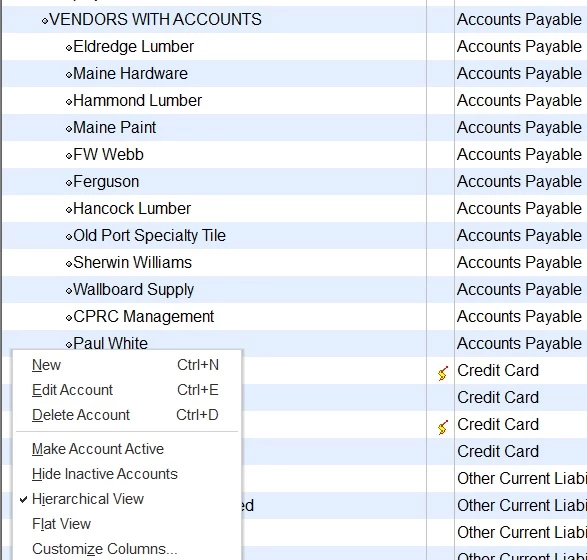
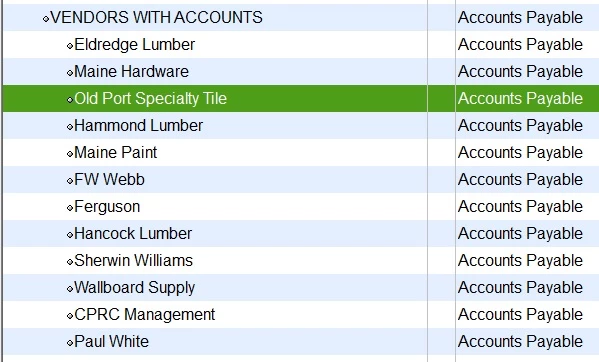
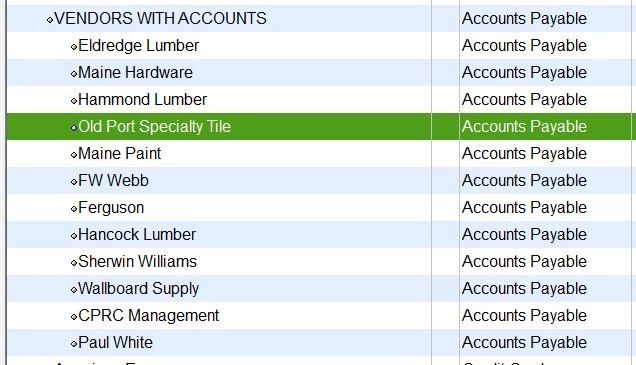
I've encountered a problem when manually moving an account in the chart of accounts in QB 2022. In hierarchical view, click and drag an account, drop it (within the same account type) where I want it but it drops a couple of lines away and will not go where I want it. Does anyone have a fix for this issue?

Best answer by Charies_M


As you can see these are all accounts of the same type and the list is in it's original order in Hierarchical view in the first picture.   In the second picture I dragged Old Port Specialty Tile to BENEATH Hammond Lumber and on release of the mouse it lands above Hammond Lumber.  3rd Shot I had to drag Old Port Specialty Tile beneath Maine Paint to get it to land beneath Hammond Lumber where I want it to live.


I appreciate the screenshots you've provided, DawnTully.


I replicated your situation just to verify and it turns out that you should be able to move the accounts you're trying to order in the Chart of Accounts.


The suggestions shared on this thread by my colleagues are designed to fix this behavior in QuickBooks Desktop (QBDT). Since you're still experiencing the same issue, I recommend reaching out to our QuickBooks Team. They can conduct further investigation to find a solution for this.


Here's how to contact us:

  1. Go to the Help menu. 
  2. Press the QuickBooks Desktop Help option. 
  3. Click the Contact Us hyperlink. 
  4. Give a brief description of the problem and hit Let's talk
  5. Scroll down and choose to Get a callback.


Also, you can check out these articles for tips that will make navigating around QuickBooks even easier: QuickBooks Desktop Help Articles.

Drop me a reply if you have other questions while managing your Chart of Accounts. I'm always happy to assist you further. Have a great day ahead.

1 reply

February 20, 2022

Hi there, @1265990.


Thank you for posting in the Community. I'd be happy to help share some details about manually rearranging the account in the Chart of Accounts (COA).


Let's make sure that you only drag and place the parent account with the same account type. Also, ensure to drag and drop the same subaccounts under a parent account.


However, if you see an unusual error message that isn't related to one of the causes listed below, I recommend using the Re-sorting list feature to resolve the issue. This restores the default order of your lists and allows you to rearrange them.

  • This account must stay with other accounts of its type.
  • Subaccounts must be the same account type as their parent.
  • You cannot move the list element while the list in the "Flat" mode.


You'll want to know about the account types in COA, you can reference this article: Learn about the chart of accounts in QuickBooks.


I'm just a reply away if you need any further assistance in managing your accounts. Wishing you and your business continued success.


February 21, 2022

Thank you Abigail, however I am not trying to order my accounts out of their account type.  In fact I'm simply trying to order subaccounts unsuccessfully.  This is truly a new twist I've never encountered in over 25 years of using Quicken-Quickbooks.  It's not covered in any help category nor in any conversation I can find in the community. 


The list is in hierarchical order

I'm moving accounts with their own type

Keeping subaccounts with parent accounts.


Do you have any other ideas of what is causing this behavior?

RenjolynC
February 21, 2022

Thanks for keeping us updated of the situation, DawnTully.


Let me add some additional steps to help you resolve the issue.


This might be caused by a possible data damage. We can perform the Verify and Rebuild Data. This tool helps identify any minor issues within your company file and automatically fixes them.


To Rebuild Data, here's how:


  1. Go to Window > Close All.
  2. Verify Data. Choose File then Utilities. Select Verify Data. If you see:
    • "QuickBooks detected no problems with your data," no further action is needed.
    • A specific error message, there may already be an article for it. Try searching for it in our QuickBooks Desktop support site for specific instructions.
    • "Your data has lost integrity," indicates there is data damage in the file.  Continue to the steps below to Rebuild Data to correct the problem.

    Note: Assisted Payroll customers should consult an Assisted Payroll agent before running Rebuild Data.

To Rebuild Data, you can follow these steps: 


  1. Go to File Utilities > Rebuild Data.
  2. You will receive a warning message to backup your company file, click OK. A rebuild requires a company file backup beforehand because in rare cases the process may need to delete transactions or list entries to fix the file.  A backup of your company file will ensure you have a secured copy of your company file before any changes are made to it.
  3. Select where you want to save your backup, then select OK at the bottom of the QuickBooks Desktop Backup window.
    1. If the backup fails, select Cancel at the Rebuild prompt and contact Payroll Support for additional assistance.
    2. If a message asks if you want to replace another backup file, select NO. Enter a new name in the File name field and click Save
  4. The Rebuild Data utility starts as soon as the backup is finished.
  5. Click OK when you get the message "Rebuild has completed".

After the steps, please run the Transaction Detail report and check to see if the transactions for Simple IRA are showing up. Otherwise, you can follow the other solutions shared in this article: Fix data damage on your QuickBooks Desktop company file


To learn more about the reports and how you can customize them in QuickBooks Desktop:


Please let us know again on how it goes after trying out the steps. We want to make sure this is resolved for you. Stay safe.
