I'm here to help you migrate your online data to QuickBooks Desktop, forestqueen.
Yes, you're right. QuickBooks Desktop 2018 is no longer supported, and support is no longer available. I understand the need to move back to the desktop version. I'll provide steps to do this.
First, sign in to QuickBooks Online (QBO) and download the migration tool:
- Sign in to the QuickBooks Online account you want to convert to Microsoft Edge. Use your Intuit Account credentials.
- Click the URL and replace anything after /app/ with exportqbodatatoqbdt. The URL should say https://app.qbo.intuit.com/app/exportqbodatatoqbdt, then hit Enter on your keyboard. Other support task links won't work during this process.
- You'll see Export Overview, read or print it. Click Get Started.
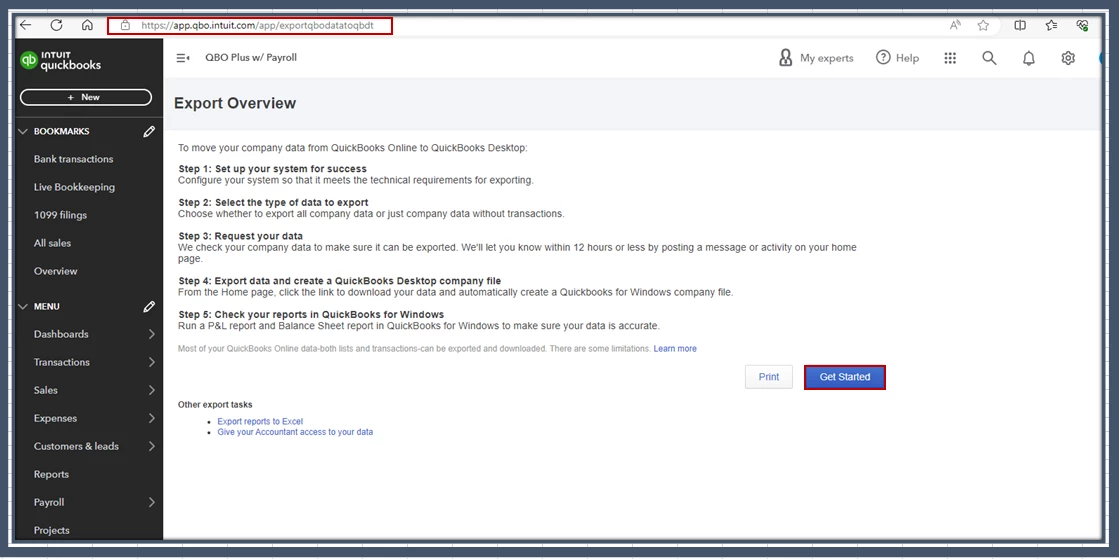
- Hit the Download tool.
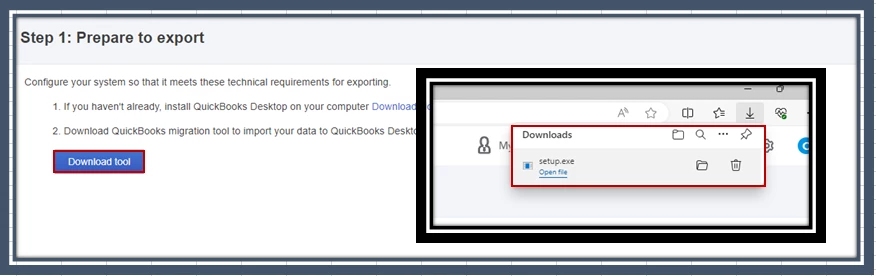
- Once you download the tool, launch and install it and click Next.
- Accept the terms in the license agreement, then proceed to the Next part.
- Hit Complete as the type of setup, then Next.
- Tap Install, then Finish.
Next, prepare the file for export and choose your data in QuickBooks Online for export:
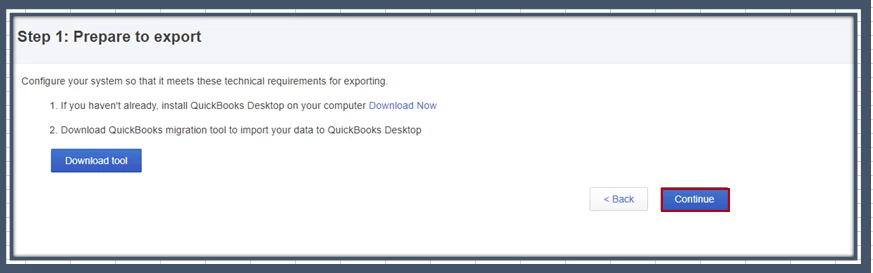
- Go back to QuickBooks Online. You should still be on Step 1: Prepare to export window, click Continue.
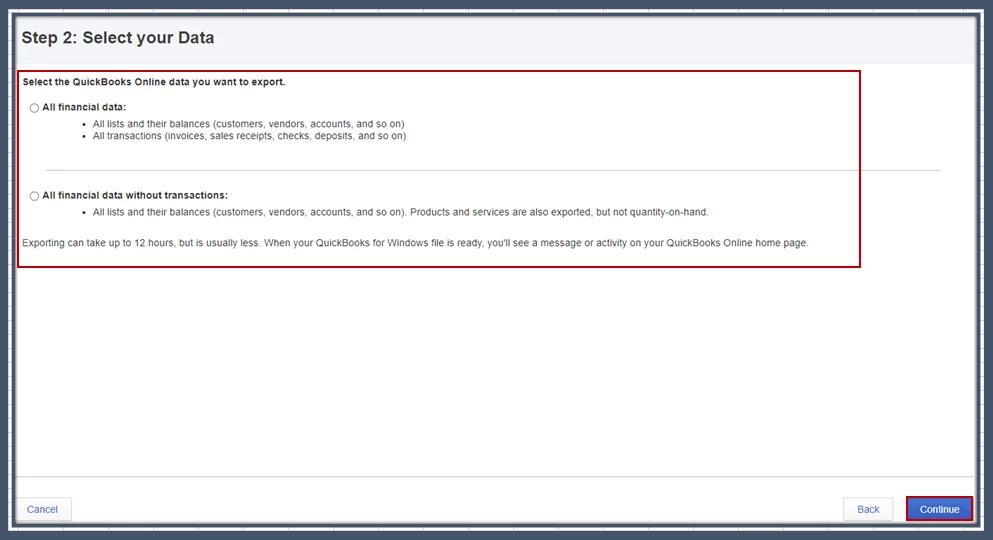
- Choose what data you want to export, and tap Continue.
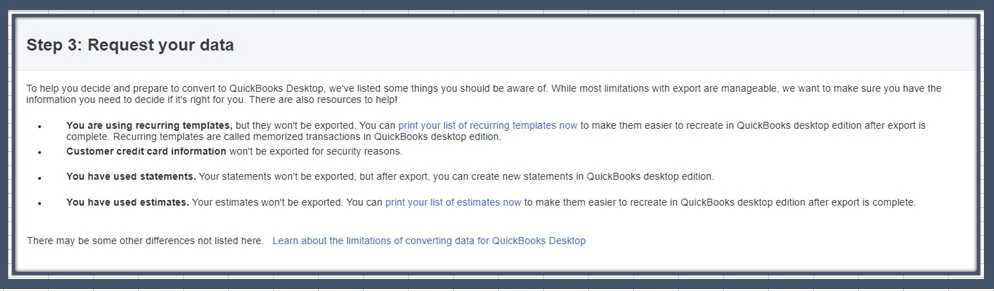
- Select Learn about the limitations of converting data for QuickBooks Desktop to learn the details that can impact your migration, and tap Continue.
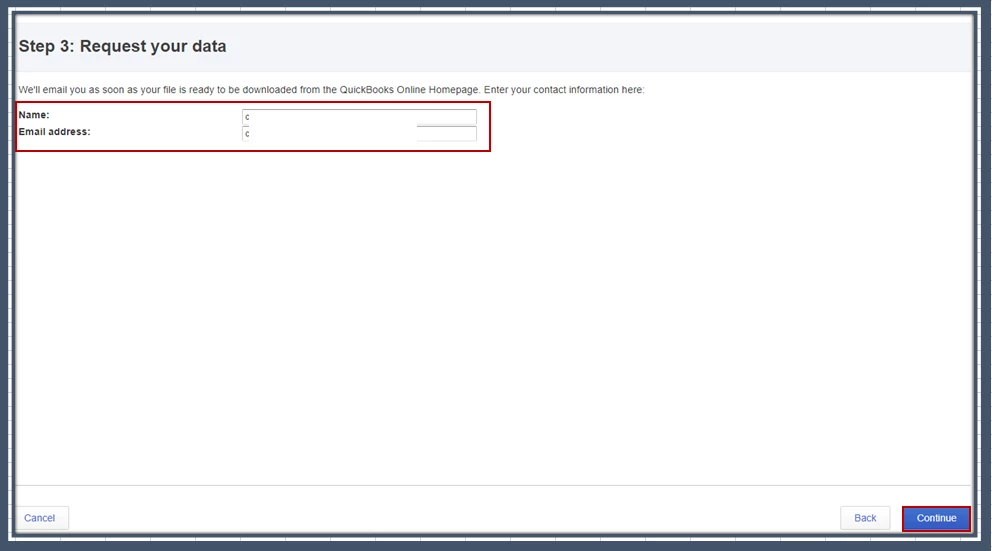
- Enter the Name and email address you want the migration confirmation email sent to and hit Continue.
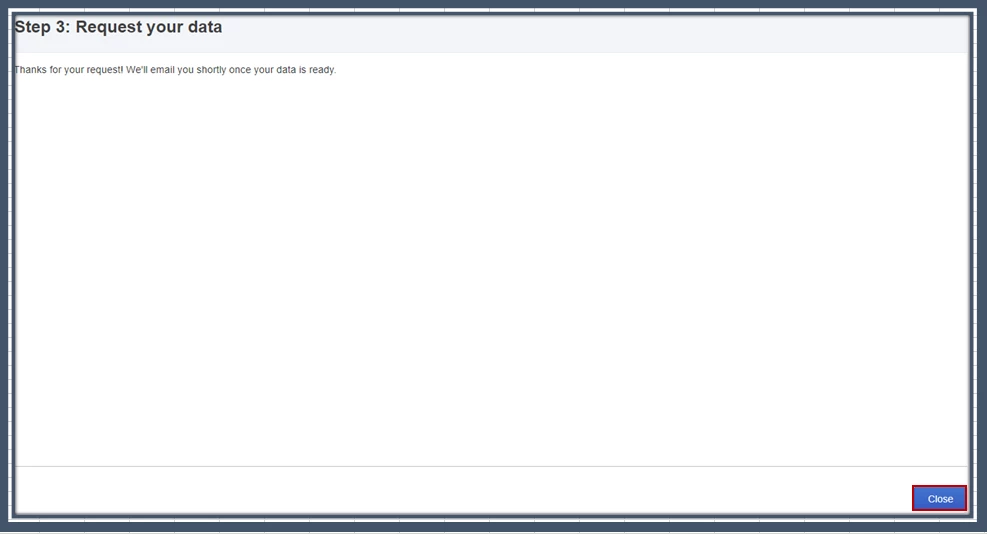
- Hit Close to go back to your QBO file. Wait for your email confirmation. The email may take some time. It depends on the amount of data you migrate.
- You'll need to get back to the export screen in QuickBooks Online. Repeat the previous steps in Step 2 to get back to the export page and then press Get Started.
- On the Prepare to export page, click Continue.
- On the Select your data page, choose the same option you selected previously and continue.
- On the Exporting from QuickBooks Online page, you'll have a message that says you already have a file to download. Tap Continue to Download.
- Hit Download QBXML file. If QuickBooks prompts you to save the file, choose a location to find, like your desktop, and Continue.
- In QuickBooks Desktop, make sure you're on the No Company Open screen.
After that, run the QuickBooks Desktop migration tool:
- Make sure QuickBooks Desktop is open at the No Company Open screen.
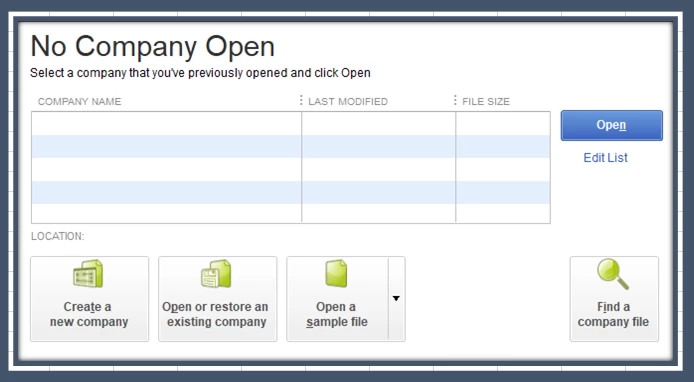
- Open the QuickBooks Desktop migration tool app you downloaded from Step 2.
- Enter (or Browse to) the path to the downloaded QBXML file and click Import.
- Pick a location and name for your new QuickBooks Desktop file.
- Look for the QuickBooks - Application Certificate. It may be hidden behind other screens if QuickBooks Desktop is in the background. Choose the read/modify rights and if you want to allow personal data access. Select Continue and Done on the confirmation screen.
- Hit Done once your data has been imported successfully.
Please note that it may take some time for this process to finish. Even if it looks like it's frozen, it doesn't mean the export has failed. Give it a few minutes, and the progress bar will move again.
For more details about the process, please see this article: Move your QuickBooks Online Data to QuickBooks Desktop.
After you export your company, run the Profit and Loss report in both programs to verify if everything matches.
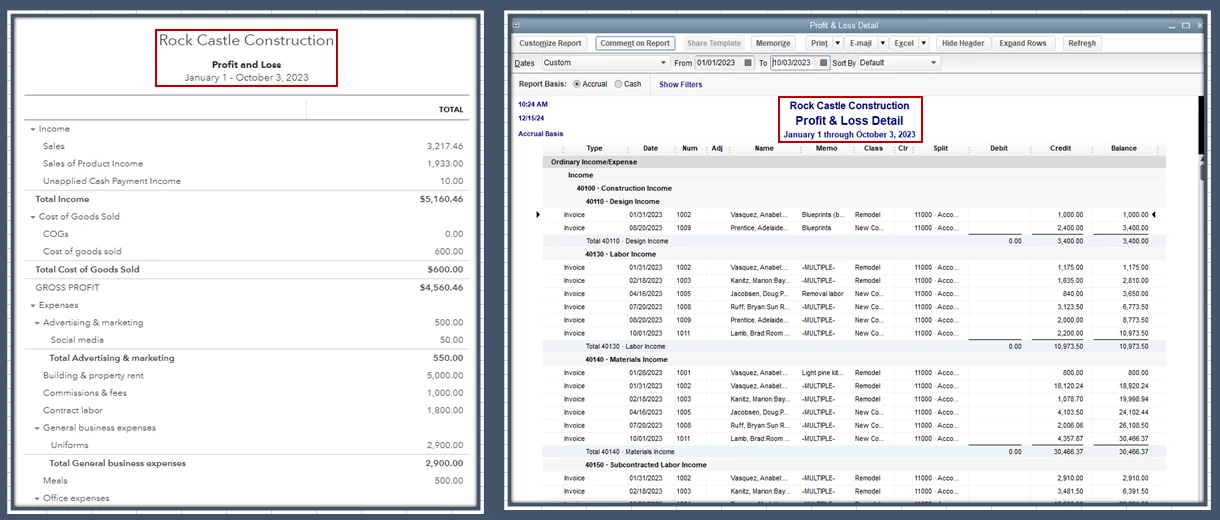
In addition, I've added a resource that'll help you find out how your books will move to QuickBooks Desktop: Get more Info about what Data Does and Doesn't Export from QuickBooks Online.
Please let me know if you need further assistance the with migration process. I'm always around to provide answers and clarifications to your questions. Have a great day ahead, and take care.

