

February 5, 2022
Solved

On Company Open, White Search Bar Appears

  • February 5, 2022
  • 2 replies
  • 0 views

This happened once before a year or two ago, and I have forgotten how I FINALLY fixed it permanently.
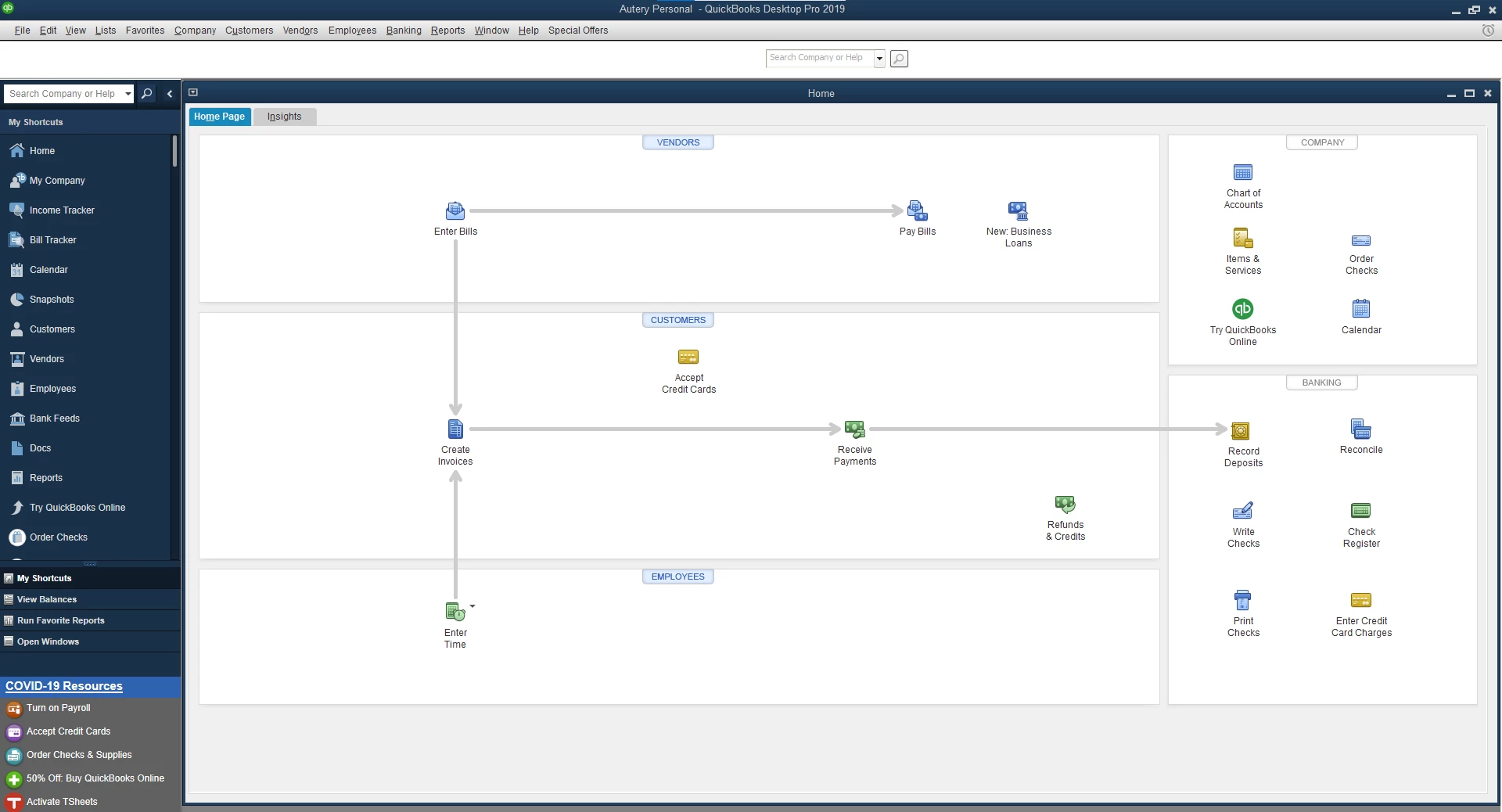
When you open the first Company file right after opening QB, a blank white bar with JUST a search box in it shows up between the Menu bar at top, and the HOME/Left Icon Bar at left.

It just came back again a few days ago....

I have to hit View --> Top Icon Bar and then View --> Left Icon Bar to make it go away.

Anyone have this issue currently?  Anyone remember how we finally fixed it?

Picture attached... would not let me post it inline....


Best answer by LieraMarie_A

Hi there, @cautery. I'm here to share additional steps to remove this white search bar.


Here's how:

  1. Click the View menu.
  2. Select Top Icon Bar. This will enable the Customize Icon Bar from the View menu.
  3. Click the View menu again and select Customize Icon Bar.
  4. Uncheck Show Search Box in Icon Bar and click OK.
  5. From the View menu, select Hide Icon Bar and then choose Left Icon Bar.


If it keeps reappearing every time you open QuickBooks, you can run the Verify/Rebuild tool. This will fix any data-integrity issues on your company file. Otherwise, you can perform a clean install of your QuickBooks Desktop to start with a clean slate. Before doing that, I'd recommend creating a backup copy of your company file. 


Be sure to let me know what your results are. If you have any questions about anything else, don't hesitate to reach out to us here in the Community.

2 replies

JenoP
February 5, 2022

I'd be glad to help you remove the Search bar again, cautery.


Here's how:


  1. Go to the View menu in the upper-most part of QuickBooks.
  2. Select Hide Icon bar.


Once done, go back to the Home page and check if you can no longer see the Search bar.


Let me also leave these articles here in case you might need them:


Don't hesitate reply to me or ask more questions if you need anything else. We're always here to help. 

cauteryAuthor
February 5, 2022

Ma'am, I appreciate your willingness to help, but what you suggested is NOT the solution.
Look at the picture please ma'am.  The ICON BAR is on the LEFT in the picture.
Look above it and below the Menu Bar at the top.....
See that white area....  It has ONLY a non-styled Search Box in the center.

I believe this is where the ICON BAR resides when it is selected to appear at the TOP from the VIEW menu, which accounts for why you can make the white bar go away by selecting TOP ICON BAR, and then selecting LEFT ICON BAR again.... BUT this work-around does not survive very long....  typically, the next time I OPEN QB, it comes back.

Thanks, but we'll have to keep looking.

LieraMarie_A
February 5, 2022

Hi there, @cautery. I'm here to share additional steps to remove this white search bar.


Here's how:

  1. Click the View menu.
  2. Select Top Icon Bar. This will enable the Customize Icon Bar from the View menu.
  3. Click the View menu again and select Customize Icon Bar.
  4. Uncheck Show Search Box in Icon Bar and click OK.
  5. From the View menu, select Hide Icon Bar and then choose Left Icon Bar.


If it keeps reappearing every time you open QuickBooks, you can run the Verify/Rebuild tool. This will fix any data-integrity issues on your company file. Otherwise, you can perform a clean install of your QuickBooks Desktop to start with a clean slate. Before doing that, I'd recommend creating a backup copy of your company file. 


Be sure to let me know what your results are. If you have any questions about anything else, don't hesitate to reach out to us here in the Community.

cauteryAuthor
February 5, 2022

Nope....  I apologize for jumping the gun, but that did not stick,
I tried the Rebuild Tool as well, with a company backup/close and program close in between....
Still didn't work.

If you have the facility, PLEASE UNMARK it as "The Solution".

Again, apologize for jumping the gun.  We still need to work on this.

May 12, 2025

This is what worked for me today:

View>Top Icon Bar to checkmark

View>Customize Icon Bar

Delete all icon bar content

Click Show icons only

Deselect Show search box in icon bar

Click OK

View>Hide icon bar

Edit>Preferences

Select Save current desktop

Click OK

This works for me so far, until the next windows update. We'll see.

cauteryAuthor
June 2, 2025

I do not know WHY....
I have not had time to research why this works.

BUT IT WORKS!

J_Adam is the King of Quickbooks!  Sad that the real software is being killed, but thank you so much for making my continued use of my "antiquated" version.

I will NEVER voluntarily give Intuit ONE MORE PENNY!

Thank you J_Adam, again!!!