February 1, 2019
Solved

Paycheck Detail Report

  • February 1, 2019
  • 3 replies
  • 0 views

I need to create a paycheck detail report.  I didn't used to use timesheets, I entered them directly into the paycheck so my job costing isn't correct.  Is there a report I can create that will show me the jobs entered on each paycheck?

Thanks.

Best answer by Rasa-LilaM

Thanks for visiting the QuickBooks Community, teamchambie.


Helping out running a report that shows jobs entered on the paychecks is my priority.


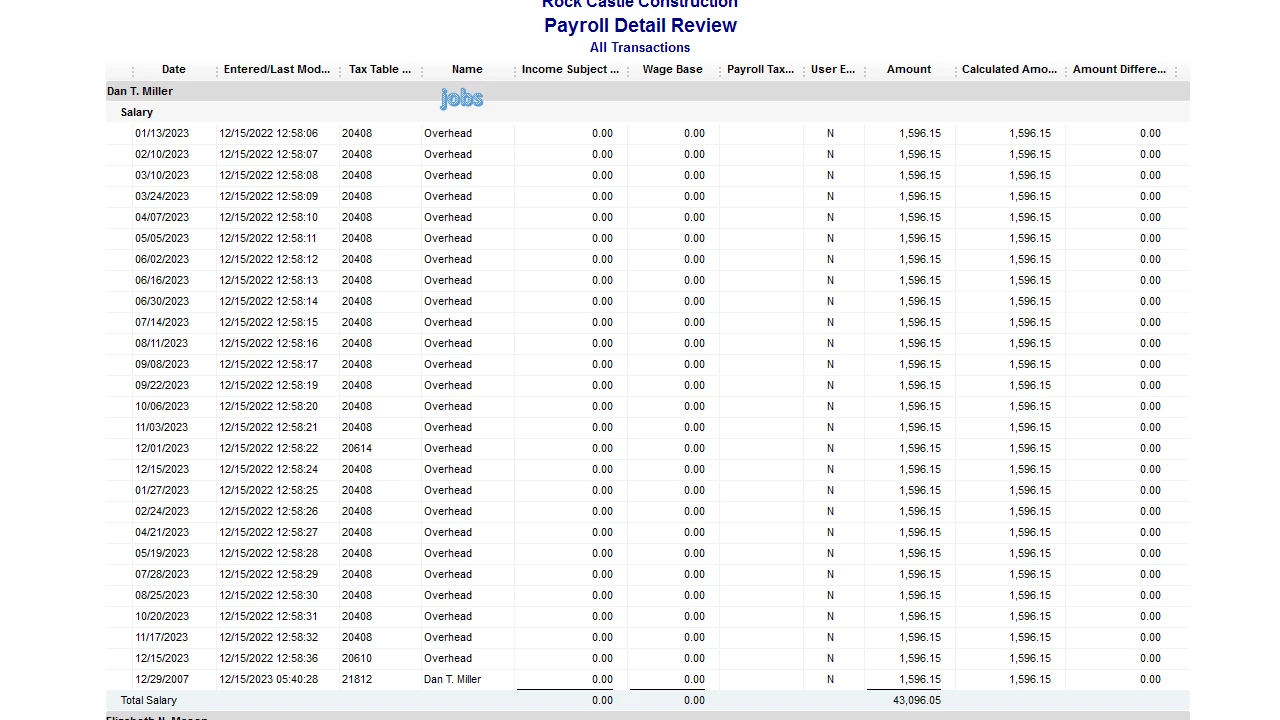
You can run the Payroll Detail Review Report and customize it to show the employees’ jobs. For detailed instructions, follow the steps below.


Here’s how:


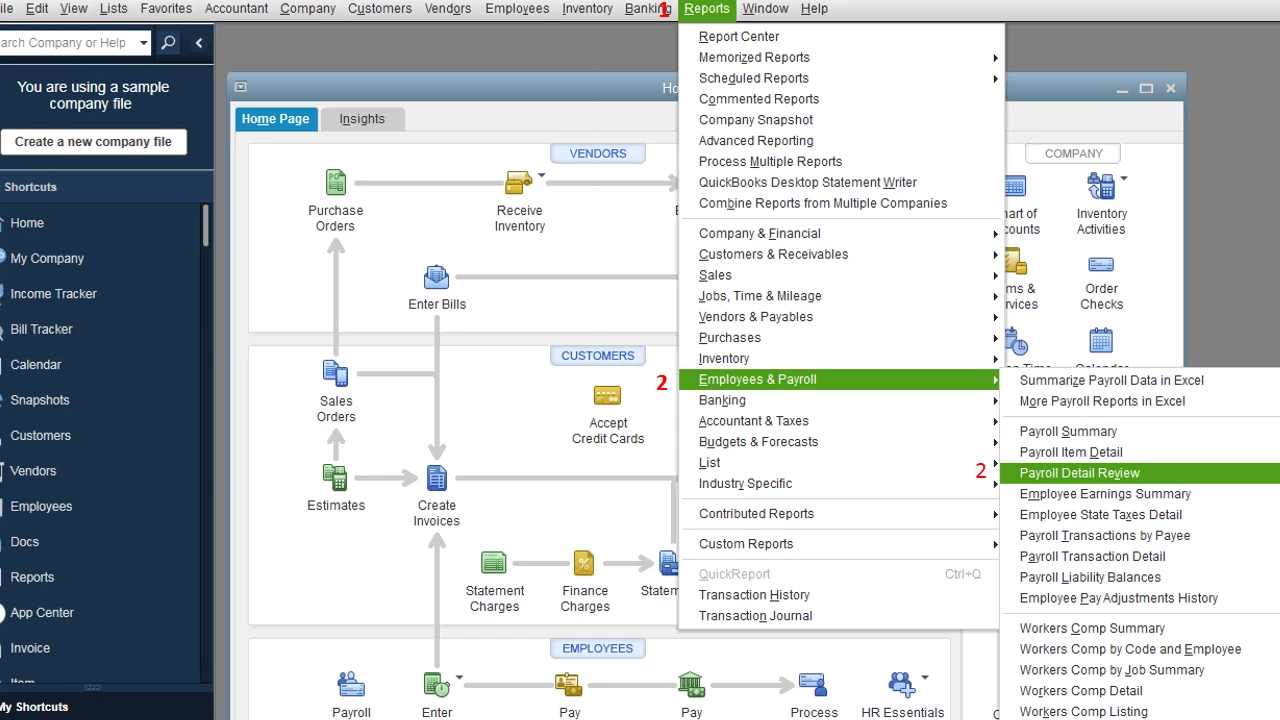
  1. Go to Reports at the top menu bar.
  2. Select Employees & Payroll, then choose Payroll Detail Review Report.
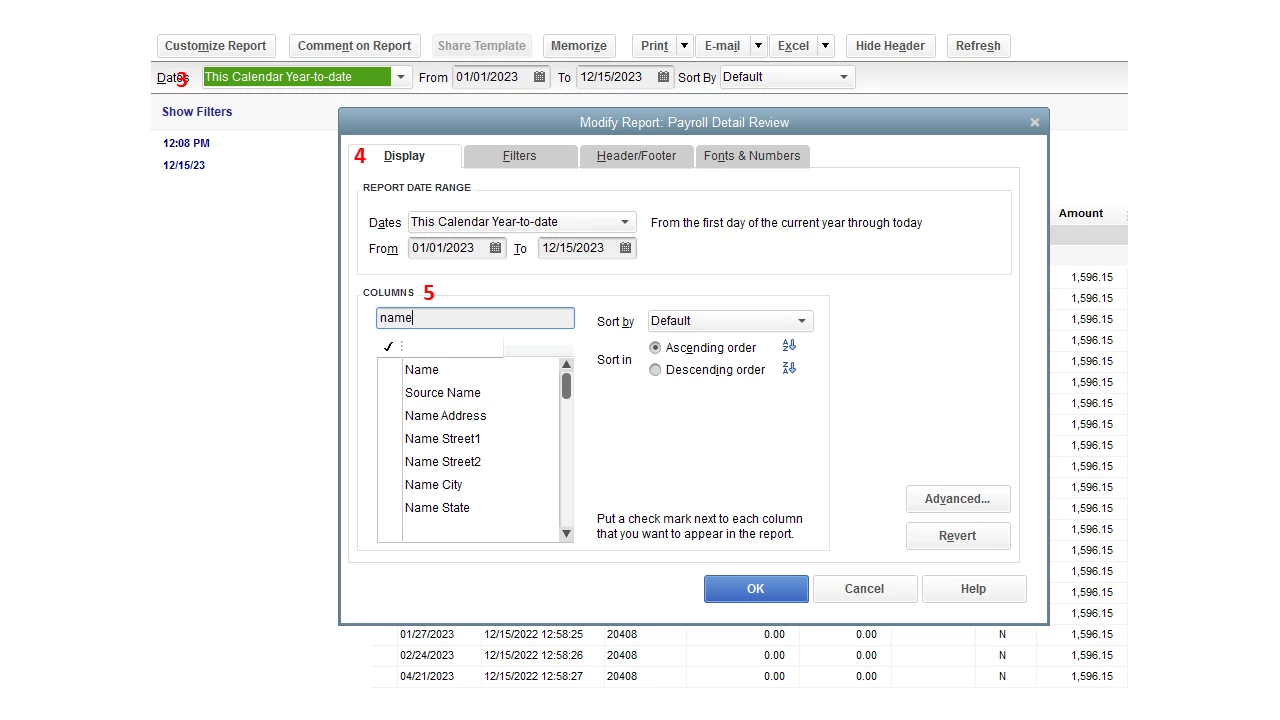
  3. Click on the Customize Report button.
  4. Choose Display.
  5. Under Columns, enter Name in the search field.
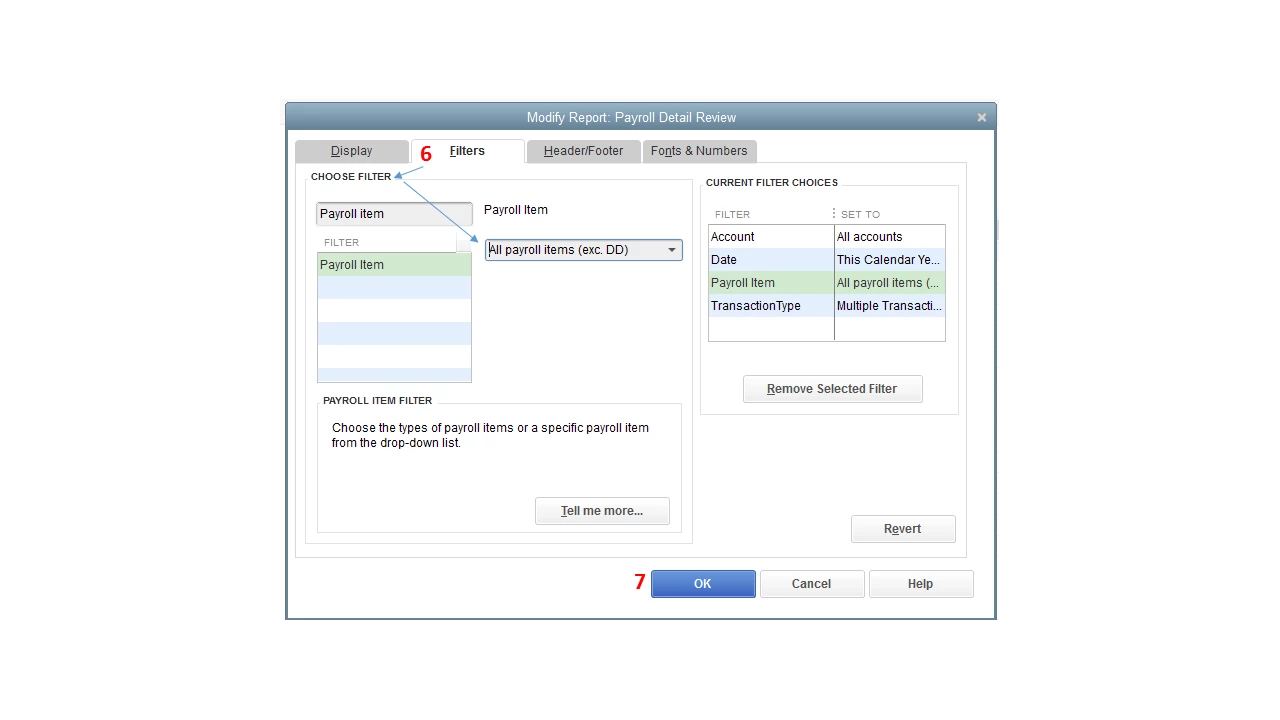
  6. Go to the Filters tab, enter Payroll Item in the Choose Filter box.
  7. In the Payroll Item drop-down, choose All Gross Pay.
  8. Click on OK.

I'm attaching screenshots for visual reference:
 

Please let me know how it goes by leaving a comment below. I'd be glad to answer should you have additional questions. Enjoy the rest of your day.


3 replies

February 1, 2019

Thanks for visiting the QuickBooks Community, teamchambie.


Helping out running a report that shows jobs entered on the paychecks is my priority.


You can run the Payroll Detail Review Report and customize it to show the employees’ jobs. For detailed instructions, follow the steps below.


Here’s how:


  1. Go to Reports at the top menu bar.
  2. Select Employees & Payroll, then choose Payroll Detail Review Report.
  3. Click on the Customize Report button.
  4. Choose Display.
  5. Under Columns, enter Name in the search field.
  6. Go to the Filters tab, enter Payroll Item in the Choose Filter box.
  7. In the Payroll Item drop-down, choose All Gross Pay.
  8. Click on OK.

I'm attaching screenshots for visual reference:
 

Please let me know how it goes by leaving a comment below. I'd be glad to answer should you have additional questions. Enjoy the rest of your day.


 

nchamblerAuthor
February 1, 2019

Awesome!  Thank you for the clear instructions on how to do it.  One more question, the hours worked on the specific jobs are not showing up.  What filter would that be?

February 1, 2019

I'm glad that you got the report you need, teamchambie.


Let me help you add a column to the report for the hours worked.

  1. Pull up the Payroll Detail Review report.
  2. At the upper left corner, click the Customize Report button. 
  3. A window opens for you to modify the report. 
  4. Go to the Display tab.
  5. In the COLUMNS section, search Qty and mark a check to add.
  6. Then click OK.

Let us know if you have other concerns.

October 21, 2020

Thank you for the detailed instructions. However, maybe I missunderstood the question, but my question then would be:

How can you shows the customer jobs paid - We enter line items for each job/customer worked and the hours, etc. but this report only shows me the who got paid, how, qty, amount, etc. I don't seem to be able to see the actual job numbers/customers that each line refers to.

October 21, 2020

Hi @Q-BNewby,


I'm here to take care of your query and clear things up for you.


The steps provided above was for a report intended for employees' paychecks. If you need one for paid customer jobs, you can run a custom Unbilled Costs By Job report.


Follow these steps:


  1. Go to the Reports menu.
  2. Highlight Customers & Receivables.
  3. Select Unbilled Costs By Job.
  4. Click Customize Report.
  5. Under the Display tab, place a check on Contract #.
  6. Move to the Filters tab.
  7. Search for Billing Status and set it to Billed.
  8. Press OK.

You can refer to this article for additional options on how you can customize these types of reports: Customize customer, job, and sales reports in QuickBooks Desktop


Place a comment below if you have any other questions. I'll be sure to get back to you.

September 2, 2021

I am looking for a report that shows teh Paycheck details and includes the Customer Job.  I don;t see a way to get that.  This Paycheck detail report comes close.  


September 2, 2021

Your concern ends here, @JRinHouston.


At this time, there isn't a specific report that shows paycheck details that include jobs. As an alternative, you can run two different reports and export them to Excel. Then, combine them in one Excel file. 


Firstly, let's run the Paycheck Detail Review report by going to the Reports menu and selecting Employees and Payroll. Then, export it to Excel. Here's how:


  1. On the report, click the Excel drop-down.
  2. Select Create new worksheet.
  3. Choose the in new workbook option, then click Export.


Once done, you can now run and export the Job Profitability Detail report for your job. Let me guide you how.


  1. Go to the Reports menu, then select Jobs, Time & Mileage.
  2. Choose the Job Profitability Detail report.
  3. Enter then reporting date.
  4. Click the Export drop-down and select Create new worksheet.


After exporting them to Excel, you'll have to combine the data into one Excel file.


I'm also adding this article to learn more about customizing payroll reports in QuickBooks Desktop: Customize payroll and employee reports.


In the future, you might want to pay your payroll liabilities with QuickBooks Desktop. This article will guide you on how to do it: How to use QuickBooks to pay payroll taxes and other liabilities.


Please know you can continue to reach me here with any additional questions about payroll reports. Thanks for coming to the Community, wishing you continued success.