

June 27, 2024
Question

Quickbooks Desktop Serial number issue

  • June 27, 2024
  • 3 replies
  • 0 views

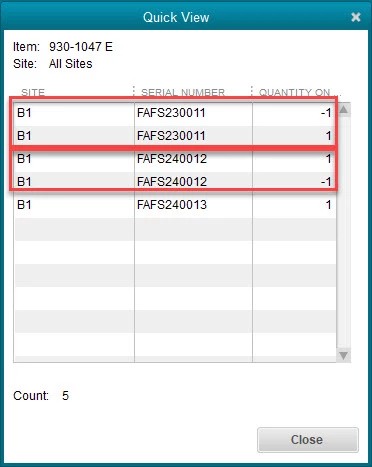
We are using QuickBooks Enterprise Solutions:  Manufacturing and Wholesale 23.0.  We have serial numbers turned on and sometimes they work correctly.  Other times, I end up with both positive and a negative quantity on hand for each serial number I use.  None of this relates to the quantity of the item on hand, and happens when both a negative and positive number are in the same inventory location.  I don't even undersand how that's possible.  And I can't figure out why this is happening, or how to fix it.  (I've tried adjusting the work orders, adjusting inventory, adjusting inventory - but only the serial number.)  Nothing seems to work, other than removing the serial numbers from both the creation work order, as well as the consuming work order.  This is not what we're after. 


Anyone have any experience with this, or understand why it's happening?  It's been going on for years, since serial number capability came along.  

I've included a screenshot showing what it looks like when the serial number issuing doesn't work correctly.
3 replies

June 27, 2024

Hello there, kate111. Let's perform some troubleshooting steps to resolve the serial number issue.


The second payment receipt copy only shows the subtotal amount, as it doesn't incorporate any extra charges for transfers, fees, or taxes based on your screenshot.


Since you've verified that your customer also paid the total amount included with the sales tax,


Let's resolve your concern by verifying and rebuilding your data in QuickBooks Desktop (QBDT). The verify tool identifies the most common problems in a company file, and the rebuild tool fixes them.


Here's how to verify your company data:


  1. Go to Window, then click Close All.
  2. Navigate to File, then Utilities.
  3. Choose Verify Data.


Please follow the steps below to rebuild your company file data:


  1. Go to File, Utilities, then click Rebuild Data.
  2. Follow the on-screen instructions, then select OK.
  3. Choose a location for your backup, then click OK.
  4. Type in a new name in the File name. Click Save.


For further detailed steps, see this article: Verify and Rebuild Data in QuickBooks Desktop.


If the issue persists, I suggest contacting our Live Support Team. They have the tools to help you navigate your QBDT program by initiating a screen-sharing session and determining the underlying cause of your concern.


In addition, check out the following articles on managing reports within the program to track the financial status of your business:


Should you require further assistance managing sales receipts or other QuickBooks-related concerns, drop by again so we can get back to you promptly. Have a good one.

June 28, 2024

@kate111 

Run the Verify/Rebuild Data utility. Did you encounter any error message?

kate111Author
June 28, 2024

I don’t know what question you think you are answering! The screen shot is quantity on hand by serial number. Please read my expressed concern thoroughly and advise.

June 28, 2024

It's possible that your company file is damaged. That's why you should run the Verify/Rebuild Data utility to be sure.

kate111Author
August 7, 2024

Just adding:  I've done all of the rebuild/repair things to my system, many times over.  I've upgraded several times, no resolution.  The issue persists.  I'm beginning to wonder if it gets broken every year when we have to turn off certain inventory things so that we can produce an accountant's copy.  Things handled within the same year seem to go along fine until we have to do that...then it falls apart it seems.  (Of course, this takes years to test out.)  Any clue if this is breaking something related to serial numbers on hand, decrementing them from inventory, etc.?

August 7, 2024

@kate111 

How big is your file size?


kate111Author
August 7, 2024

280KB. Not huge.