Hello info74 and NATSLLC,
Thank you for reaching out and expressing your concerns. I'm here to provide you with more information about the Customer list function in QuickBooks.
With the recent update, the default display of the customer list now shows on the Recently Viewed icon, which is why you're seeing the recently accessed customers listed there.
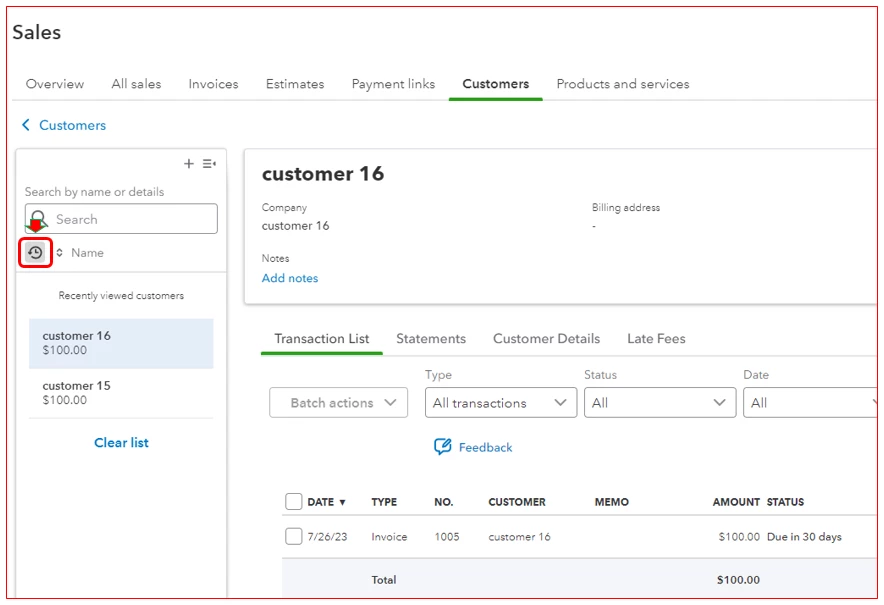
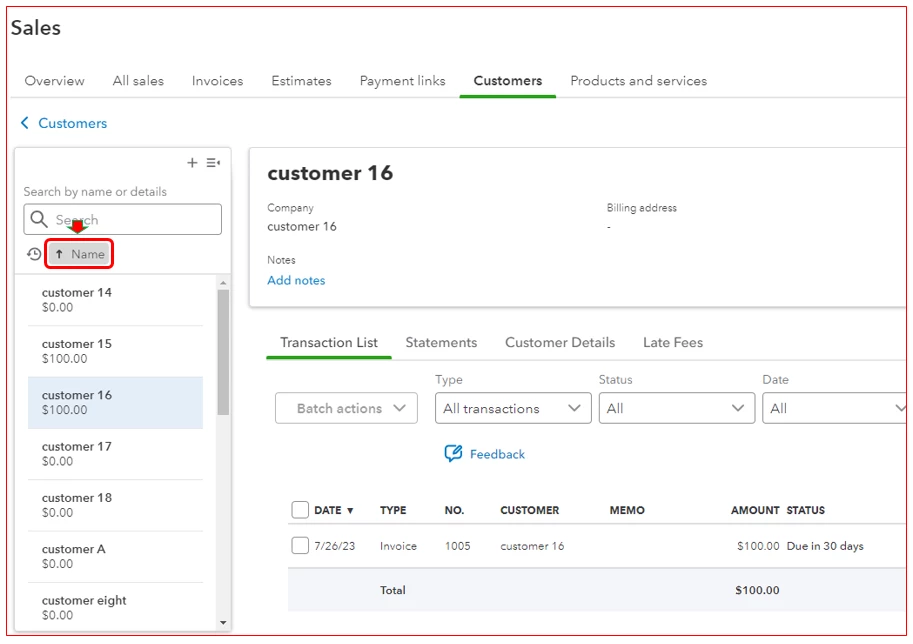
To access the complete list of all customers, you can simply click on the Name option under the Search bar. This will allow you to freely select the specific customer you need to work on.
Here's how:
- Go to Sales and select Customers.
- Click on the name of the customer you want to work on and proceed to create your transaction.
- On the Right panel of the Sales window, click the Name option.
- You can now see all of the customers from the list and complete your tasks.
I understand your concerns about the invoicing process, especially when dealing with multiple customers. Please know that our team is actively exploring ways to optimize this experience, and we value your suggestions to help us make improvements.
If you'd like to share your feedback directly with our developers, you can do so by following the steps in this article: How do I submit feedback?
For additional reference on managing customers in QuickBooks, you can also refer to this resource: Add and manage customers in QuickBooks Online.
If you have any further questions or need assistance with managing your customer list, feel free to reach out. We're here to help, and we wish you continued success in your business endeavors!

