I want to welcome you first to the QuickBooks family, ConA.
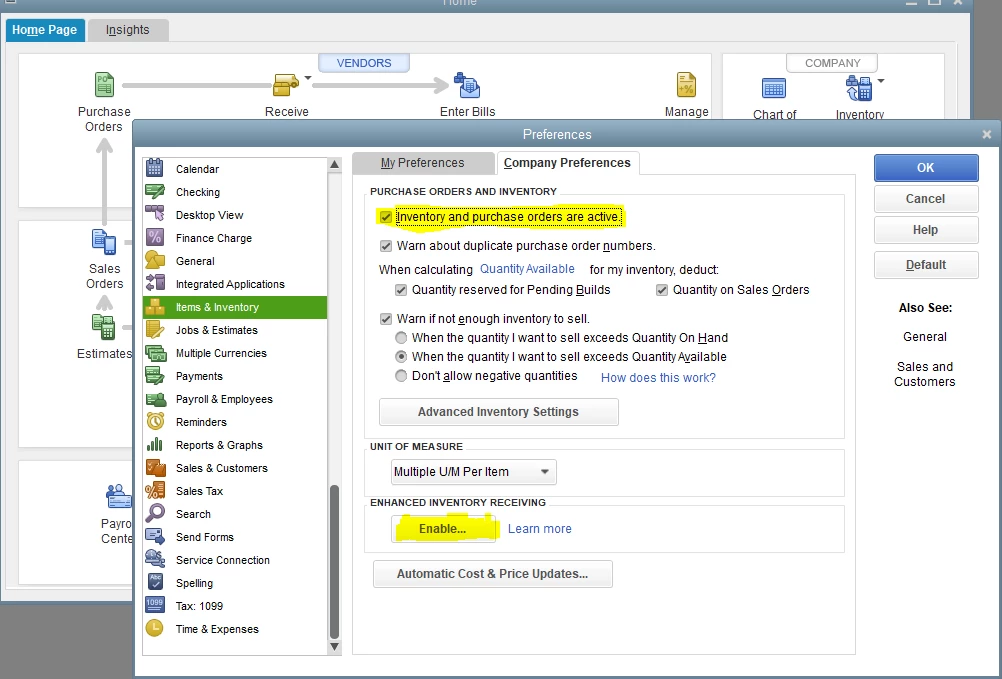
Let's enable the inventory feature first from the Preferences page to sort it out.
I'll provide steps on how to resolve your issue to show the Inventory items. Here's how:
- Go to the Edit tab and select Preferences.
- Choose Items & Inventory, then click on Company Preferences.
- Put a check-mark on the Inventory and purchase orders are active box.
- Press Ok.
Once done, start setting up the inventory items you are selling in the Item List window.
Here's how:
- From the Lists tab, choose the Item list.
- Right-click anywhere and press New or Ctrl+N.
- In the Type drop-down arrow, select Inventory Part.
- In the Item Name/Number field, enter the name of the item.
- Select an Income Account for your sales.
- Enter the quantity in the On Hand field.
- Complete other fields, as needed, and click OK.
Please check this article to see steps on how to adjust the quantity or total value of your products in QuickBooks Desktop: Adjust your inventory quantity or value in QuickBooks Desktop.
Let me know how everything turns out. If you get the same result, let me know so we can try another steps so you can add inventory items. Have a great day!

