You can set up a Cash Back Rewards account to track and record the cash back reward you receive from your vendor, Solar. I'll walk you through the detailed process to ensure you're on the right track.
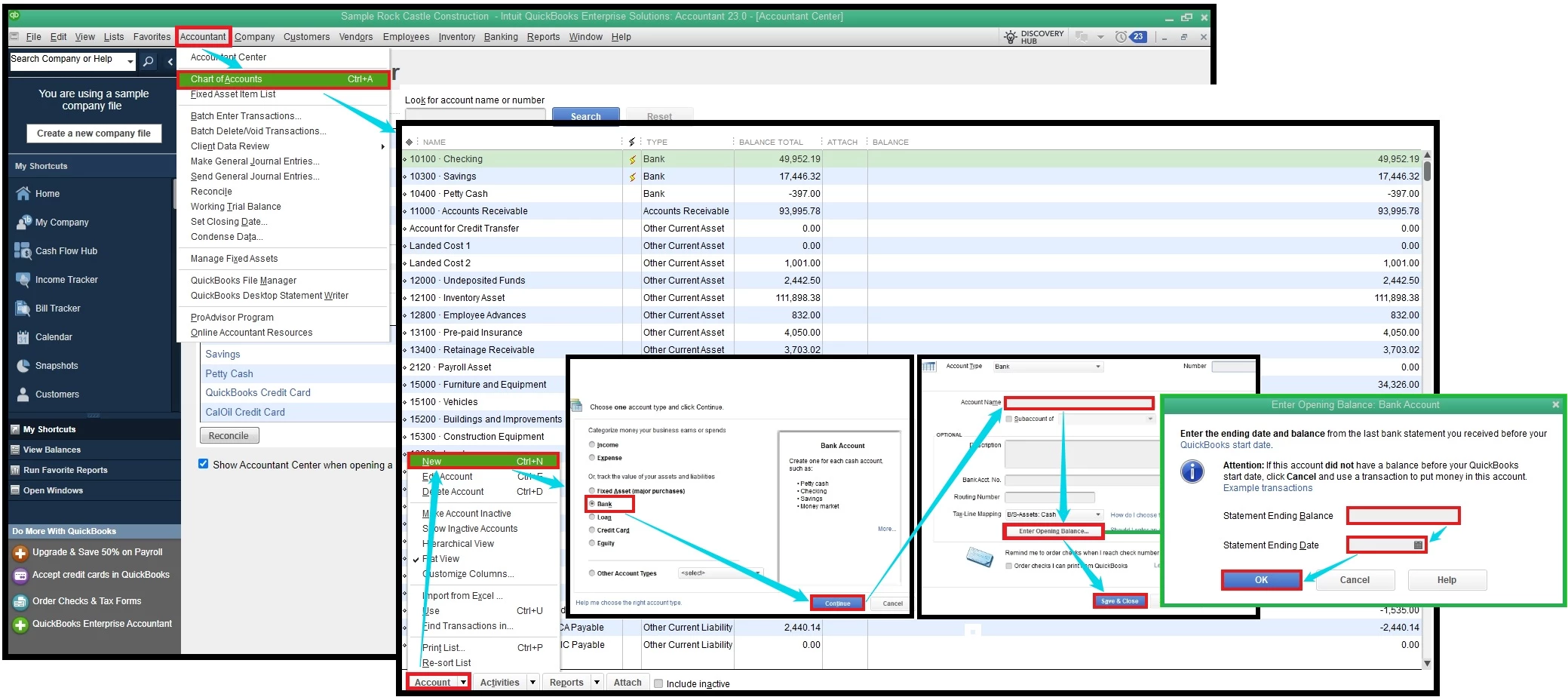
In QuickBooks Desktop, you'll utilize a Cash Back Rewards account to keep track of your cash back reward until depleted. You can proceed to these steps to add an account to your chart of accounts if you don't have one yet:
- Head to the List at the top.
- Select Chart of Accounts and pick New from the Account drop-down.
- You can choose Bank as an account type, then hit Continue. However, I recommend seeking advice from your accountant if you're unsure about the appropriate account type.
- Key in an Account Name and provide other details from the remaining fields.
- Click the Enter Opening Balance... tab, enter the amount in the Statement Ending Balance field, and specify the date in the Statement Ending Date.
- Click Save & Close.
Once you're ready to use your cash back reward, you can create an expense affecting the account you've just created.
On the other hand, ensure to reconcile your accounts regularly to keep them balanced for accurate reporting and tax calculation. You can refer to this material for guidance, including resolving errors during the process: Learn the reconcile workflow in QuickBooks.
If you have any additional inquiries about recording cash back rewards in QuickBooks Desktop, kindly let us know in this thread. We'll be available to provide any relevant information tailored to your specific business needs.

