

March 1, 2021
Question

Screen Size is too small

  • March 1, 2021
  • 2 replies
  • 0 views

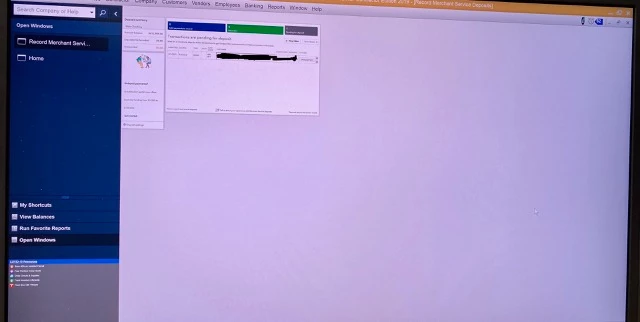
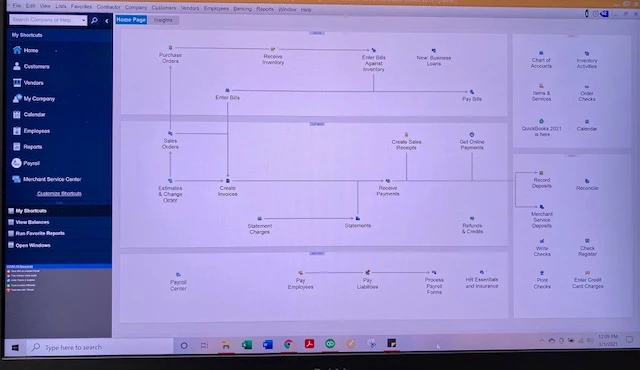
I am having an issue with the screen size being way to small on some of the windows I open.  I have attached pictures. 


The main HOME screen size is doable but when I open any other windows such as the Merchant Deposit, it is so small that I can barely read it.  Any suggestions?
2 replies

JasroV
March 1, 2021

Thanks for sharing a screenshot with us, Veronica H.


I’m here to share with you some steps that we can perform to isolate this issue. You'll want to ensure to update your QuickBooks Desktop (BQDT) software. This way, we can guarantee the program is up to date with the latest feature and fixes.


If the issue persists, I recommend running the Verify Rebuild tool. This tool scans your company files for errors and fixes them right away. Let me guide you how.


To Verify:


  1. Go to the Window menu and select Close All.
  2. Then, go to the File menu.
  3. Select Utilities.
  4. Click Verify Data.


To Rebuild:


  1. Go to the File menu.
  2. Select Utilities.
  3. Click Rebuild Data.  


I've got you this article for more detailed steps: Verify and Rebuild Data in QuickBooks Desktop.


Once everything is in place, you can utilize this resource for the step by step guide in recording deposits in QBDT: Record and make bank deposits in QuickBooks Desktop.


I’ll be around to help you whenever you need assistance managing your deposit or with your software. Have a good one and keep safe!

March 1, 2021

This does NOT answer my question of the screen sizes!!!  The answers you provided I already know about, which has not fixed the screen size.


MY QUESTION IS:  How to fix the screen size, it is too small for me to even read, it makes it very difficult to perform my tasks.

MichelleBh
March 1, 2021

Thanks for the quick response and for clarifying your concern, @Veronica H.


Updating and Verify/Rebuild are the initial steps to get the screen size issue fix. Nothing to worry about, I have other steps here that will show you how to change the screen sizes in QuickBooks Desktop (QBDT).


Let's start modifying your display settings on your computer. Let me show you how: 


  1. Open the Windows Start menu.
  2. Write QuickBooks in the search box, then right-click the app, and choose Open file location
  3. In the folder, right-click the QuickBooks.exe file and select Properties.
  4. Choose the Compatibility tab.
  5. Pick the Disable display scaling on the high DPI settings checkbox.
  6. Modify the appropriate settings, then tap Apply, and OK


If the issue keeps going, I'd suggest adjusting your QuickBooks preferences. 


 Here's how: 


  1. Click the Edit button on the left side, then choose Preferences.
  2. Select Desktop View.
  3. Hit My Preferences tab. 
  4. Select the One Window option and tap OK.


After that, please close your company to take effect the changes. If the issue persists, let's change your screen resolution to at least 1024 x 768 or 1920 x 1080. Please note that changing your Windows settings hits all programs on your computer, not just QuickBooks. 


For more information, check out this article: Fix screen issues in QuickBooks Desktop


Please browse through this article about combining multiple transactions into a single record in QBDT: Recording QuickBooks Payments bank deposits FAQs.


That's it. Should you need anything else, please let me know. I'm always around to help you out. Keep safe. 

September 24, 2021

I have the same exact issue.  After an hour with tech support, they have determined that this is a display issue on my side and has nothing to do with their software.  How can the Merchant Deposit window be the only screen in QBs that don't display correctly be an issue on my hardware side?  Can you at least have your engineers look into it and notify me when it's resolved?  No.  Here's a thread of my chat.  


Analou 9/24/2021 1:54 PM

Hi Dough, thank you for patiently waiting as per checking here since you're on a parallel connection and the

display settings on your Mac is not compatible with the Quickbooks. You need to have your IT guy configure the

display settings Doug.

Doug 9/24/2021 1:56 PM You are talking to my IT guy. So you're passing the buck?

Doug 9/24/2021 1:56 PM Not your problem?

Doug 9/24/2021 1:56 PM 2 windows from your system show up differently, and that's a display issue?

Doug 9/24/2021 1:56 PM on my end?

Analou 9/24/2021 1:58 PM The recommended display setting is 1920x1080.

Doug 9/24/2021 1:58 PM And that isn't an option on a mac that runs parallels

Analou 9/24/2021 1:59 PM Yes, correct, there's no option.

Doug 9/24/2021 1:59 PM, which is a recommended QBs platform

Doug 9/24/2021 2:00 PM So, are you going to create a bug ticket and notify me when you complete and release the fix?

Doug 9/24/2021 2:00 PM I'm obviously not the only one that has this issue

Analou 9/24/2021 2:01 PM

We tried the troubleshot and it seems that the display settings was change, right but after we change the

display setting you can't see the whole window.<br>There's is something to do with the display on your Mac.

Doug 9/24/2021 2:03 PM

What are you talking about? Your system works fine with my display settings except for Merchant Deposits. That

is clearly a separate system that is not compatible with the rest of your software. Why would one window not work

on my computer? It's your software. Right?

Analou 9/24/2021 2:03 PM I highly suggest Doug to send a product feedback or suggestion so that our engineers can check it or review it.

Doug 9/24/2021 2:03 PM And you just trough your hands up and are done? Why wouldn't you do that?

October 19, 2021

Y'all are definitely not alone.

New install and complete update on Windows 10; hardware is less than a year old.  For me, it's the Accountant Center window.

Nothing provided above has helped, and I also don't have a "Disable display scaling on the high DPI settings checkbox."


Would be nice to get some support on this issue....

RenjolynC
October 19, 2021

Thanks for chiming in on this thread, CTatCD.


Let me direct you to right support who can check what's causing the screen issues and help you fix it.


Since none of the steps above worked, you can contact our Customer Care Team by following these steps:


  1. In your QuickBooks Desktop program, go to Help QuickBooks Desktop Help.
  2. In the Have a Question window, click the Contact Us link at the bottom.
  3. From the Contact Us page, select any topics.
  4. Under Here's how to connect with a QuickBooks expert section, click the Start a Message or Get Phone Number button.

In case you need help with other task in QuickBooks Desktop, you can visit our general help topics page. Just type your concern in the search field and this page will route you to the related help articles, Community discussions, video tutorials and more.


You can also reply on this thread if there's anything else you need. We're always here to help you out. Keep safe.