

August 20, 2020
Solved

Searching for Customer Does Not Work

  • August 20, 2020
  • 1 reply
  • 0 views

When I am looking to open a customer's account so I may review their last transactions, I tend to perform a search for that customer's name. There are certain customers that do not come up at all. One such example is a government entity "City of Las Vegas". When I do a search for the whole name, nothing comes up. When I search for "City of" I see two inactive clients. When I search for "City" I see a few hundred customers and I need to go through a few pages of results (active and inactive) before I can find the appropriate customer. 


Any other way for me to find this customer through search?
Best answer by GlinetteC

Glad to have you here, LasVegasScanning.


Keeping track of your customers is an important task for any business. I'll help you with the option to search your customer's name in QuickBooks Desktop. 


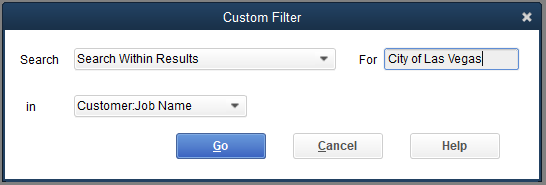
We can use the Custom Filter when searching for a customer. I'll show you how to do it:


  1. Go to the Customers menu, choose Customer Center.
  2. Click the Magnifying glass.
  3. In the Search field drop-down, select Active Customers, and enter City of Las Vegas in the For field.
  4. Click Go.

Please refer screenshots below for your visual guide:


I've added this article about using custom fields in QBDT for your guide: Create and use custom fields in QuickBooks Desktop


Please let me know how it goes by clicking the Reply button. I want to make sure that everything is taken care of. Have a great day!

1 reply

GlinetteCAnswer
August 20, 2020

Glad to have you here, LasVegasScanning.


Keeping track of your customers is an important task for any business. I'll help you with the option to search your customer's name in QuickBooks Desktop. 


We can use the Custom Filter when searching for a customer. I'll show you how to do it:


  1. Go to the Customers menu, choose Customer Center.
  2. Click the Magnifying glass.
  3. In the Search field drop-down, select Active Customers, and enter City of Las Vegas in the For field.
  4. Click Go.

Please refer screenshots below for your visual guide:


I've added this article about using custom fields in QBDT for your guide: Create and use custom fields in QuickBooks Desktop


Please let me know how it goes by clicking the Reply button. I want to make sure that everything is taken care of. Have a great day!

August 21, 2020

And just like that, I am resolved. Thank you for such a quick and accurate response.