September 21, 2022
Solved

Unable to export the receipts from Epson Scanner to QuickBooks Desktop.

  • September 21, 2022
  • 1 reply
  • 0 views

Would anyone be able to help me with this issue? I can not export the receipts from the Epson Scanner to the Quick Books Desktop.  Thank you.

Best answer by katherinejoyceO

Hello there, @HUY NGO.


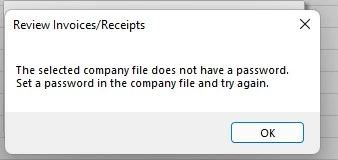
Thanks for sharing a screenshot of your pop-up message. Based on that, you'll need to set a password for your company file to continue exporting the receipts from Epson Scanner to QuickBooks.


Please know that setting a password is essential to ensure that only authorized users can access your data. I'll show you the steps: 


  1. Go to the Company menu, then, select the Setup Users and Passwords tab.
  2.  Click the Set Up Users., then select Admin and click Edit User in the User List window.
  3. Enter the name of the administrator, then click the Challenge Question drop-down arrow.
  4. Choose a question, and then enter an answer in the Challenge Answer field.
  5. Click Next and then Finish.


For more detailed information, you can visit this article: Set up QuickBooks Desktop administrator and password.


Additionally, here's an article in case you're having problems logging in in the future: Reset Your Password for QuickBooks Desktop.


I'm always around here to help if you have additional concerns about exporting your data using a scanner to QuickBooks.



1 reply

katherinejoyceO
September 21, 2022

Hello there, @HUY NGO.


Thanks for sharing a screenshot of your pop-up message. Based on that, you'll need to set a password for your company file to continue exporting the receipts from Epson Scanner to QuickBooks.


Please know that setting a password is essential to ensure that only authorized users can access your data. I'll show you the steps: 


  1. Go to the Company menu, then, select the Setup Users and Passwords tab.
  2.  Click the Set Up Users., then select Admin and click Edit User in the User List window.
  3. Enter the name of the administrator, then click the Challenge Question drop-down arrow.
  4. Choose a question, and then enter an answer in the Challenge Answer field.
  5. Click Next and then Finish.


For more detailed information, you can visit this article: Set up QuickBooks Desktop administrator and password.


Additionally, here's an article in case you're having problems logging in in the future: Reset Your Password for QuickBooks Desktop.


I'm always around here to help if you have additional concerns about exporting your data using a scanner to QuickBooks.



HUY NGOAuthor
September 21, 2022

Hi Katherine,


Thank you so much for your help, I was able to solve the issue with your guidance. I was not able to find anything online, so your help was very appreciated. 


MichelleBh
September 21, 2022

It's our pleasure to assist you, @HUY NGO.


I'm delighted to hear that my colleague's suggestions solved your problem. Please keep in mind that you're always welcome to ask your questions in the Community. We'd be delighted to assist you.

You can bookmark our QuickBooks Desktop Help Articles for your future reference. This page contains various topics with steps on how to manage your taxes, forms, customer/vendor transactions, and other matters.