January 23, 2025
Solved

Uploading a QBB file to online QB version

  • January 23, 2025
  • 1 reply
  • 0 views

I use QB desktop Enterprise 24.0.  I need to send a backup QBB file to another office that uses QB Online.  I sent the file by Dropbox, and the office was able to download it to their desktop, but we can't figure out how to upload it to their QB Online edition.  Help?


Thanks, Brett

Best answer by Jelayca V

Let's work together to ensure a smooth migration process for your QBB file to QuickBooks Online (QBO), kbsf2. I'd be glad to guide you through this process. 


You can open your backup file to the supported version of QuickBooks Desktop (QBDT) and then migrate it to QBO. Please note that this is applicable if your QBO account is less than 60 days old. For the detailed process, refer to this article: Move your QuickBooks Desktop file to QuickBooks Online.


If you don't have access to your QBDT, you can use an online tool to upload your QBB file and transfer this information to your QBO company. To get started, access the tool from this link: QuickBooks Enterprise. Then, select Get Started and sign in with your Intuit Account. Afterward, upload your file by following the steps below:


  1. Tap the Select file and then browse the .QBB file you have. Know that you can only upload one file at a time.
  2. Then, select Open to upload this. Or, Drag and Drop the file in the designated section to upload it.
  3. Once uploaded, the file will auto-update to the latest version of QBDT.
  4. Next to it, you’ll see an option to move this to QBO.
  5. Follow the on-screen guidelines to walk you through moving to QBO.
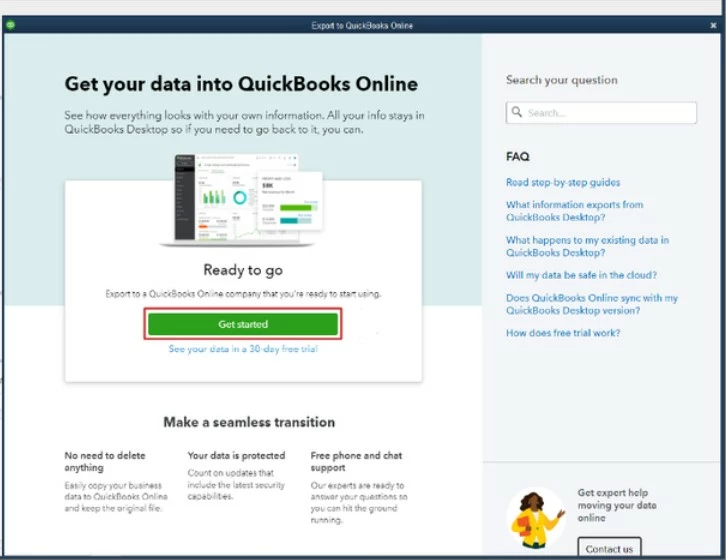
 

Additionally, you may opt to use a third-party application  that supports this process directly.


Moreover, here's how you can find out what data doesn't convert when you migrate from QuickBooks Desktop to QuickBooks Online.


Once your file is migrated, consider collaborating with our QuickBooks Live Expert Assisted team for personalized support. They can help streamline your QBO setup and assist you with your financial processes.


If you have more queries about transferring your data to QBO, kindly post them below. I’m always around to help.


1 reply

Jelayca VAnswer
January 23, 2025

Let's work together to ensure a smooth migration process for your QBB file to QuickBooks Online (QBO), kbsf2. I'd be glad to guide you through this process. 


You can open your backup file to the supported version of QuickBooks Desktop (QBDT) and then migrate it to QBO. Please note that this is applicable if your QBO account is less than 60 days old. For the detailed process, refer to this article: Move your QuickBooks Desktop file to QuickBooks Online.


If you don't have access to your QBDT, you can use an online tool to upload your QBB file and transfer this information to your QBO company. To get started, access the tool from this link: QuickBooks Enterprise. Then, select Get Started and sign in with your Intuit Account. Afterward, upload your file by following the steps below:


  1. Tap the Select file and then browse the .QBB file you have. Know that you can only upload one file at a time.
  2. Then, select Open to upload this. Or, Drag and Drop the file in the designated section to upload it.
  3. Once uploaded, the file will auto-update to the latest version of QBDT.
  4. Next to it, you’ll see an option to move this to QBO.
  5. Follow the on-screen guidelines to walk you through moving to QBO.


Additionally, you may opt to use a third-party application  that supports this process directly.


Moreover, here's how you can find out what data doesn't convert when you migrate from QuickBooks Desktop to QuickBooks Online.


Once your file is migrated, consider collaborating with our QuickBooks Live Expert Assisted team for personalized support. They can help streamline your QBO setup and assist you with your financial processes.


If you have more queries about transferring your data to QBO, kindly post them below. I’m always around to help.

kbsf2Author
January 23, 2025

Thanks Jayleca,


The problem is that this would need to be a monthly process.  One of our offices posts entries for another office, and then sends the updated database once a month to the second office.  The second office only needs to access the data without making changes (read only).  How can we do that?


January 24, 2025

@kbsf2 

Why doesn't the second office provide access to the first office to register data directly into QB Online?

Alternatively, you can ask the second office to install QB Desktop to restore the backup files you sent as a read-only user. You need to create a new user profile for the second office in your company file to open it on their PC beforehand.