November 4, 2022
Solved

Why don't headings export to Excel?

  • November 4, 2022
  • 2 replies
  • 0 views

When I export to excel, I do not get any of the report headings.

Best answer by BigRedConsulting

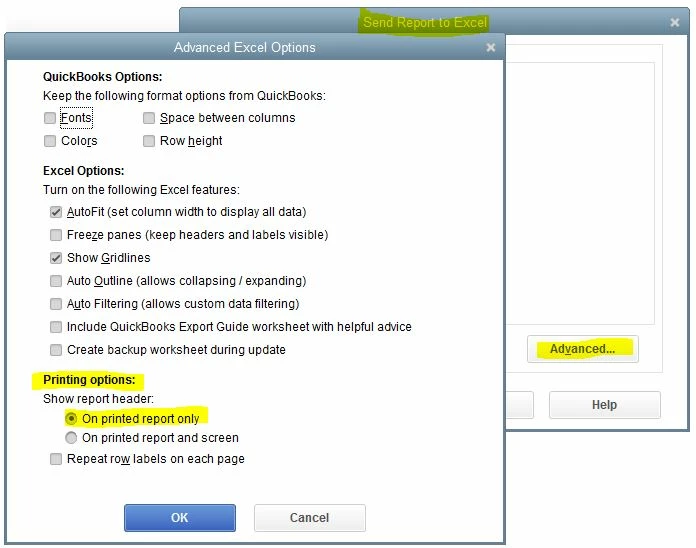
Probably, the option to put the headings in the Excel header area instead of on the worksheet is selected, like this:


If you want to see the header on the worksheet, and not just when you print, choose the second option.

2 replies

November 4, 2022

Hi there, @cowardl


I'm here to lend a hand so that you can you view your report's header in Excel. 


Once you export reports in QuickBooks Desktop, make sure to get its latest version. This way, you'll have to most updated version and fixes. Here's how:


  1. In Microsoft Excel, go to the QuickBooks tab. Excel adds this automatically the first time you export the report.
  2. Select Update Report to get the latest version of the report from QuickBooks.


If the same things happen, update QuickBooks to its latest release and ensure that your Microsoft Office is compatible with your current QBDT version. To check, see QuickBooks system requirements in these links: 


After this, try exporting your reports to Excel again. If you're still unable to see the report's header, repair Microsoft Office. The issue might steam from Excel itself. 


For more troubleshooting steps, please check out this article: Fix export to Excel issues in QBDT.


Please let me know how it goes. I'm here whenever you need help further help with QuickBooks Desktop. Take care and stay safe always!

BigRedConsulting
November 4, 2022

Probably, the option to put the headings in the Excel header area instead of on the worksheet is selected, like this:


If you want to see the header on the worksheet, and not just when you print, choose the second option.

June 6, 2023

Thank you for this but this did not work for me. What worked for me is the other option, 
“On printed report and screen.” Still, your answer got me to the right place! Thanks again! 🙏


Nicole_N
June 6, 2023

Thanks for updating us on this, Erica. 


We're glad to hear that the option given above worked for you. Also, you can always visit our Help Articles page for reference. There, you can read some information that will guide you in your future tasks.


In case you need assistance or if you have additional questions about using the QuickBooks product, let us know in the comments below. Our team is always around for you.