Thanks for the details, @GolfNut72.
Yes, there's a shortcut on how to apply the credit memo amounts to outstanding invoices.
If you haven't created any credit memos, we can turn on the automatically apply credits option in the Account and Settings page. This way, you're able to apply them to all newly created or future invoices. Here's how:
- Click the Gear icon ⚙️, and then choose Account and Settings under the Your Company section.
- Select the Advanced tab, and then pick the Automation section.
- Tap the pencil icon ✏️ to edit, and then put a checkmark on the Automatically apply credits box.
- Hit Save and then Done once ready.

On the other hand, if you've already created your credit memos, we'll have to manually apply them to your invoices. However, we can batch apply its amount. I'll guide you on how:
- Go to the Sales menu, and then choose the Customers tab.
- Look for the customer name and then click it to open.
- Tap the New Transaction drop-down ▼, and then choose Payment.
- Make sure to put a checkmark on all the outstanding invoices and the available credits to apply.
- Click Save and Close once done.

Please refer to this resource for more info about credit memo in QuickBooks Online: Credit memo.
Also, you may want to pull up the Open Invoices report to see all the unpaid invoices and statement charges, with totals for each customer. Here's how:
- Go to the Reports menu, and then choose the Standard tab.
- Hover down to the Who owes you section and then select the Open Invoices report.
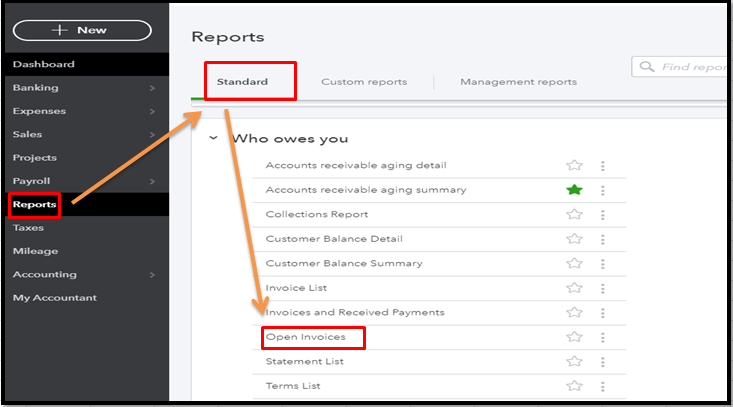
Then, you can customize it to personalize its details and formats. Check out this article for the steps on how: Customize reports.
Get back here in the Community if you have more questions about managing your credit memos and invoices or anything else related to QuickBooks. I'll be here to help. Take care and stay safe always.

