November 2, 2021
Solved

Applying Credits against Vendor Bills

  • November 2, 2021
  • 1 reply
  • 0 views

Is there a way to apply a bulk credit against a check paying multiple invoices without having to specifically apply the credit to invoices.  We get credits on a vendor account that are not credits against specific invoices.  I may be paying 30 invoices totaling $10,000 and have a credit on account of $3,000.  Do I have to open each individual invoices for 50.00, 100.00, etc. to apply the credit piecemeal until it is fully applied.


Thanks.

Best answer by ShiellaGraceA

I'll be glad to assist you with applying credits, @Sabrah.


You'll want to record the credit in QuickBooks and then automatically apply the credit to your open bills. Let me guide you how.


To turn on auto-credit:


  1. Go to Edit at the top.
  2. Choose Preferences.
  3. Select the Bills menu from the left and then the Company Preferences tab.
  4. Mark the box next to Automatically use credits.
  5. Click OK. See the image below.


Next, create credit by going to:


  1. Vendors menu at the top.
  2. Choose Enter Bills.
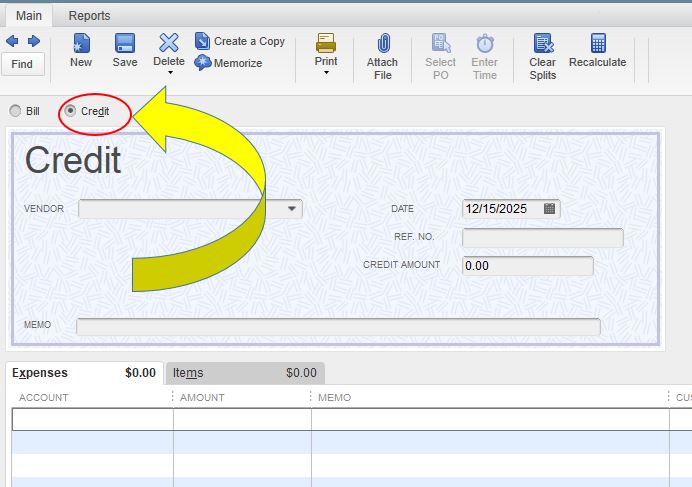
  3. From the Bills page, tick the Credit radio button.
  4. Enter other credit details.
  5. Click Save & Close.


After creating credit, QuickBooks will automatically apply the credit to the open vendor bills.


I'm adding this link to guide you with vendor-related workflows: Accounts Payable workflows in QuickBooks Desktop.


Reach out to me again if you still have questions or concerns with vendor credits. I'm more than happy to assist you. Have a wonderful day ahead.

1 reply

November 2, 2021

I'll be glad to assist you with applying credits, @Sabrah.


You'll want to record the credit in QuickBooks and then automatically apply the credit to your open bills. Let me guide you how.


To turn on auto-credit:


  1. Go to Edit at the top.
  2. Choose Preferences.
  3. Select the Bills menu from the left and then the Company Preferences tab.
  4. Mark the box next to Automatically use credits.
  5. Click OK. See the image below.


Next, create credit by going to:


  1. Vendors menu at the top.
  2. Choose Enter Bills.
  3. From the Bills page, tick the Credit radio button.
  4. Enter other credit details.
  5. Click Save & Close.


After creating credit, QuickBooks will automatically apply the credit to the open vendor bills.


I'm adding this link to guide you with vendor-related workflows: Accounts Payable workflows in QuickBooks Desktop.


Reach out to me again if you still have questions or concerns with vendor credits. I'm more than happy to assist you. Have a wonderful day ahead.