

January 2, 2020
Solved

Can't Apply Credit Memo?

  • January 2, 2020
  • 1 reply
  • 0 views

A customer was billed $9,883.02 in error. The actual invoice was $9746.88. They paid the erroneous amount. When it was received, via Receive Payment it was entered. The entry states at the bottom 'This transaction will create an additional credit in the amount of $136.14.'

Looks good so far. Then their next bill went out for $1900.80. They paid $1764.66 (the amount less the open credit for $136.14). However, when I went into receive payment, there is no credit listed, despite the last receive payment saying there should be. I've double checked it twice and there is no "Credit" flipdown to apply it to the bill. Nor is there anything listed in the invoice section where I can apply a credit against it. My guess is because these are invoices from two different projects under the same customer?

Consequently I have now got a ($136.14) outstanding on the one job and a $136.14 outstanding on the more recent job, which causes the customer to show $0.00 open yet $136.14 due. It squares up on the books, but it also causes them to continue to show up in my receivables with the values both posted under different days due columns but with a net 0 total due.

How can I rectify this?
Best answer by GraceC

This didn't work. Following Fritz's instructions, I now have an open credit memo for 136.14 that shows up under the customer's transaction list. If I open the underpaid invoice and click receive payment (or alternately go into the actual payment that they made for when that 2nd check came in), there is still no 'Credits' section showing, and thus no way to apply the credit. 


Hello there, @Adalius.


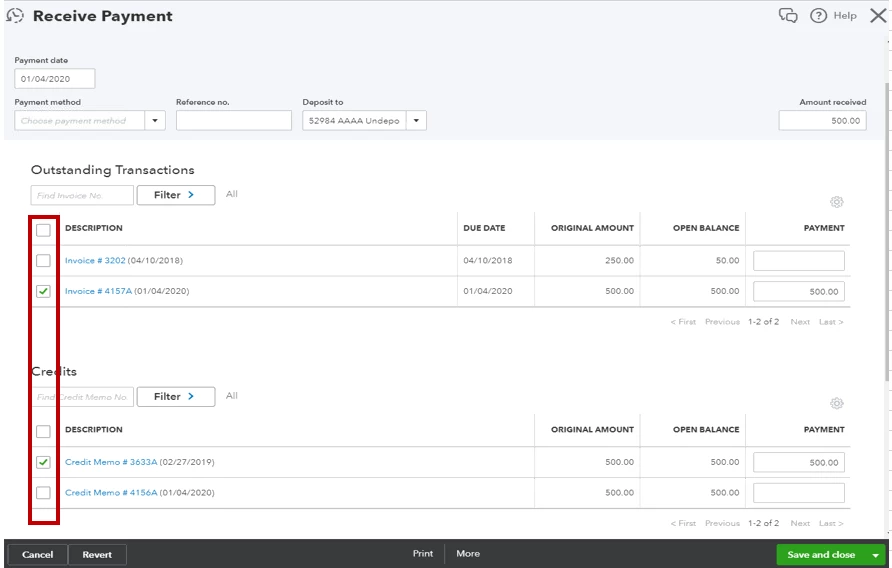
Once you make a receive payment to that customer, you'll need to make sure that the Amount Received section upon receiving payment is zero. This way you can apply the credit memo to reduce the balance of your customer. Doing this will also mark your invoice as partially paid. 


Let me guide you how:

  1. Look for your customer transaction.
  2. Click on Receive payment.
  3. Zero out the Amount received.
  4. Manually enter the payment.
  5. Click on the Credit Memo, to deduct the commission amount.
  6. Click Save and Close.

I've attached some screenshots below to guide you through the steps:

You can check this article for more insights about credit memo


Keep me posted if there's anything else you need about this concern. I'll be around to help you out. Have a good one!

1 reply

Sarah Bl
January 2, 2020

Good evening, @Adalius.


Thank you for explaining what's going on. Let's try and get this fixed for you.


Before we get started, I'd like to ask you a couple of questions.


Is automatically Apply Credits turned off? If you don't know where to find this, I can show you.


1. Go to Account and Settings.
2. Select Advanced.
3. Under Advanced in Automation, make sure Automatically Apply Credits is On


This can cause your credit to not apply to your invoice. 


Are the two invoices being tracked together or in different projects?


If the invoices are being tracked on two different projects, they will be tracked separately even though they may be under the same customer. 


You can hit Reply to provide more information. I'll be awaiting your response. Talk soon.

AdaliusAuthor
January 2, 2020

I tried doing the recieve payments both with auto credits on and off, it did not seem to matter which way it was set. 

As noted in the post, they are in different projects but under the same customer.

AlcaeusF
January 3, 2020


Thanks for getting back to us, @Adalius.


Since the credit comes from a different project, the ability to apply it to the other invoice is currently. To rectify this, manually recreate the credit memo so you can link it to the correct invoice as a workaround. Before doing so, you need to go back to the first payment and edit the amount to correct one to remove the credit.


Here's how:


  1. Go to the Sales menu at the left pane to get to the Customers page.
  2. Under the customer's name, click the project name where the credit was created. 
  3. In the Transaction List section, select the payment to open the transaction. 
  4. Change the amount to the correct one, then hit Save and close


This will remove the credit from this specific project and the invoice will be marked as paid.


After that, here's how to manually recreate the credit memo:


  1. Go to the +New at the top left to get to the Credit Memo.
  2. Pick the other project name if the Customer drop-down.
  3. Enter the item and the overpayment amount.
  4. Once done, hit Save and close.


If the automatically Apply Credits feature is turned on, the credit will auto-apply to the payment. If not, here's how to link them:


  1. Go the bank to the Customers page and select the other project's name.
  2. Select the payment to open the transaction.
  3. Place a checkmark on the credit and hit Save and close 


I'll be adding these articles for future reference:


How to Record Customer Credit: Credit Memos & Balances.

Enter and apply a credit memo or delayed credit.


I want to make sure everything is taken care of for you, so please let me know if you have any other issues or concerns. I'm always here to help. Have a good one!