July 19, 2024
Solved

Changed bill amount with payment! Now What?

  • July 19, 2024
  • 1 reply
  • 0 views

Hi QB Community,


I hope you're all doing well.


I have a bill that was for $30K originally but I found out AFTER payment that the bill should have been for $29K (I overpaid by $1K). So I went ahead and changed the bill amount from $30K to $29K. Now I have $1K as "Unapplied payment". What I was expecting was for QB to automatically create a credit for me (since I overpaid). Currently I do have an open bill and I would like to apply my credit of $1K to that bill.


Please help me??? 

Best answer by AlverMarkT

Hello, Rigo. I'm here to help.


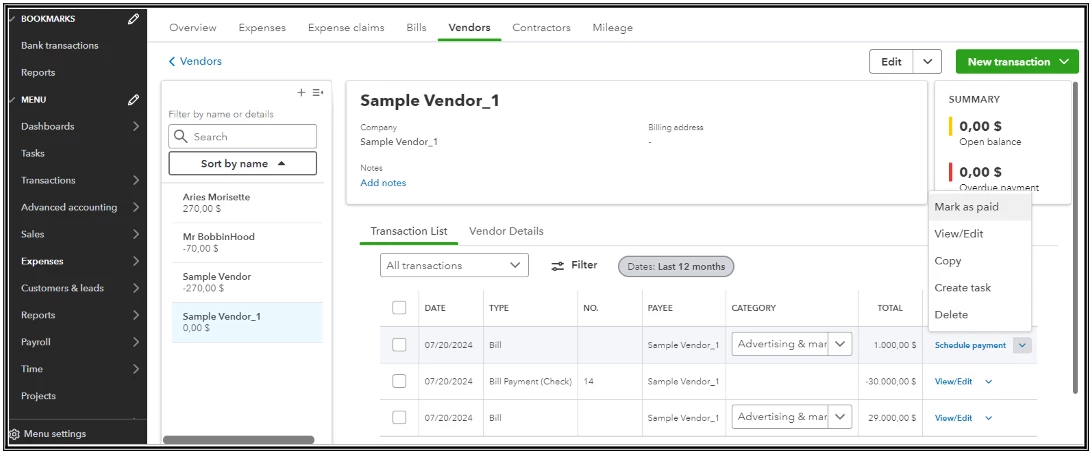
You're correct. While QuickBooks Online (QBO) doesn't automatically create a separate Vendor Credit for the bill overpayment, it still stores the Unapplied Payment as a credit which you can apply to your next open bill, as in the screenshot below.
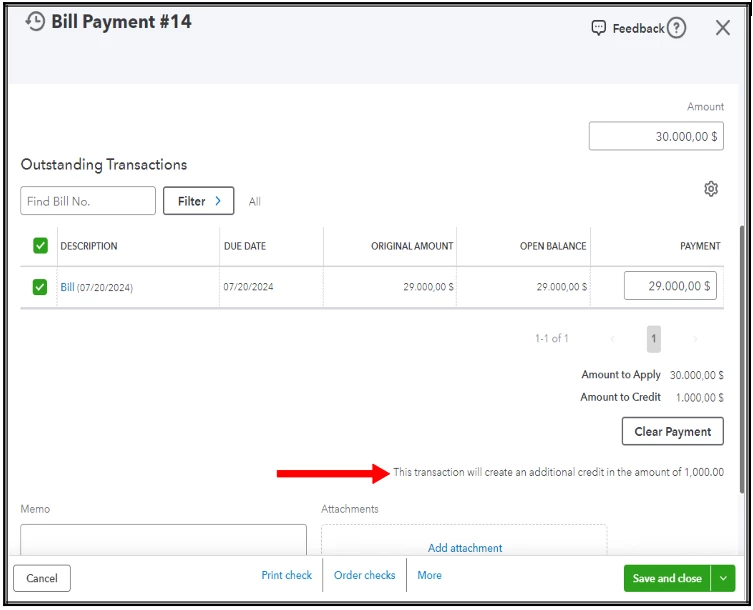
 

If you've communicated with your vendor to store your overpayment as a credit on your open bill, you can mark the open bill as paid using the Unapplied Payment. What this does is that it links the bill payment transaction to two of the bills. I'd be glad to assist you in accomplishing this in QuickBooks Online (QBO).


To apply the credit to your next open bill, you can follow these steps:


  1. Choose Expenses on the left navigation panel.
  2. Select Vendors.
  3. Click on the vendor profile where the open bill exists.
  4. Locate the open bill and choose the drop-down arrow.
  5. Choose Mark as paid.
  6. Scroll down and ensure placing a checkmark for the Unapplied Payment # [no.].
  7. Hit Save and close.


If you want to run expense or Accounts Payable reports after this, let me add this article as a future guide: Run reports in QuickBooks Online.


We'll be here in the Community if you have further questions about handling vendor overpayments in QBO. We'll do our best to assist. Take care!


1 reply

AlverMarkT
July 20, 2024

Hello, Rigo. I'm here to help.


You're correct. While QuickBooks Online (QBO) doesn't automatically create a separate Vendor Credit for the bill overpayment, it still stores the Unapplied Payment as a credit which you can apply to your next open bill, as in the screenshot below.


If you've communicated with your vendor to store your overpayment as a credit on your open bill, you can mark the open bill as paid using the Unapplied Payment. What this does is that it links the bill payment transaction to two of the bills. I'd be glad to assist you in accomplishing this in QuickBooks Online (QBO).


To apply the credit to your next open bill, you can follow these steps:


  1. Choose Expenses on the left navigation panel.
  2. Select Vendors.
  3. Click on the vendor profile where the open bill exists.
  4. Locate the open bill and choose the drop-down arrow.
  5. Choose Mark as paid.
  6. Scroll down and ensure placing a checkmark for the Unapplied Payment # [no.].
  7. Hit Save and close.


If you want to run expense or Accounts Payable reports after this, let me add this article as a future guide: Run reports in QuickBooks Online.


We'll be here in the Community if you have further questions about handling vendor overpayments in QBO. We'll do our best to assist. Take care!

July 26, 2024

Thanks so much! You've been of great help!

July 26, 2024

Hello there, Rigo.


I'm delighted to hear that you found the assistance provided helpful! It's always a pleasure to support you with your accounting needs. 


If you have any more questions or require further assistance in the future, please don't hesitate to reach out. Your satisfaction is our top priority, and we are here to help you succeed in managing your financial tasks effectively.


Thank you for choosing us as your accounting partner!