February 6, 2024
Question

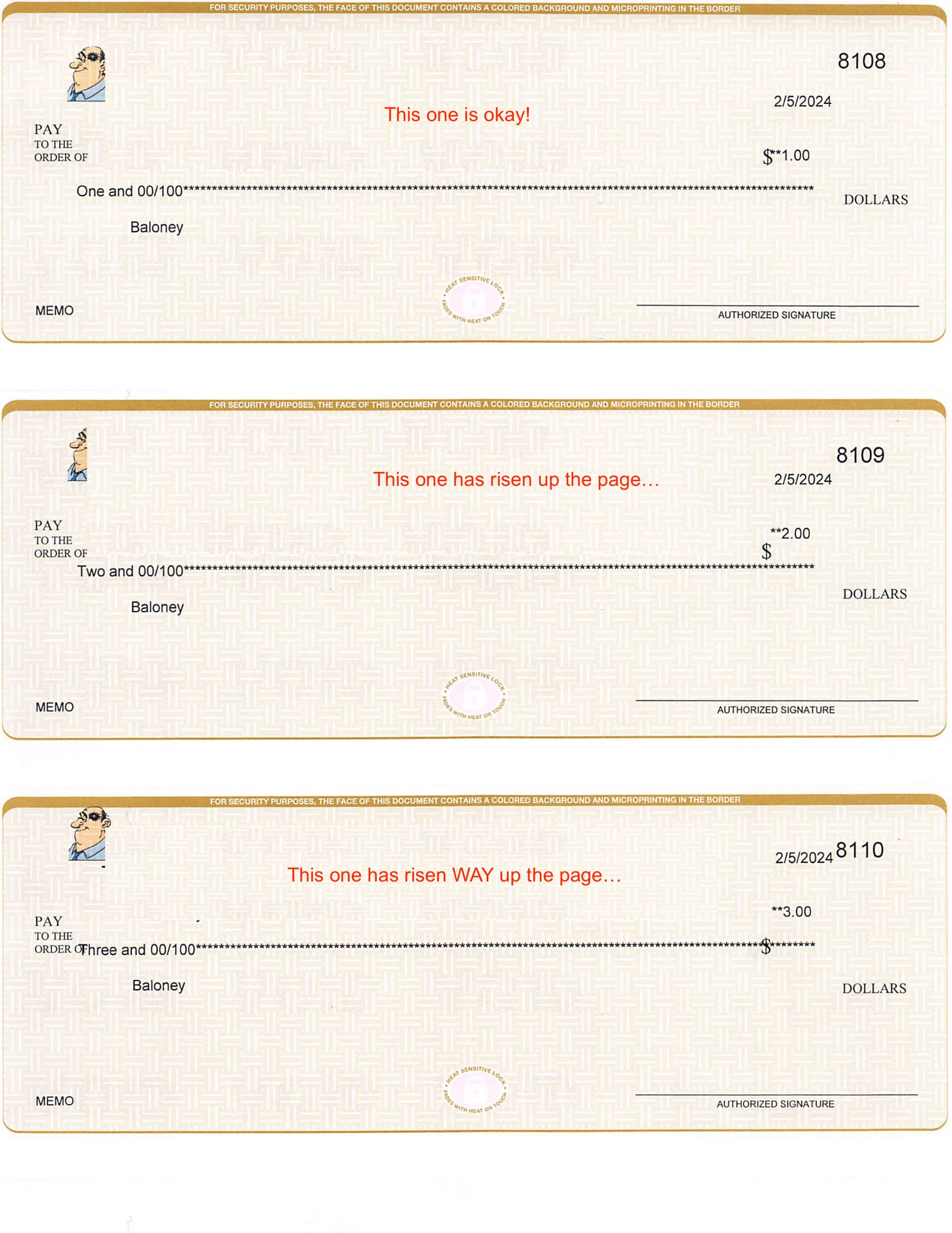
Checks print "up the page." If I print 3 checks, the last one isn't nearly aligned

  • February 6, 2024
  • 2 replies
  • 0 views

If I print more than one voucher at a time, the checks print in the wrong location. They aren't giving enough space between the checks. Image attached.


2 replies

February 6, 2024

I'll help you fix your printing alignment for your voucher, LeMild.


We can make coarse adjustments if you're using checks purchased from Intuit. Here's how:


  1. Go to File and select Printer Setup
  2. Select the form you want to print from the Form name dropdown.
  3. Select Continuous (Perforated Edge) from the Printer type dropdown.
  4. Hit Align, then choose a template to use.
  5. After selecting a template, click OK.
  6. Choose Coarse, then OK to print a sample form.
  7. Check the pointer line QuickBooks printed across the middle of the sample. Note the number closest to the arrow points. Enter this number in the Pointer Line Position field and then select OK. QuickBooks might print another one.
  8. Take note of the printer alignment position on the test form for future reference.


However, if you're using checks purchased outside of Intuit, make fine alignment adjustments.


Additionally, I'll share this article to help you resolve lines on your invoices and other sales forms not printing clearly: Printing is unclear or fuzzy.


I'm all ears if you need further help with printing checks. Just leave a comment below, and I'll get back to you. Have a nice day!

LeMildAuthor
February 6, 2024

Hi Camelle,


Thank you, but these checks aren't continuous, they're on separate pages.


When I do try to follow your directions, I'm told "the printer driver you are using does not support a full range of fonts for this printout." Then, nothing prints. When I check my print queue an item listed as "Quickbooks Portblast" is sitting there, not printing.

MariaSoledadG
February 6, 2024

Let me help you sort out this issue, LeMild.


We can locate the QBPrint.qbp so we can rename the file and be able to save the printer setup and customization of your checks. 


  • Windows 10, 8.1, and 8: C:\ProgramData\Intuit\QuickBooks 20xx
    (20xx represents the version of your QuickBooks.)
  • Server 2008 and Server 2012: C:\Program Data\Intuit\QuickBooks YEAR and C:\Users\**remote user**\AppData\Roaming\Intuit\ YEAR VERSION\TSPrinterSettings
    Note: Terminal Service users report finding duplicate copies of the Qbprint.qbp file with the stored client data files; double-check all folders for odd instances.

Once done, proceed with the outlined steps to rename it. 


  1. Right-click the QBprint.qbp file for your QuickBooks version and select Rename.
  2. Add the word "old" to the file name (i.e. QBPrint.qbp.old)
  3. Open QuickBooks once again.
  4. Go to the File menu and select Printer Setup.
  5. Select any transaction in the Form Name list and select OK. This will create a new QBprint.qbp file.
    Note: You don't have to do this for every transaction.
  6. Go back to the Check and print it to test if it's working correctly.


You may also experience other issues when printing from QuickBooks Desktop, see this article for more information and details:


Leave a reply below if you have any other concerns or follow-up questions. I'm always here to help you accomplish your tasks.

LeMildAuthor
February 20, 2024

If you happen to search the web and come across this problem, please note:

1) I was given some suggestions here that were useless.

2) I was told to call Quickbooks to see if they could help.

   2a) They could not help. I spent over 30 minutes on the phone and was PROMISED a return call.

   2b) I received no return help or call.

3) This very website stopped responding altogether.


Quickbooks is expensive, yet they offer no help whatsoever with their questionably faulty product. Please reply here if there's ever a Class-Action Lawsuit. I'd like to be part of it.