June 15, 2021
Solved

HOW DO I DO PERCENTAGE OF PART OF THE INVOICE

  • June 15, 2021
  • 2 replies
  • 0 views

We have a mechanic shop. On the invoice, we charge 6% of the shop labor total for shop supplies. The invoice also has parts. How can I calculate the shop supplies automatically on just the labor and not the parts?

Best answer by jamespaul

Hello, Aam274. 


I have a way to help you calculate the shop supplies on the labor for your mechanic shop. 


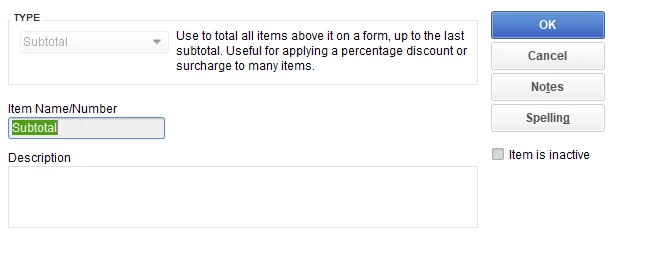
You'll want to add a subtotal to your shop supplies, then add the labor service to calculate the 6% charge. 


First, create a subtotal item: 


  1. Go to Lists, then select Item List.
  2. Right-click on the Item List window, then select New.
  3. Set the Type as Subtotal, then add a name for it.
  4. Once done, click OK


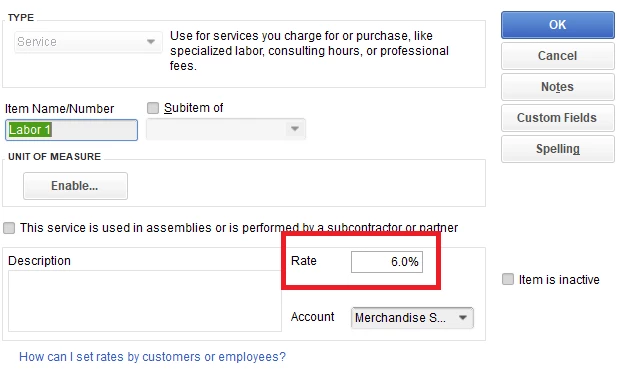
If you haven't already done it yet, you'll also want to create a labor service as an item. Set the Type as Service, then enter 6% in the Rate box. 


When creating an invoice, you'll want to add the shop supplies first, then add the subtotal item.


Afterwards, use the labor service right below the Subtotal line. This will calculate the total price of the shop supplies plus the 6% labor charge. 


Add the remaining items for your invoice (the parts in this case). This is what it looks like after creating the transaction: 
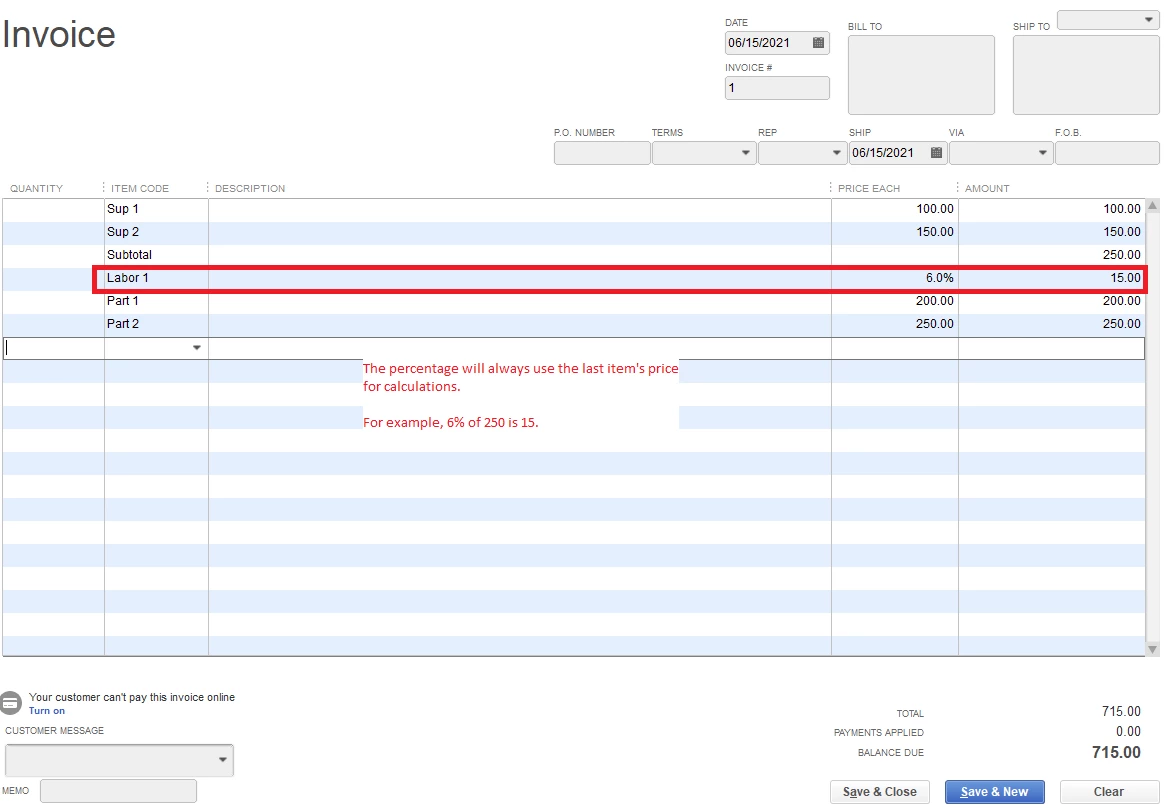


If you've noticed, the labor service item will always calculate the prior item's price. 


Need to see how much you've made from your mechanic shop? You can check out a bunch of reports to see your sales, expenses and other data.


This article can help you build your preferred report: Understand reports.


I'm happy to show you around in QuickBooks Desktop again. If you have more questions about recording invoices, please let me know. I'd be glad to help. 

2 replies

jamespaulAnswer
June 15, 2021

Hello, Aam274. 


I have a way to help you calculate the shop supplies on the labor for your mechanic shop. 


You'll want to add a subtotal to your shop supplies, then add the labor service to calculate the 6% charge. 


First, create a subtotal item: 


  1. Go to Lists, then select Item List.
  2. Right-click on the Item List window, then select New.
  3. Set the Type as Subtotal, then add a name for it.
  4. Once done, click OK


If you haven't already done it yet, you'll also want to create a labor service as an item. Set the Type as Service, then enter 6% in the Rate box. 


When creating an invoice, you'll want to add the shop supplies first, then add the subtotal item.


Afterwards, use the labor service right below the Subtotal line. This will calculate the total price of the shop supplies plus the 6% labor charge. 


Add the remaining items for your invoice (the parts in this case). This is what it looks like after creating the transaction: 


If you've noticed, the labor service item will always calculate the prior item's price. 


Need to see how much you've made from your mechanic shop? You can check out a bunch of reports to see your sales, expenses and other data.


This article can help you build your preferred report: Understand reports.


I'm happy to show you around in QuickBooks Desktop again. If you have more questions about recording invoices, please let me know. I'd be glad to help. 

February 10, 2022

Is there a way to set up the Sales Order or Invoice so that this is automatically input or would I have to manually put Subtotal and the rate for each Sales Order/Invoice?

February 11, 2022

Hi there, @18wheeler18.


At this time, you'll have to manually enter the subtotal and the rate for each sales order or invoice. This way, it'll calculate the total price and its percentage for the labor charge.


I can see that the option to automatically set it up to the sales order or invoice is beneficial to you and your company. For now, I encourage submitting feedback directly to our product engineers. They may look into this suggestion and consider adding the option in the future update. To send feedback, please follow the steps below:


  1. Open your QuickBooks Desktop company file.
  2. Go to the Help menu, then select Send Feedback Online and choose Product Suggestion.
  3. Enter your feedback and click Submit.


You might want to read this article: Use and customize form templates. This allows you to create custom form templates to control how they look and what information to include.


Please let me know if you need more assistance managing invoices in QuickBooks Desktop. I'll be standing by for your response, @18wheeler18.

January 21, 2024

Welcome to the Community, 99NE.


I can see the importance of having the feature to make your percent discount negative to effectively add the calculated amount to the total cost in QuickBooks Desktop (QBDT). Let me share some information on how to do this. 


Firstly, we need to create a Subtotal to calculate all the previous items within an invoice or sales receipt. To do so, here's how:


  1. In your QBDT file, go to Item List.
  2. On the bottom part, select the Item dropdown, then choose New.
  3. Select Subtotal on the Type section, and add the Item Name/Number.
  4.  Tick Amount and Cost on the Columns to total.
  5. Click OK.


After that, we need to create an Other Charge to add a calculated amount. Here's how:


  1. In your QBDT file, go to Item List.
  2. On the bottom part, select the Item dropdown, then choose New.
  3. Select Other Charge on the Type section, and add the Item Name/Number.
  4. Add the amount in the Amount or % section and choose whether this is taxable or not in the Tax Code section.
  5. Select the an Income account for this in the Account dropdown.
  6. Click OK.


Moving forward, when you create an invoice, it's advisable to add Subtotal and Other Charge after the Item so that it will effectively add the calculated amount to the total cost of the invoice.


Furthermore, if you've received a payment from a customer, you can visit this article to learn how to record it: Record an invoice payment.


If you have other questions regarding this concern don't hesitate to get back to us by leaving a reply below. We're always ready to assist you.