Solved
How do I enter a payee ACH activation credit in my checking account? This is not a paymet from a customer, it is from payment service that my customer uses.
Original commenter did not share additional details


Let's explore options for efficiently entering a payee Automated Clearing House (ACH) activation to your checking account in QuickBooks Online (QBO) and QuickBooks Desktop (QBDT), Michael.
If you're using QBO connected to online banking, the ACH transaction will appear in your bank feeds, which you can categorize into the appropriate account. Here's how:
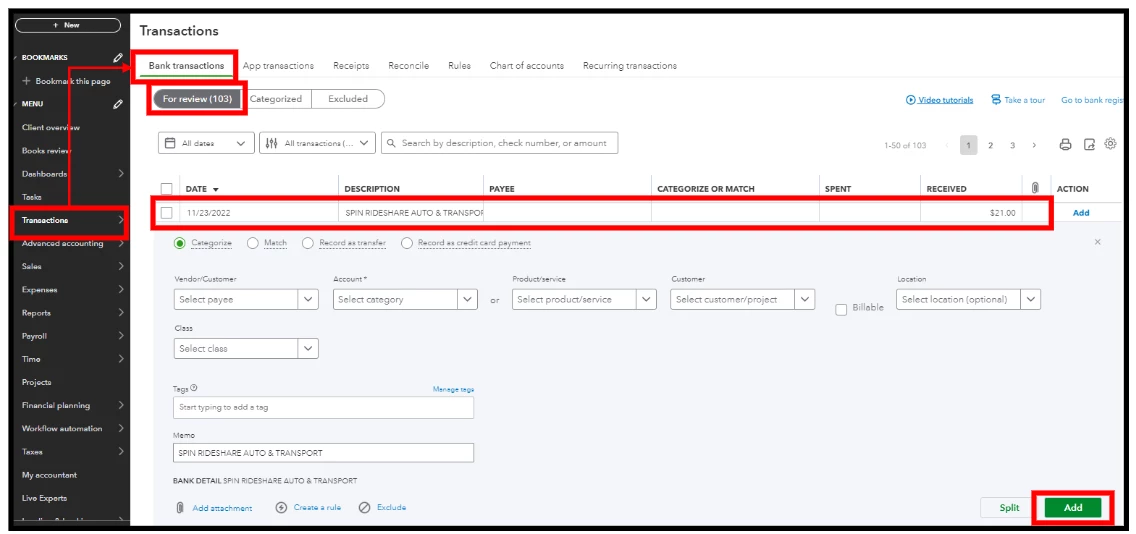
If you haven't linked your bank account in QBO, you can manually enter the transaction as a deposit in the Chart of Accounts.
If you're using QBDT with online banking, refer to this article for detailed steps in categorizing transactions: Add and match Bank Feed transactions in QuickBooks Desktop. Otherwise, here are the steps on how to add the entry manually:
Moreover, I'll share these resources, tailored to your product, to help you match your bank statement with what's entered into the program:
We're excited to assist you further whenever you have additional concerns with entering transactions into the program. Feel free to reach out for any assistance, and we'll chime back into action. Stay safe.
Enter your E-mail address. We'll send you an e-mail with instructions to reset your password.