February 28, 2019
Solved

How do I find which payment a credit was applied to

  • February 28, 2019
  • 1 reply
  • 0 views

We are an animal rescue.  Our veterinarian bills us weekly.  We have a grant that pays for spay/neuter of dogs, with a $75 copay.  Instead of simply deducting the $75 from the total bill, and billing me for the balance, they credit me the $75 for each downpayment, then bill me for the total bill.  This makes it complicated for me, but easier on them.

This past week, I had 2 - $75 credits.  I already had 2 credits waiting to be used.  They deducted $150 from my total payments.  After entering everything, I realized I used the wrong 2 credits.  How do I go back and undo the credits, so I can apply the correct ones.  I can't seem to find how to show where a credit was applied, after the fact.

Thanks

Best answer by Rose-A

Hey there, d.riseberg.

Thanks for the quick response. I'm here to clarify the steps I've provided above and helped you determine the credits applied to the invoices.


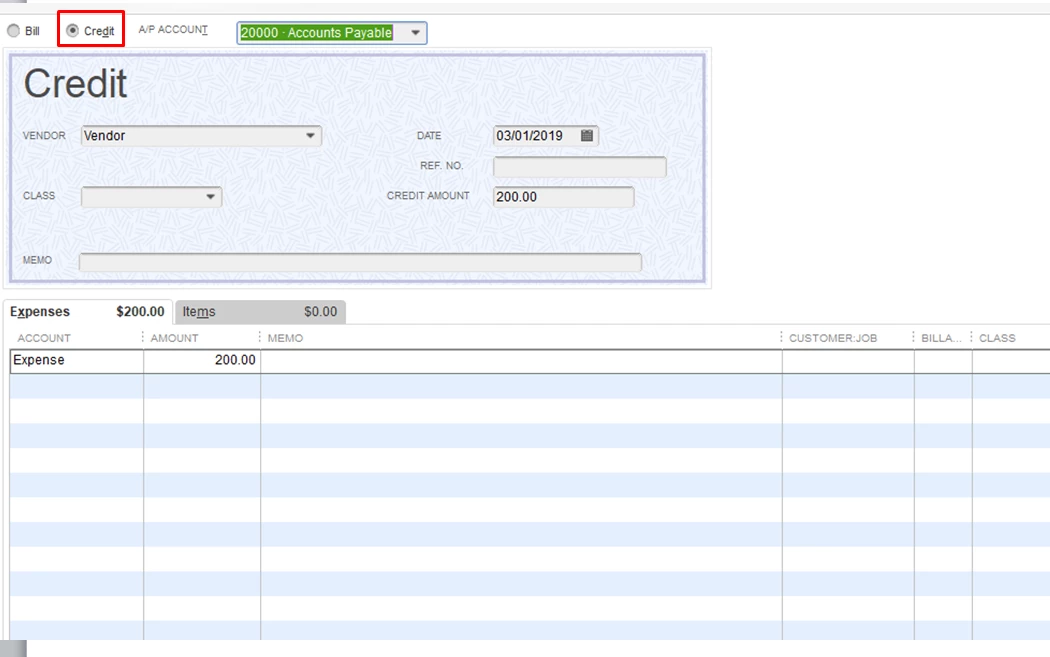
To clarify the steps above, you can simply edit vendor credits. Change the credit to a bill and you are warned it will unlink it from the bill. Save it. Then edit the transaction again by selecting the credit and save it again.


  1. Locate and open the appropriate vendor credit.
  2. Select the Bill radio button to change the transaction type then Save & Close.
  3. Open and change the transaction type again, from Bill to Credit by selecting the Credit radio button, then Save and Close.
  4. When prompted about changing the transaction, select Yes.


Regarding credits applied to the invoices, you can follow the steps below to determine what invoice is linked to the credit.


Here's how:

  1. Locate and open the appropriate credit.
  2. In the Credit Memo screen, press CTRL+H together.
  3. You'll see the invoice linked that credit.


Please let me know how it goes or if you ran into a different situation by leaving a Reply below. I'm always here to help you with credits in QuickBooks Desktop.

1 reply

Rose-A
February 28, 2019

I'm glad to see you here in the Community, d.riseberg.

Let me provide you with easy steps on how you can undo the credits and apply it to the correct bill.


You can remove a vendor credit from a bill if it is wrongly applied.


Here's how:


  1. Locate the appropriate vendor credit.
  2. Select the Credit radio button to change the transaction type to credit, then select Save & Close.
  3. Change the transaction back to credit by selecting the Credit radio button, then Save and Close.
  4. When prompted about changing the transaction, select Yes.

Here's an article for your reference: https://quickbooks.intuit.com/community/Income-and-expenses/Remove-or-unapply-a-credit-from-an-invoice-or-bill/td-p/203272.


For additional help with QuickBooks, feel free to reach out to our Customer Care Team. You can get our most-up-to-date number here:


  1. Click Help at the top menu bar.
  2. Enter your concern.
  3. Click Contact us.

I'm always here if you need additional assistance about bills and vendor credits in QuickBooks Desktop.

February 28, 2019

I've read the response, and even tried to follow the steps.  It simply doesn't make sense.  It is already a credit.  It says: "Select the Credit radio button to change the transaction type to credit" - there is no change.  Then re-find the credit and "Change the transaction back to credit by selecting the Credit radio button".  It never stopped being a credit.

What am I missing?