I can help you how you can apply vendor credit to your bills in QuickBooks Online, @CML61.
In order to successfully apply the vendor credits, we will need to cancel your scheduled bill payment for now. Following that, we can proceed to create an expense to link the bill to the vendor credit.
You can follow these steps to cancel your scheduled bill payment:
- Sign in to your QuickBooks Online company file.
- Press the Expenses tab, then Bills.
- Select Show Bill Pay payments.
- Choose the scheduled bill payment from the list, then select View details.
- Pick Cancel this payment.
Next, let's create an expense by following the steps below:
1. On the + New, click the Expense.
2. Enter the vendor you want to apply the credit.
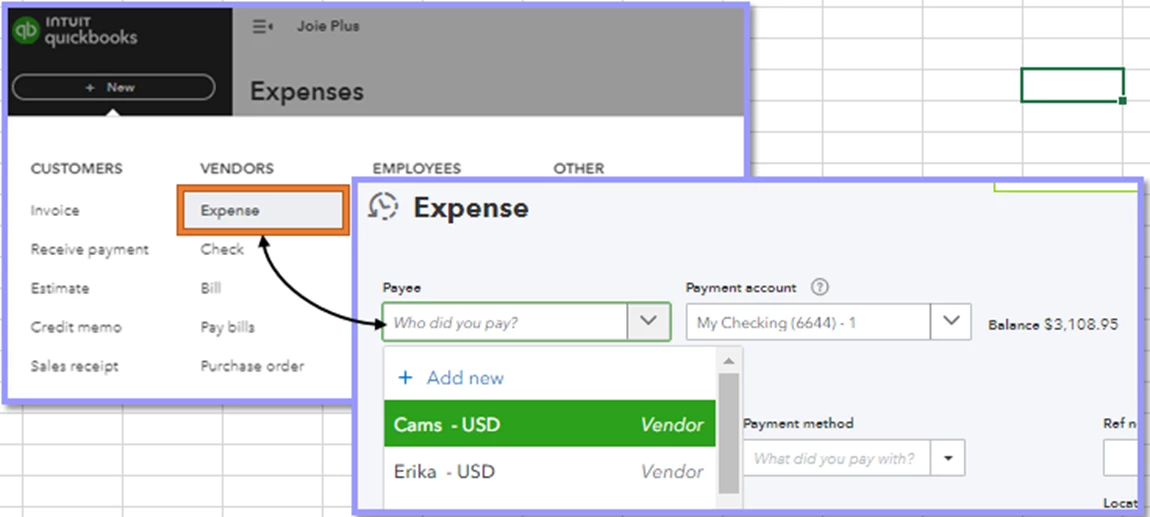 3. Once done, the bill and the vendor credit will appear on the right side of the screen.
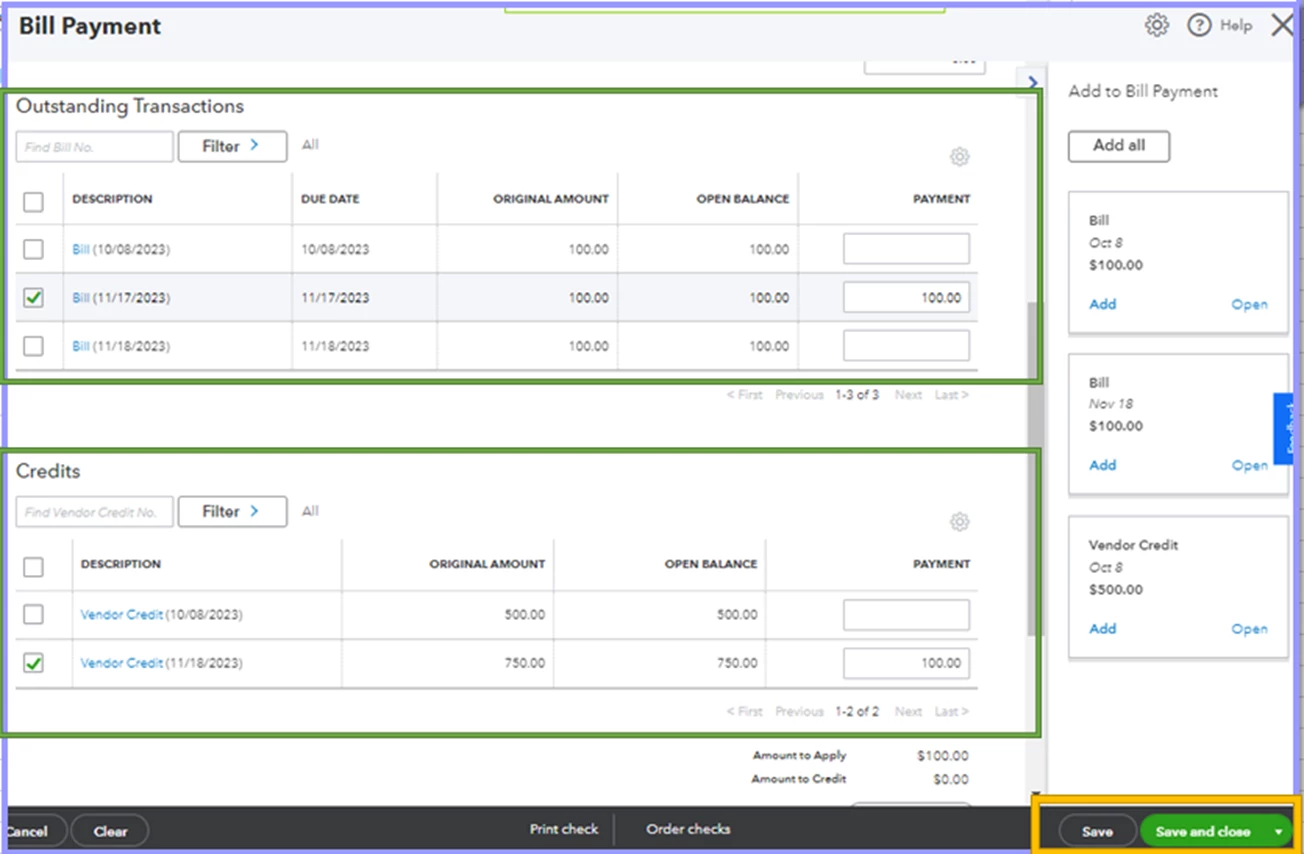
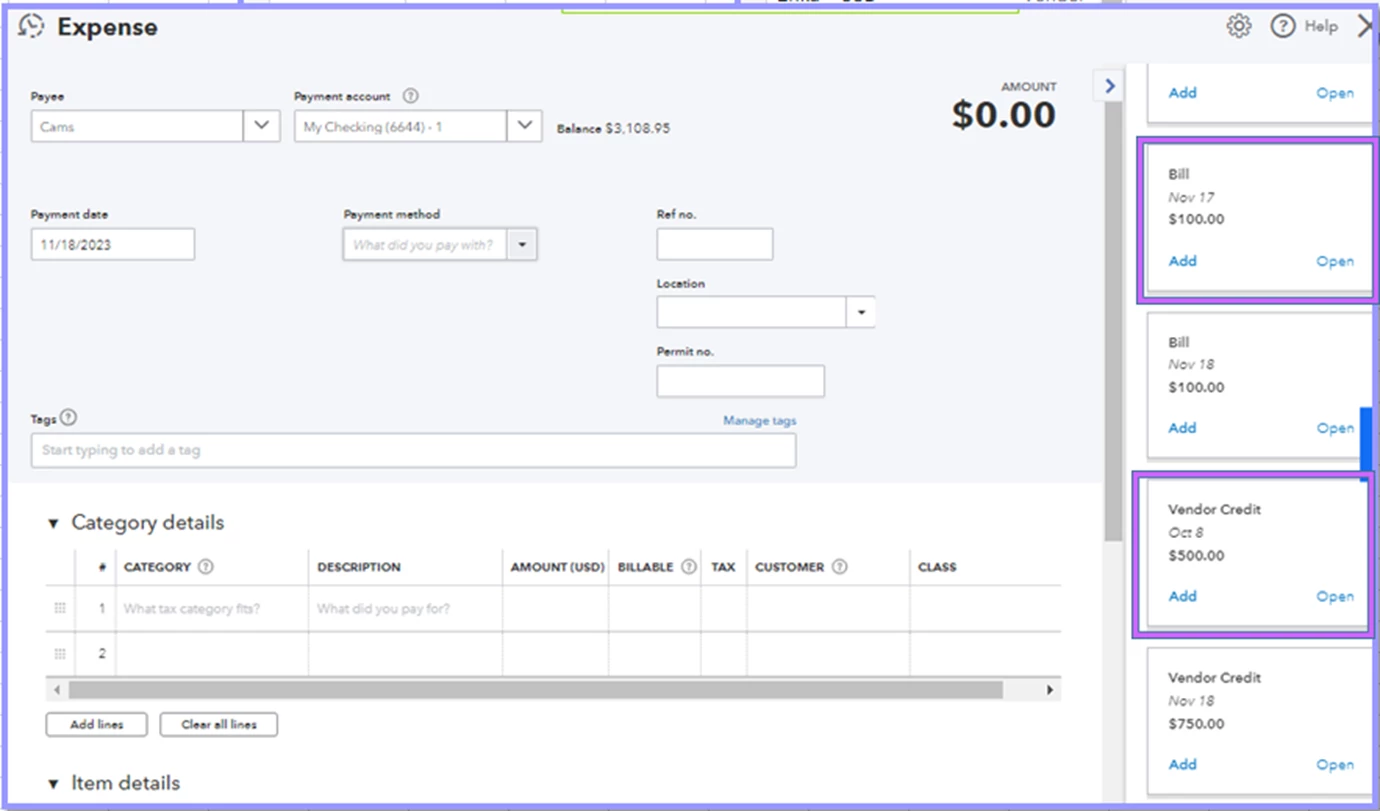 4. Put a checkmark the Outstanding transactions and the Credits you want to link.
5. Lastly, press the Save and Close button.
These steps help you in applying vendor credits when scheduling ACH payments in QuickBooks Online. If you have any further questions or need additional assistance, feel free to ask. Good luck with your vendor payments!

