

May 2, 2024
Question

How to remove the Pay Invoice button on PDFs in QBO?

  • May 2, 2024
  • 4 replies
  • 0 views

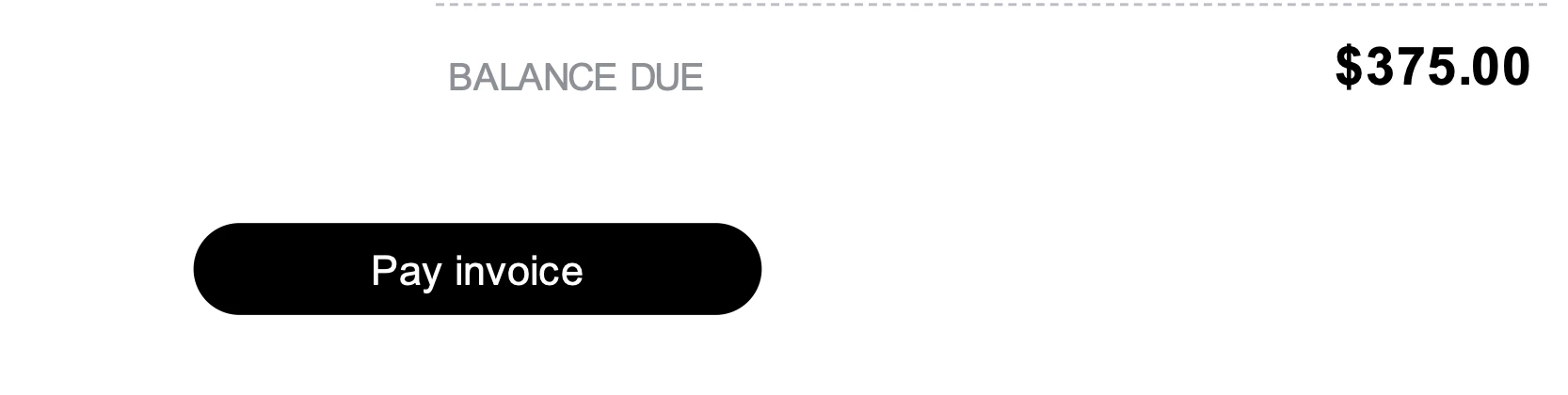
A Pay Invoice button started appearing on our invoice PDFs in QuickBooks Online. We made no changes. How do we stop this from showing up on our invoices? We have not signed up for QB Payments. We have not activated "Accept online payments".


If you click this button on the PDF it goes to a page that says "Looking for a way to pay?" etc. I don't want my customers to go to this link and get confused on how they should pay us. I would like this button to go away. Thank you.
 

4 replies

Candice C
May 2, 2024

Good evening, @soundsessential


Welcome back to the Community! 


After reviewing your issue and researching possible solutions, there isn't a way to remove this button. I do recommend submitting feedback to our Product Developers so they can consider removing this in the next available update. 


Here's how: 


  1. Go to the Gear icon in the top right-hand corner. 
  2. Tap the Feedback option. 
  3. Enter your suggestions. 
  4. Click next to submit your feedback. 


I'm only a post away if you need me again. Have a wonderful day! 

May 2, 2024

Thank you for the quick response and information. That's messed up that someone at Intuit thought adding that button to all invoices regardless of using QB Payments or not was a good idea. It's clear why it's being done. It's wrong and messed up.


Feedback has been submitted. 

May 8, 2024

It's because Intuit makes 1% on the transaction if your customers pay that way. Frustrating that this was added.

May 8, 2024

Also need assistance with this. It seems crazy that there would not be a solution to remove this!

May 8, 2024

I hear your sentiments, 102BooksQ. I'll ensure you can remove the pay button when emailing customer invoices.


If you're not collecting online payments, you can remove the option for customers to pay online and update your online delivery options. This way, the pay button will not appear when sending customer invoices. Let me guide you on how.


  1. Go to the Gear icon.
  2. Choose Account and Settings, then select the Sales tab.
  3. Under the Invoice Payments section, uncheck the payments options checkbox.
  4. Click on Save and Done.


After that, change the email options for invoices:


  1. Go back to the Gear icon.
  2. Navigate to Account and Settings.
  3. Click the Sales tab.
  4. Head to the Online delivery section.
  5. Choose HTML from the Additional email options for invoices dropdown.
  6. Then hit Save and Done.


Finally, when you're ready to record customer payments, you might want to review this material as your guide: Record invoice payments in QuickBooks Online.


Feel free to update us in the thread if you have additional questions when managing your invoices or other related concerns in QuickBooks Online. I'm always here to lend a hand.

May 8, 2024

This does not work. We do not have "Accept Online Payments" activated, so there is nothing to toggle off. It says:


Invoice Payments

Accept online payments - Activate

Payment instructions - No custom payment instructions added


May 10, 2024

Good day everyone,


Removing the Pay invoice button on PDFs in QuickBooks Online is now available. I'll be glad to walk you through the process.


When creating or editing an invoice, follow the steps below:


  1. Select the Manage tab if the invoicing panel on the right is not yet open.
  2.  Navigate to the Design section and scroll down past the Color, Font, and Template options.
  3. Toggle off Add payment link to PDF.


See this article to learn more about the features available in the new layout: See what’s new with estimates and invoices in QuickBooks Online.


Furthermore, save this guide to personalize your sales forms according to your needs: Customize invoices, estimates, and sales receipts in QuickBooks Online.


If you have any other questions or issues concerning invoices and other transactions in QuickBooks, add them below. I'm always here to help.

May 13, 2024

This option does not appear on mine. WHY?


Really, all these forced invoicing changes broke the camels back for my business. After 5 years of QBO I am now searching for a more serious company. This new layout does not work well for my workflow. 

May 13, 2024

I'm concerned about how this situation affects you and your business. I'm here to share insights about the link option, @Altezza.


To have this option showing on your end, you can consider first connecting your QuickBooks Payments account to enable the view and send a link to your customer or add payment link to PDF.


Here's how you link your QB Payment account:


  1. Sign in to QuickBooks Online as an admin.
  2. Click the Gear icon, then select Account and Settings.
  3. Select Payments.
  4. In the Existing Account section, select Connect or Link Merchant Service.
  5. Select the QuickBooks Payment account you want to connect to. Then select Connect.
  6. Review the account info and make sure it's accurate. If everything looks good, click Connect.
  7. Once connected, log out and sign back into QuickBooks Online. The option should now be visible.


If you need a guide in taking and processing your customer's payments online, check this article for assistance: Accept electronic customer payments.


Let us know if you have other questions about your invoices. We're always here to assist. Have a nice day.

July 22, 2024

The only way to remove the pay now button and scan code is to save the invoice as a PDF and then go into your PDF and edit it (remove those items) then re-save and then attach to an email.  This requires an old school manual way to do it but is worth not confusing or derring customers away and complying with being forced to advertise for intuits banking products.  I definitely would not recommend QB any longer, back in the day- sure but now days definitely not!

January 6, 2025

Actually this worked for me:


  1. Go to the Gear icon.
    Choose Account and Settings, then select the Sales tab.
    Under the Invoice Payments section, uncheck the payments options checkbox.
    Click on Save and Done.


    After that, change the email options for invoices:


    Go back to the Gear icon.
    Navigate to Account and Settings.
    Click the Sales tab.
    Head to the Online delivery section.
    Choose HTML from the Additional email options for invoices dropdown.
    Then hit Save and Done.

January 6, 2025

Thank you so much - it worked for me as well.