

March 2, 2019
Solved

PDF Invoices Emailed From QuickBooks Pro are Blank or Contain Strange Characters

  • March 2, 2019
  • 3 replies
  • 0 views

Dear QuickBooks community!


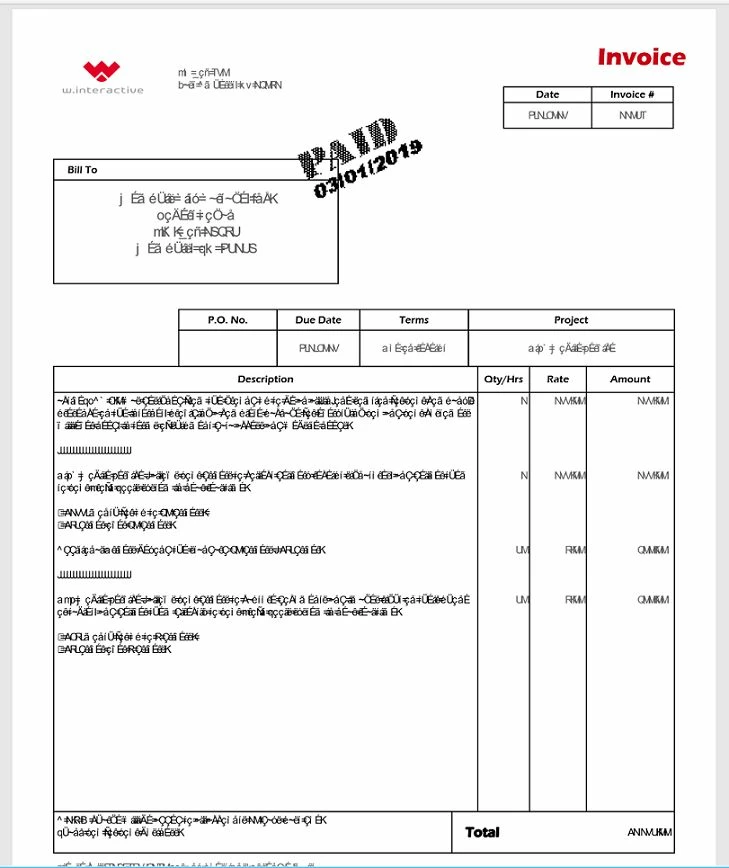
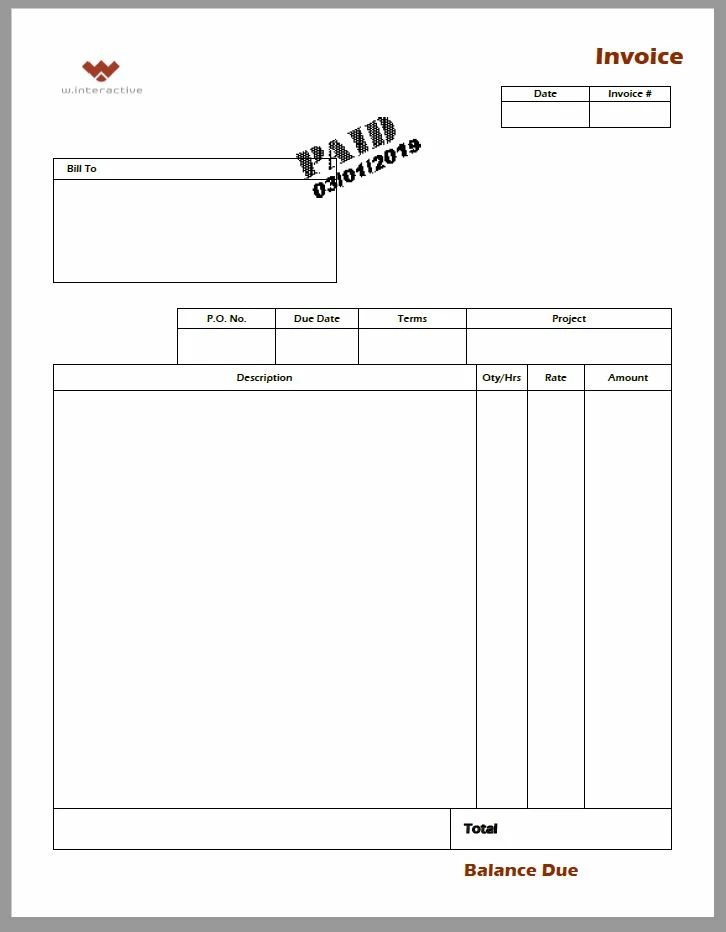
This problem has plagued me for years, and I finally decided to post about it.  I cannot email invoices to customers. Anytime I try this, the email is sent without issue, but the PDF is either completely blank or shows strange looking characters (as though there is a font missing or something to that effect).  What's really strange is that it didn't work on my old Windows 7 computer, and now it doesn't work on my new Windows 10 computer.  Totally different machines, fresh installations of Windows and QuickBooks Desktop Pro 2018.


If I email a payment receipt, that's totally fine.  If I print to PDF, everything is totally fine, but that's not nearly as convenient as just clicking the email button and sending the email and invoice all in one step.  Anyone have an idea of what might be going on? 


Here's an example of what the PDF looks like to the customer:
 

Here's an example of what the PDF looks like on my end:
 

If anyone can solve this, I'd be absolutely thrilled, as it would save me all kinds of headaches and time!


Best answer by IH8QckBks

I finally solved this issue.  First, I tried your suggestion of reinstalling the XPS Document Writer.  That didn't resolve it.  So I then decided to analyze the blank PDF that was being generated, using Adobe's Acrobat DC (the older version is Acrobat Pro), to edit the PDF.  Doing that revealed that there were placeholders created for all of the content, but when I tried to go into one of the placeholders to see if there was any hidden content, I received an incompatible font error.


So my solution was to go into the custom invoice template that I created, and replace the font I had been using (Myriad Pro - that's Adobe's default font for Illustrator) with Helvetica.  That fixed it.


So if anyone has created a custom template, and it's not generating PDF's properly when you use QuickBooks' email feature, you might want to check the font you're using.  It appears that not all fonts are compatible with the XPS Document Writer. 

3 replies

BettyJaneB
March 2, 2019

Hey there, @IH8QckBks.


I appreciate the details that you've provided. I can share some troubleshooting steps to get this emailing invoices in PDF issue sorted out. 


We haven't received any similar cases reported to us. To better isolate this issue we can try reinstalling the Microsoft XPS Document Writer to fix this issue. This is pre-installed on Windows 10, 8/8.1 and 7 machines which plays an important role with emailing transactions in QuickBooks.


There are two ways of reinstalling it. First is to reinstall Microsoft Document Writer using an existing port. 


Here's how:

  1. Open the printer's window by clicking the Windows Start icon. 
  2. Type Printer. For Windows 7: Enter Control Printers in the search field and press Enter.

Once done, reinstall the Microsoft Document Writer by following these steps:

  1. From the Devices and Printers window, click Add Printer.
  2. Choose Add a Local Printer then select Use an Existing Port.
  3. Select XPS Port then Next.
  4. In the manufacturer list, choose Microsoft.
  5. On the right side, choose the latest version of the XPS document writer and click Next.
  6. Choose the driver currently installed then click Next and Finish.

If the XPS Port is not available, let's perform the second option to reinstall Microsoft Document Writer using a new port.


To do that:

  1. Click on Add a Printer.
  2. Choose Add a Local Printer then select Create a New Port.
  3. Select Local Port and Next.
  4. Type in XPS Port then click OK.
  5. Choose Microsoft.
  6. Select the latest version of the XPS Document Writer then click Next.
  7. Select Use the Driver that is Currently Installed and Next.
  8. Printer name should be Microsoft XPS Document Writer. Click Next.
  9. Select the option Do Not Share Printer then Next.
  10. Uncheck the box for Set As Default Printer. Click Finish.

For more details about these steps, please refer to these articles: 

However, if the issue persists after trying these process, I'd suggest reaching out to our Customer Care Team. They have the proper tools like screen-sharing that will check on set up and verify what's causing the issue. To reach them, please follow the contact details found in this link: Contact the QuickBooks Desktop Customer Support Team.


These resources should help you fix your PDF issues.


Please let me know how it goes. I'm always here to provide assistance with any QuickBooks concern. Have a great weekend!

IH8QckBksAuthor
March 15, 2019

See updated response.

February 24, 2022

I am having this same issue, however this only happens when I print checks, both payroll and checks. It happens radomly but is very frustrating and is wasting alot of checks. The odd thing is when this happens and I hit print, the check is printed with randomly weird characters and just keeps printing page after page. It starts with printing @Pjl SET JOBATTER= "OS Version = 10.0.22000 and the pages after that are printed with random characters such as smiley faces, hearts, #s, etc. 

Any help would be appreciated as the support desk has not been able to resolve. 

MJoy_D
February 24, 2022

Let's resolve the error you're having to print your checks perfectly, @CWA7704.


There may be some minor data issues with your company file that's why you're having problems when printing your checks. Try running the Rebuild and Verify Utility tool to fix possible data damage on your company file.


Please follow the steps below:


  1. Open your company file again.
  2. Go to the File menu, then select Utilities and choose Rebuild Data.
  3. Click OK in the QuickBooks Information window.
  4. Wait until the repair is done. Then, click OK.
  5. Then, go back to the File menu and select Utilities and choose Verify Data.
  6. Click OK if QuickBooks doesn't find any problems. Or Rebuild Now if it finds issues with your company file.


If you still get the same issue, let's try running the QuickBooks File Doctor to fix common issues. 


  1. Open your QuickBooks Tool Hub.
  2. Select Company File Issues.
  3. Click Quick Fix my File.
  4. Choose OK when it completes and launch your QuickBooks.


I'm adding this article for more troubleshooting steps: Fix data damage on your QuickBooks Desktop company file.


If the error persists, follow the next solutions outlined in this article: Troubleshoot PDF and Print problems with QuickBooks Desktop


Let me know if you need further help printing your checks or anything else. I'm always here ready to assist. Have a wonderful day!

March 14, 2022

We had a similar issue with Quickbooks 2022 Enterprise that we run in an RDS environment. We changed all custom email templates fonts to Times New Roman, and that fixed characters, but the column formatting was still way off.  We tried the XPS writer fix and running the Quickbooks Tool Hub PDF fix, no difference. 


The final fix was to upgrade the RDS server from Windows Server 2016 Datacenter to Windows Server 2019 Datacenter. All pdf issues resolved after that.