August 15, 2020
Solved

Quickbook Receipts - How long are they stored for?

  • August 15, 2020
  • 1 reply
  • 0 views

I've recently found out about Quickbook's newish  receipts feature where you can upload, scan or e-mail your receipts into Quickbooks. It then tries to work out what the receipt is for and for how much.


I really dislike "dealing with paper" and wanted to know if I can move to a paperless system. In order to do that I need to have the invoice stored for at least 3 years. Does Quickbooks keep the actual invoice for that length of time, or due to file size capacity issues does it delete it after say 2 weeks?


I currently use ReceiptBank but it looks like I won't need it if Quickbooks can hold onto this data for a long enough period of time.

Best answer by AileneA

Hello, JRCrawford. 


Thank you for choosing QuickBooks as your Accounting software. In QuickBooks, the receipts will stay in your account unless removed or deleted. 


This new feature added in QuickBooks is a handful, quick, and easy to use.  


With Receipt Capture, you and your clients can snap and store receipts digitally in QuickBooks Online to save hours of labor. Once receipts are uploaded to QuickBooks Online, they are automatically categorized and matched to transactions. Everything is organized and ready at tax time. 


Thus, Receipt Capture is currently available to U.S. customers using all versions of QuickBooks Online: Simple Start, Essentials, Plus, and Advanced.  


Here's how to receipt capture works. In QuickBooks Online, you can add receipts in three different ways: 


Use a web browser to add receipts and bills.  


  1. Open a web browser, then sign in to QuickBooks Online
  2. Click the Banking menu and choose Receipts. 
  3. Drag and drop the files or browse to upload. 
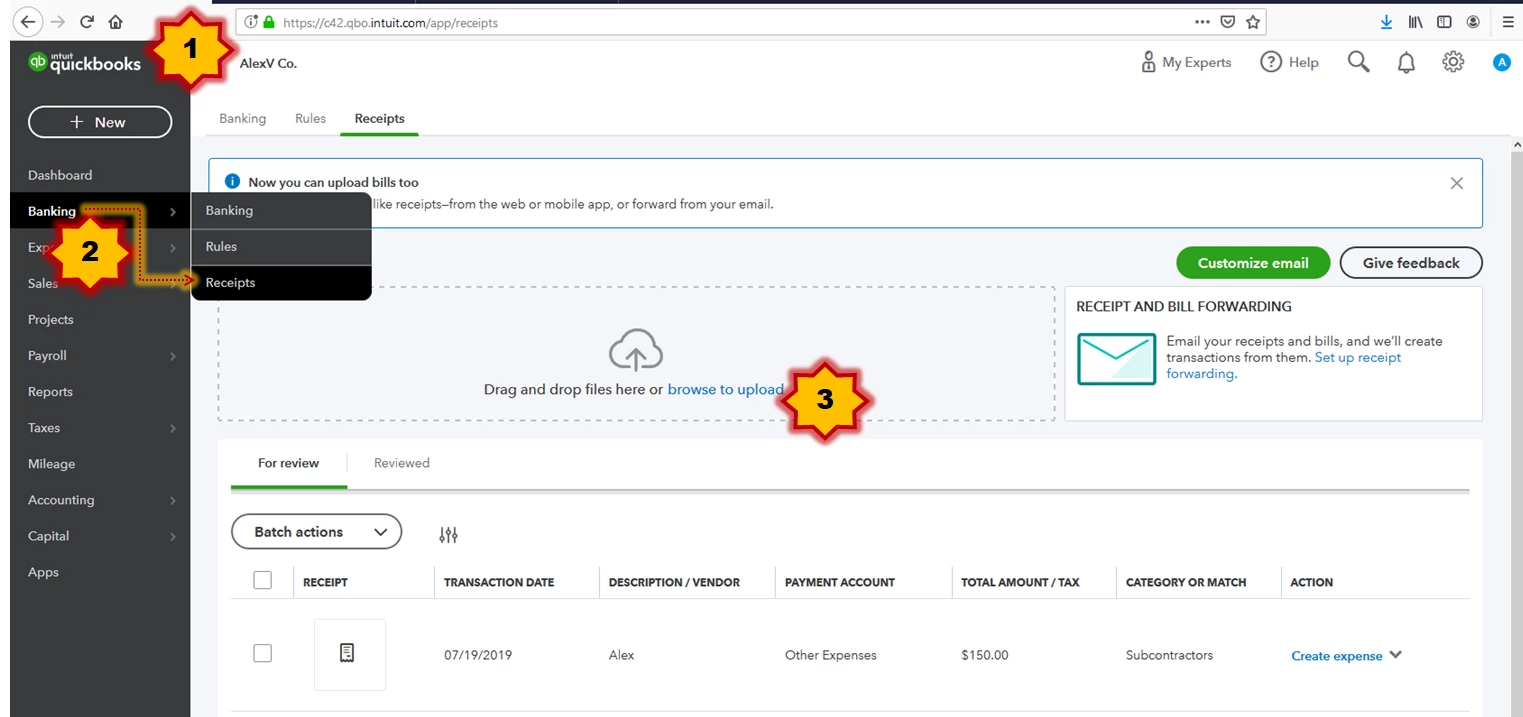


Note: Each image or file should only contain a single receipt or bill. 


Once submitted, QuickBooks Online reads the receipts, extracts the information, and automatically matches the receipt to a transaction. And, if there’s no match found, you can easily create a new transaction. 


For more detailed steps and information, please refer to this article: Capture and categorize receipts and bills


That's it! Super easy and handy. Please let me know if you have any other questions in QuickBooks. I'll be around here in Community to help you further. Have a wonderful day and stay safe!


1 reply

AileneAAnswer
August 16, 2020

Hello, JRCrawford. 


Thank you for choosing QuickBooks as your Accounting software. In QuickBooks, the receipts will stay in your account unless removed or deleted. 


This new feature added in QuickBooks is a handful, quick, and easy to use.  


With Receipt Capture, you and your clients can snap and store receipts digitally in QuickBooks Online to save hours of labor. Once receipts are uploaded to QuickBooks Online, they are automatically categorized and matched to transactions. Everything is organized and ready at tax time. 


Thus, Receipt Capture is currently available to U.S. customers using all versions of QuickBooks Online: Simple Start, Essentials, Plus, and Advanced.  


Here's how to receipt capture works. In QuickBooks Online, you can add receipts in three different ways: 


Use a web browser to add receipts and bills.  


  1. Open a web browser, then sign in to QuickBooks Online
  2. Click the Banking menu and choose Receipts. 
  3. Drag and drop the files or browse to upload. 


Note: Each image or file should only contain a single receipt or bill. 


Once submitted, QuickBooks Online reads the receipts, extracts the information, and automatically matches the receipt to a transaction. And, if there’s no match found, you can easily create a new transaction. 


For more detailed steps and information, please refer to this article: Capture and categorize receipts and bills


That's it! Super easy and handy. Please let me know if you have any other questions in QuickBooks. I'll be around here in Community to help you further. Have a wonderful day and stay safe!

May 27, 2021

This is great to know. I’d like to go completely paperless, and just toss the receipt after it’s completely captured and recorded. Off that same question, will it stay in a account for 7 years, even if we decide to forego the subscription later on? Also, is there other automated backups that can take place using the Self-employed online version?

May 27, 2021

Yes, you're right. You'll completely go paperless using the receipt capture feature in QuickBooks, @thatcreativeco. With this, I'll be glad to share further details about this.


In QuickBooks (either QuickBooks Online (QBO) or QuickBooks Self-Employed (QBSE)), the receipts you've captured/snapped and recorded will stay in your account unless removed or deleted.


When you've decided to forego your subscription, your data will be kept for up to one year. With this, I always recommend backing up your files by exporting them to Excel for future use. To learn more about data availability and export policies when cancelling, I recommend checking out this article: What happens to my QuickBooks Online data after I cancel?.


Also, if you wish to know the ways to enter and categorize your expense receipt in QuickBooks (QBO and QBSE), you can choose the appropriate article below based on the product/version you have:


In case you have other concerns about the receipt capture feature in QuickBooks, don't hesitate to leave a comment below. I'm just around to help. Take care and stay safe always.