May 12, 2021
Solved

Remove an open customer balance.

  • May 12, 2021
  • 1 reply
  • 0 views

How do I clear out an open customer balance? Can I do it with a journal entry? My client says the amounts been paid already and the invoices were voided.


Best answer by JasroV

Welcome to the Community space, @vitanovabookkeeping.


Yes, you can create a Journal Entry (JE) to remove your customer open balance. I'd be glad to walk you through the steps.


Before we begin, you'll want to consult with your accountant or visit our ProAdvisor page to look for one. This way, we can prevent messing up your book.


When you're ready, you can proceed to these steps: 
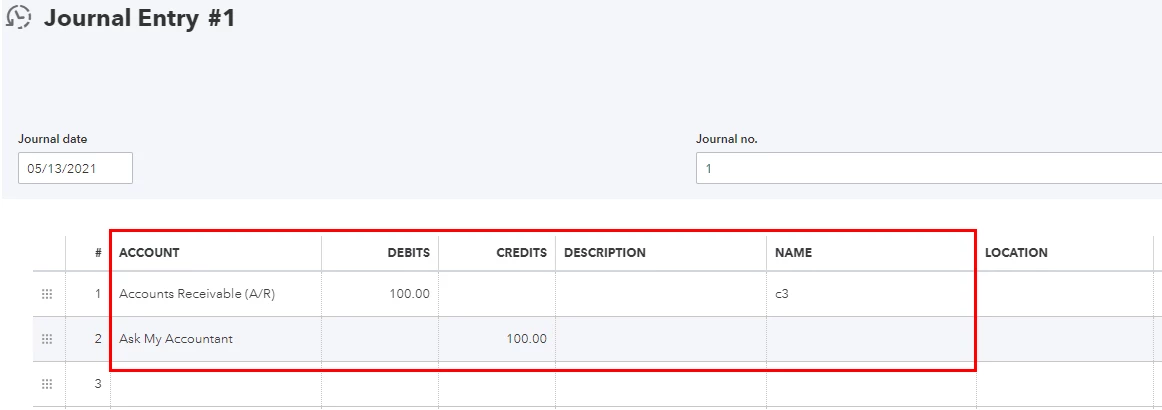
 

  1. Sign in to your QuickBooks Online (QBO) account and navigate to the + New menu.
  2. Click Journal entry.
  3. In the first line, select Accounts Receivable A/R under the ACCOUNT column.
  4. Enter the amount under the DEBITS column and select the name of the customer name under the NAME column.
  5. In the next line, select an offset account (usually an Expense account) and enter the amount under the CREDIT column. 
  6. Once done, select Save and close or Save and new.


You can also see this article for more details (though the steps is for QuickBooks Desktop (QBDT), the workflow also applies to QBO): Write off customer and vendor balances.


You might also want to check this link for guidance in case you need to link a deposit to an invoice: How to link a deposit to an invoice.


Let me know in your reply if you have any other concerns managing your customers and invoices. I'll be around to help you out. Keep safe!

1 reply

JasroV
JasroVAnswer
May 12, 2021

Welcome to the Community space, @vitanovabookkeeping.


Yes, you can create a Journal Entry (JE) to remove your customer open balance. I'd be glad to walk you through the steps.


Before we begin, you'll want to consult with your accountant or visit our ProAdvisor page to look for one. This way, we can prevent messing up your book.


When you're ready, you can proceed to these steps: 


  1. Sign in to your QuickBooks Online (QBO) account and navigate to the + New menu.
  2. Click Journal entry.
  3. In the first line, select Accounts Receivable A/R under the ACCOUNT column.
  4. Enter the amount under the DEBITS column and select the name of the customer name under the NAME column.
  5. In the next line, select an offset account (usually an Expense account) and enter the amount under the CREDIT column. 
  6. Once done, select Save and close or Save and new.


You can also see this article for more details (though the steps is for QuickBooks Desktop (QBDT), the workflow also applies to QBO): Write off customer and vendor balances.


You might also want to check this link for guidance in case you need to link a deposit to an invoice: How to link a deposit to an invoice.


Let me know in your reply if you have any other concerns managing your customers and invoices. I'll be around to help you out. Keep safe!

May 12, 2021
Thanks this solution worked. But now my client is worried about the voided invoices. He’s afraid he won’t be able to use them as a record of services provided. Any ideas on this?
KlentB
May 12, 2021

I can help you in handling that transaction, vitanovabookkeeping.


When you void an invoice, it will no longer exist in your accounting balances as well as your customer balance. However, the invoice number and the items that were added to the transaction will remain.


Take note that there will be no monetary amounts on a voided invoice. Voiding transactions allows you to keep a record of them for any future business reasons. On the other hand, deleting invoices will completely erase them from your books.


To ensure that you can keep track of the services you've provided, you may need to recreate the invoice and receive the customer payment again. Here's how:


  1. Click the + New button, then choose Invoice.
  2. From the Customer drop-down, select a customer.
  3. Review the invoice date and number. 
  4. From the Product/Service column, select a product or service. 
  5. Enter the quantity, rate, and amount.
  6. Select the Tax checkbox if you need to charge sales tax.
  7. Make sure that the information matches the details on the voided invoice.
  8. Click Save and close, then record the invoice payment.

In addition, here are some articles that you can read to help manage your invoices in QuickBooks Online:


I'm still here to assist if you have any other questions or follow-up concerns. Just add a comment below and I'll get back to you.