July 19, 2024
Solved

Splitting bills

  • July 19, 2024
  • 1 reply
  • 0 views

Dear QB Community,


I hope you're all doing well.


My boss was reviewing a vendor account and noticed that the previous accountant had a habit of registering a bill payment to many bills (same vendor). I know this is an acceptable practice, but my boss wants to see separate bill payments per every bill.


Is there a way to split one bill payment into two, to match 2 bills?


Thanks in advance! 


Best answer by Jelayca V

Yes, you can split bill payments in QuickBooks Online (QBO), @rigojr. I'd be glad to help you achieve this.

If you have a corresponding downloaded bank transaction for the payment, you can consider deleting the Bill Payment transaction in the Vendors tab. This action will move the downloaded transaction back to the For review tab on the Bank transactions page. Here’s how you can do that:


  1. Navigate to Expenses, then select the Vendors tab.
  2. Select the vendor associated with the bill payment.
  3. In the Transaction List, locate the bill payment.
  4. From the Action dropdown, select Delete.
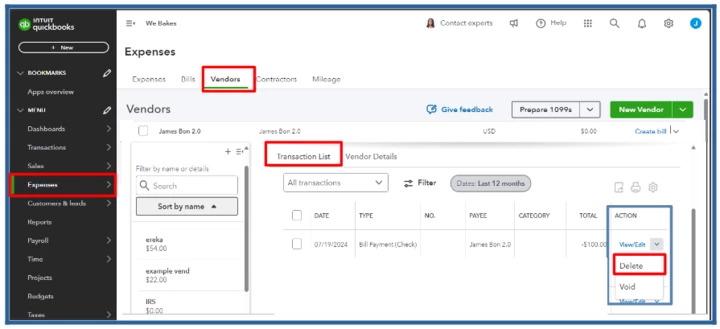
 

Once deleted, you'll want to directly match the downloaded payment transaction to the open or unpaid bills. This will apply individual bill payment transactions to close out each of the unpaid bills.


However, if the bank account isn't connected to QBO, you can consider deleting the Bill Payment transaction, and then use the Pay bills for each of the unpaid bills at issue. To do that, here's how:


  1. Click +New, then Pay bills.
  2. Select a bill you'll want to pay.
  3. Ensure all the details such as the Payment account, Payment date, PAYEE, and PAYMENT amount are correct before you hit Save and close.


I also want to share this resource that you can refer to any time about managing bill transactions and payments in QuickBooks: Manage bills and bill payments in QuickBooks Online.


You can always click the Reply button if you have questions about managing bills in QBO. I will always be here as well as the Community folks to help. Take care.

1 reply

Jelayca VAnswer
July 20, 2024

Yes, you can split bill payments in QuickBooks Online (QBO), @rigojr. I'd be glad to help you achieve this.

If you have a corresponding downloaded bank transaction for the payment, you can consider deleting the Bill Payment transaction in the Vendors tab. This action will move the downloaded transaction back to the For review tab on the Bank transactions page. Here’s how you can do that:


  1. Navigate to Expenses, then select the Vendors tab.
  2. Select the vendor associated with the bill payment.
  3. In the Transaction List, locate the bill payment.
  4. From the Action dropdown, select Delete.


Once deleted, you'll want to directly match the downloaded payment transaction to the open or unpaid bills. This will apply individual bill payment transactions to close out each of the unpaid bills.


However, if the bank account isn't connected to QBO, you can consider deleting the Bill Payment transaction, and then use the Pay bills for each of the unpaid bills at issue. To do that, here's how:


  1. Click +New, then Pay bills.
  2. Select a bill you'll want to pay.
  3. Ensure all the details such as the Payment account, Payment date, PAYEE, and PAYMENT amount are correct before you hit Save and close.


I also want to share this resource that you can refer to any time about managing bill transactions and payments in QuickBooks: Manage bills and bill payments in QuickBooks Online.


You can always click the Reply button if you have questions about managing bills in QBO. I will always be here as well as the Community folks to help. Take care.

July 20, 2024

Dear Jelayca V,


Thanks so much for your help. So far I was able to split the "bill payment" in 2, to correspond 2 bills without any difficulty.


Here's a follow up question: In the "Bank transactions" section of QB, the bill payment that I split reappeared and needs to be matched or categorized (before splitting the bill payment I had selected "match"). But now since the amount withdrawn from bank ($5,000) doesn't match any particular bill (because there are 2 bills for $2,500 each),  what should I do? I see a "split" button -am I supposed to use it? if so, how?


I really do appreciate all your help and patience. Thanks a million

July 21, 2024

Allow me to chime in on this thread, Rigojr. And help with your banking concerns in QuickBooks Online (QBO).


After splitting up the bill payment, it will directly go into the For Review tab since it'll be considered as new different transactions. We need to use the matching feature in order to consolidate your $5,000 bank transaction with the two separate $2,500 bill payments. This process ensures that each bill payment is accurately linked to the corresponding bills, providing a clear overview of your financial transactions.


Here's how:


  1. Go to the Bank transactions page, then choose the bank your transactions belong to.
  2. Look and click for the $5,00 transaction, then select Match.
  3. Once you're on the matching page, ensure the dates are accurately aligned to the transactions you want to match.
  4. Select the two bill payments by marking the box beside it, then click the Match tab.


You can refer to this article for more information and guidelines when matching your transactions: Match online bank transactions in QuickBooks Online.


Additionally, these helpful materials may be of use to you if you intend to reconcile your account:


Don’t hesitate to return this thread if you need further assistance matching your transactions or QBO-related inquiries, Rigojr. The Community is always here to help you anytime. Have a good one!