I've got your back, @steven_dennis. I'll assist you in managing your bills in QuickBooks Online.
After making a payment that covers all our bills, we have the option to mark those bills as paid one at a time. You'll want to utilize the Pay Bills section in QBO. Here's how:
- Go to + New and select Pay bills.
- From the Payment account dropdown, select the account you paid the bill from.
- If you select a checking or savings account, you can enter the Starting check no.
- Enter the Payment date.
- Check the checkboxes for the bill(s) you paid.
- In the Payment column, enter the amount you paid toward each bill. If you have credit with the vendor, you can apply it in the Credit Applied column.
- Select Save.
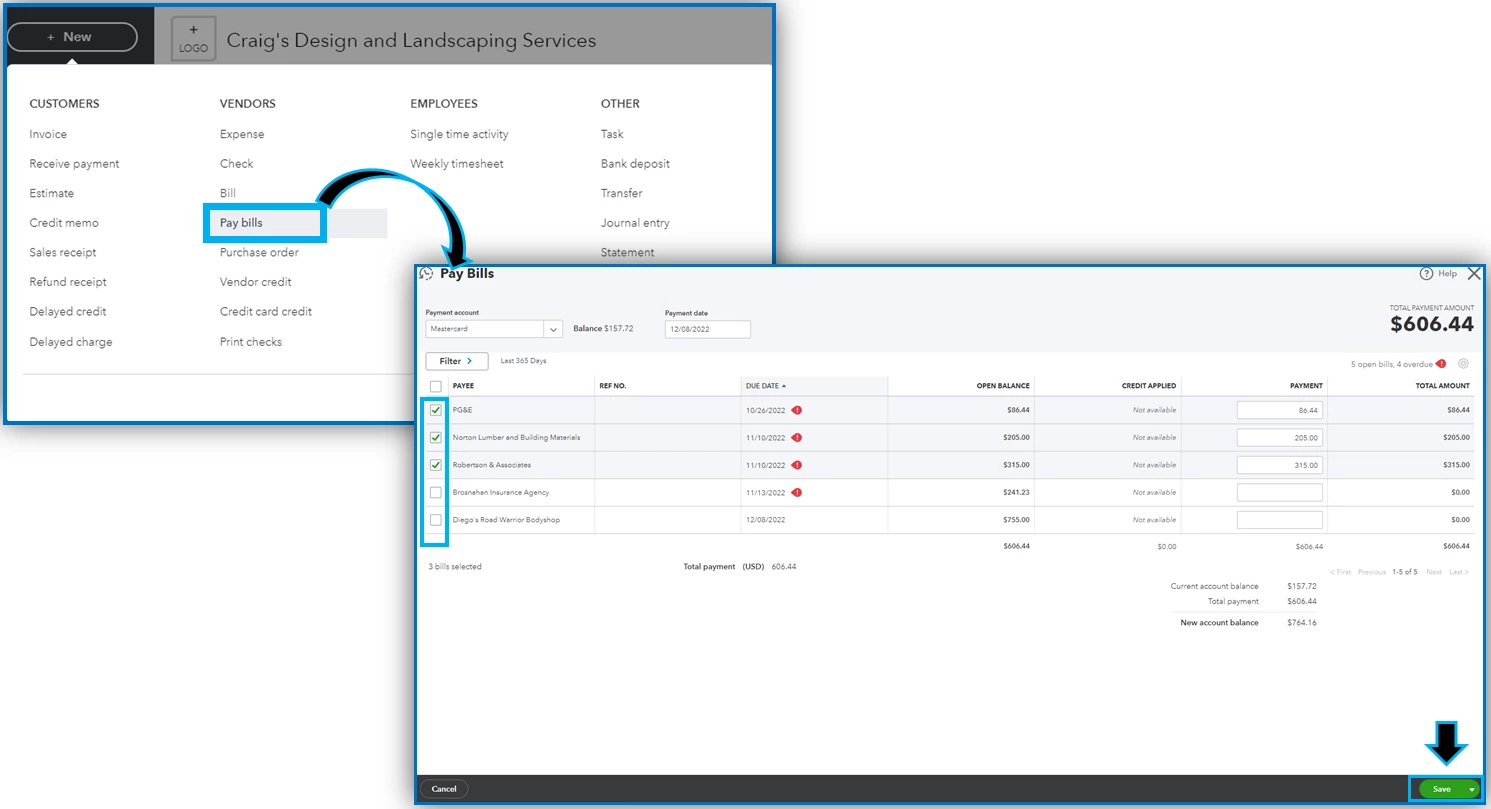
I'll be adding this guide to learn more about tracking your bills and recording payments: Enter and manage bills and bill payments in QuickBooks Online.
Moreover, we also have resources to help customers with vendor-related tasks like paying bills, processing supplier credits, and creating purchase orders, to name a few: A self-help guide. They are arranged according to topics, so you'll be able to find the article easily.
Keep in touch if you have other questions about managing your bills or any other QBO concerns. I'll be delighted to answer them for you. Enjoy the rest of the day!

