


How to Record Public Holiday Pay in QuickBooks Payroll
Let's look at one of the most common questions the Support Team get - “How do I record Public Holidays in QuickBooks Online?”
If you’re using QuickBooks Payroll, powered by Employment Hero, then here are the steps to get set up for public holidays! Follow along below and check out the full Self-Help Article.
If you're using QuickBooks Payroll Standard, you will need to manually record Public Holiday pays for each employee on the pay run. In my next post we will look at how to automate Public Holidays in QuickBooks Payroll Advanced.
To track public holiday pay in a pay run, you'll need to configure two things in Payroll Settings:
1. Create Public Holiday Categories
2. Create a Work Type tied to the Public Holiday Category
To manage a public holiday that wasn't worked, ask your employee to submit a timesheet with the work type "Public Holiday (Not Worked)" selected. Once you approve the timesheet, it'll show up in the pay run.
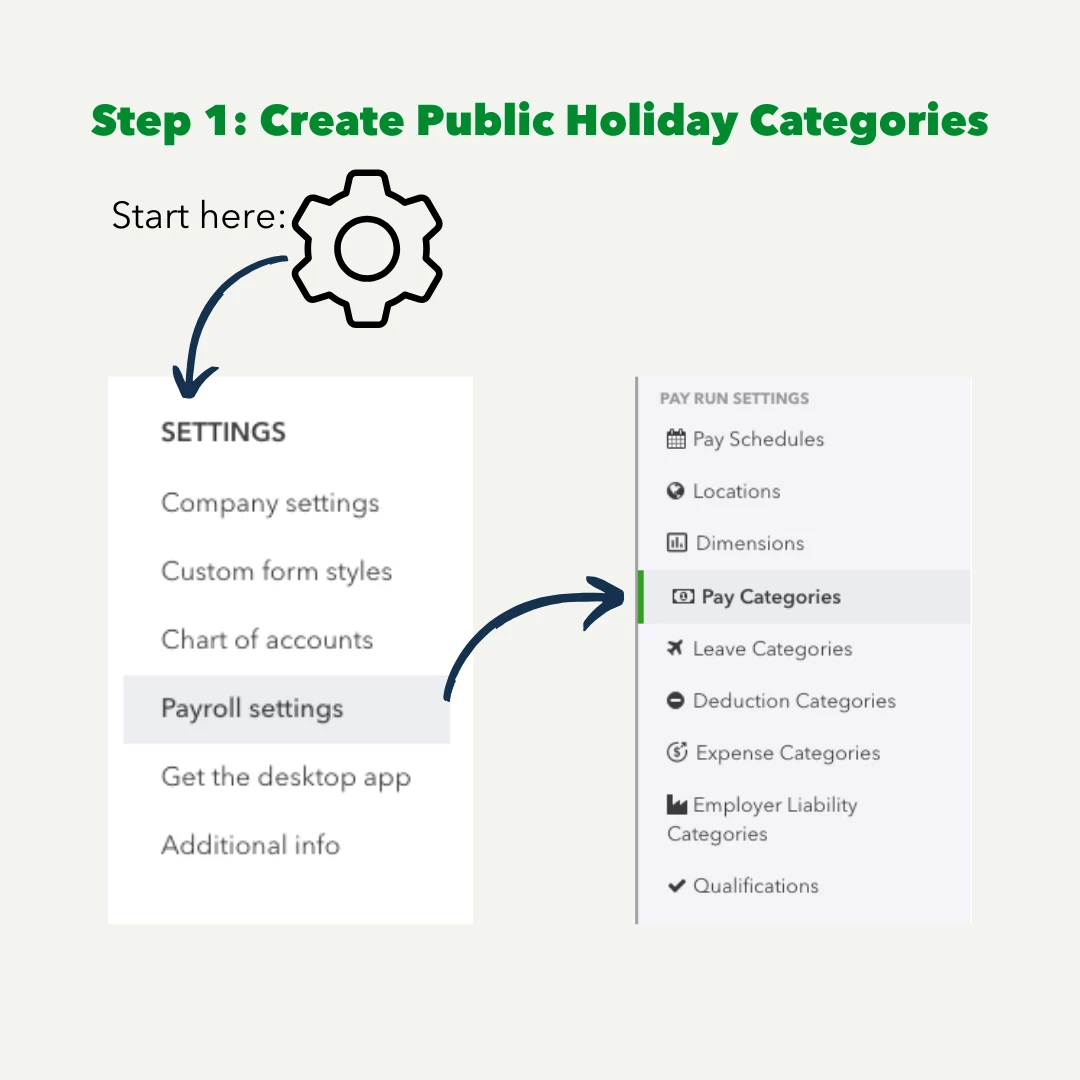
Navigate via the Cog to Payroll Settings, scroll to ‘Pay Run Settings’ and choose ‘Pay Categories’
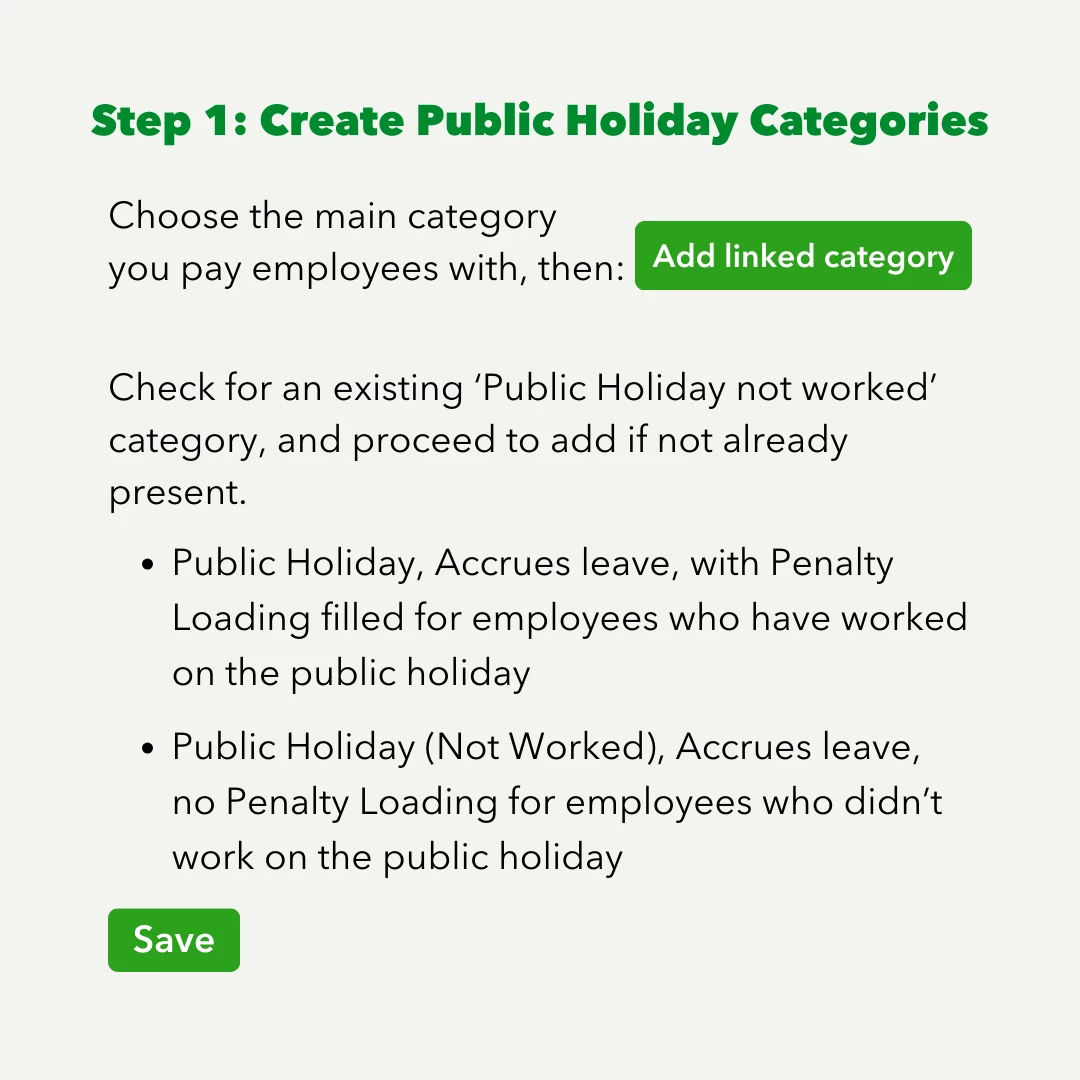
Select the ‘Permanent Ordinary Hours’ pay category, or the main pay category you pay employees with, then select ‘Add Linked Category’.
Look first to see if there is an existing Public Holiday Category - it may start with ‘Permanent’. Then set up any additional categories you may need according to whether your employees will have worked or not.
Be sure to Save when you’re finished.
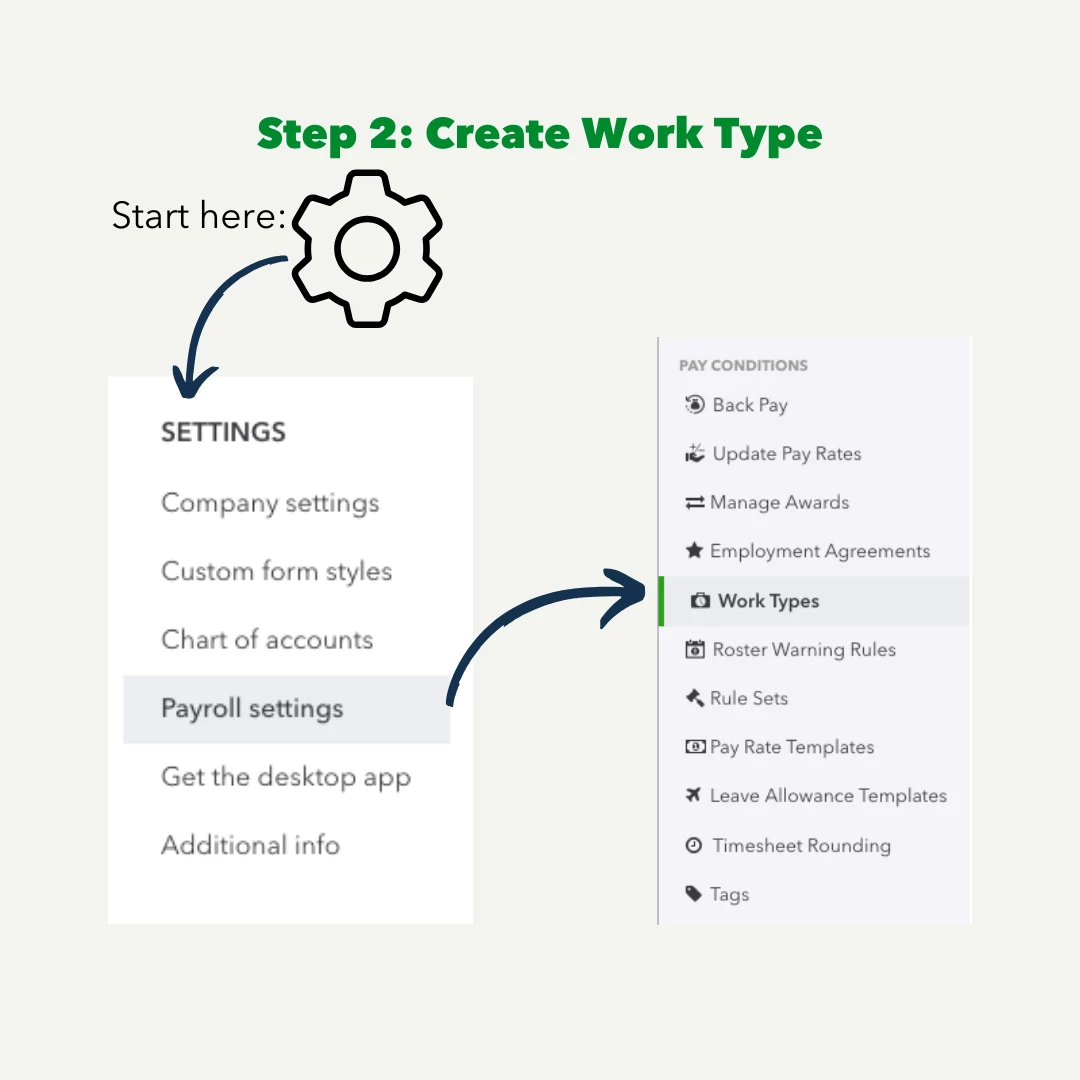
Next, you need to set up Work Categories tied to the Public Holiday Pay Category.
Again, navigate via the Cog to Payroll Settings, scroll to ‘Pay Conditions’ and choose ‘Work Types’.
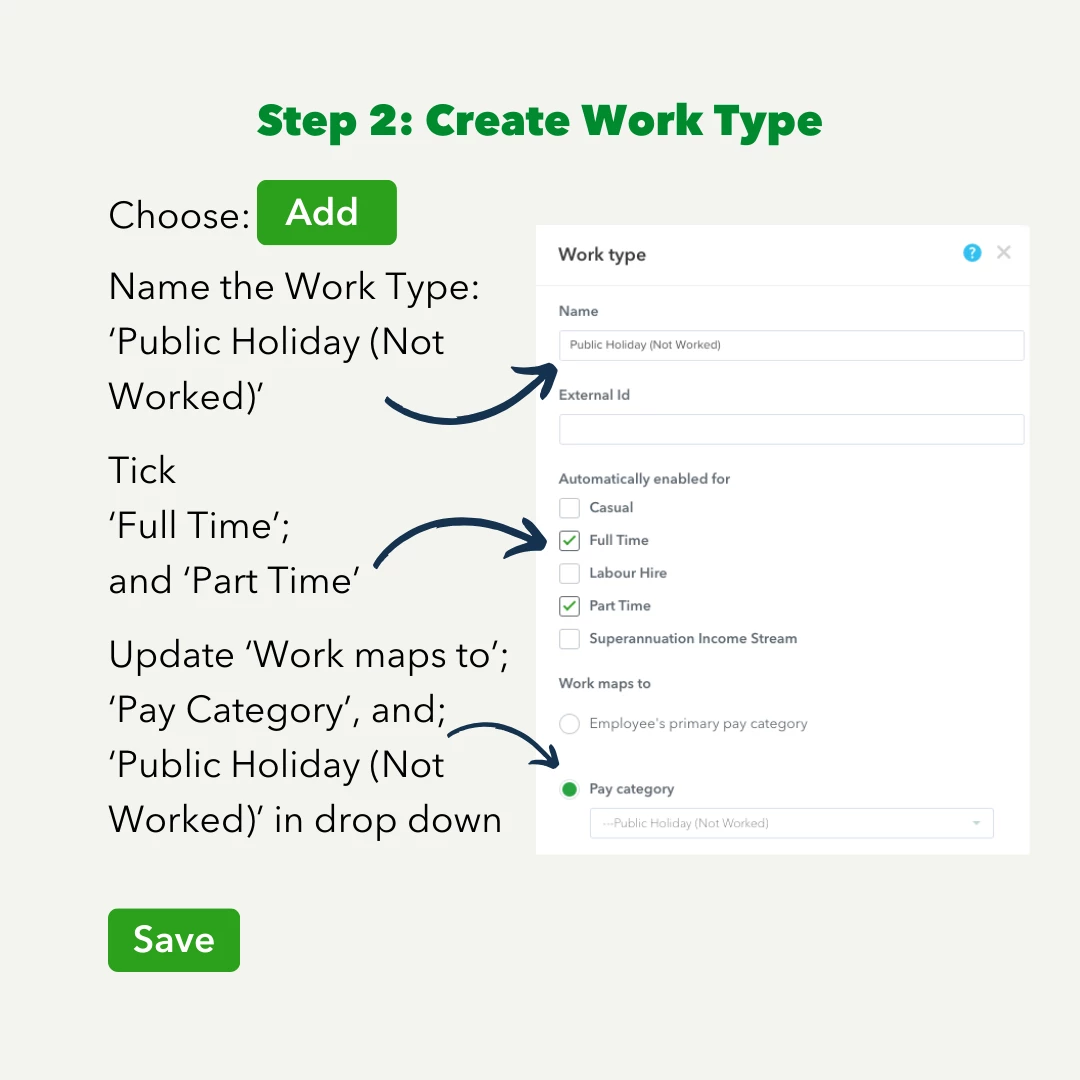
‘Add’ a work type and name it ‘Public Holiday (Not Worked)’
Tick both Full Time and Part Time and change the ‘Work maps to’; selection to ‘Pay Category’ and choose ‘Public Holiday (Not Worked)’.
Be sure to Save when you’re finished.
Manually record Public Holiday pays for each employee on the pay run, by selecting the green Actions button, then selecting Add earnings and choosing the Public Holiday or Public Holiday (Not Worked) pay category from the drop-down menu.