Solved
Are the HSBC Bank Feeds working properly - everytime I log on it shows a red exclamation mark but when I click into the account it goes green but no transactions sync
Original commenter did not share additional details


Hello there, @e.wright.
It's my priority to ensure that your bank transactions will sync into your QuickBooks Online account.
The data we receive in QuickBooks depends on the information sent to us by the financial institution. If the connection between QBO and the bank is interrupted, bank transactions may not sync in the system.
To fix this, you can manually update the account to refresh the connection and fetch missing items.
Here's how:

To learn more about fixing online banking issues, see this article: Open Banking connection errors.
I'd also suggest reaching out to your bank to help verify if they have ongoing system maintenance. This can be the reason why transactions are not syncing into QBO.
If the problem continues, you may consider uploading your bank entries manually in the system to get your work done.
Here's how:
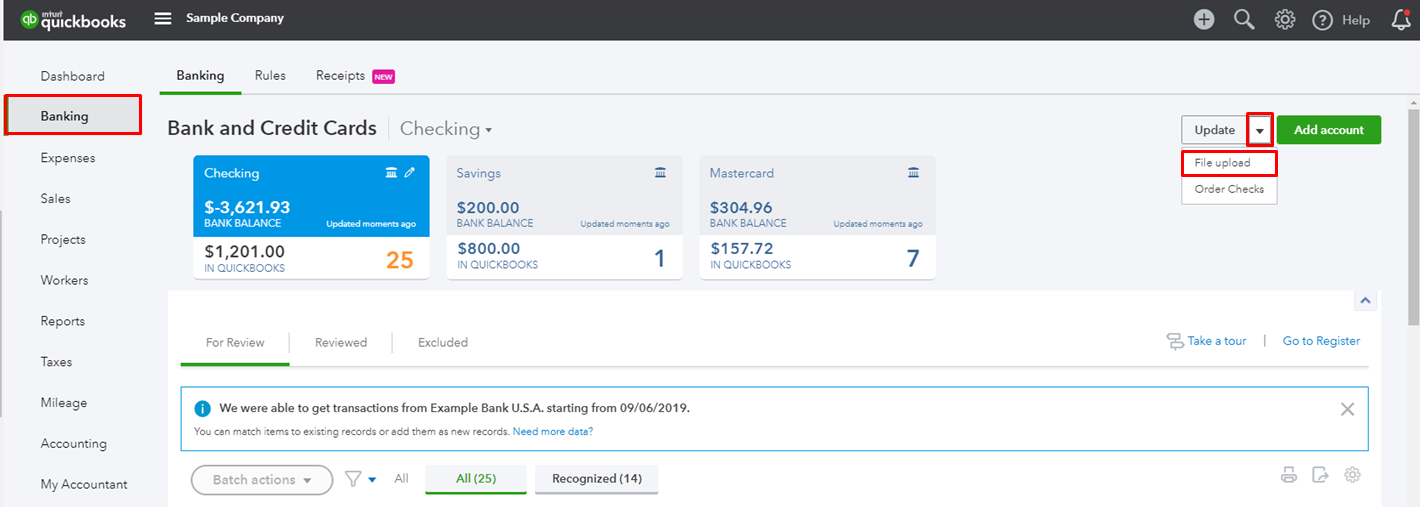
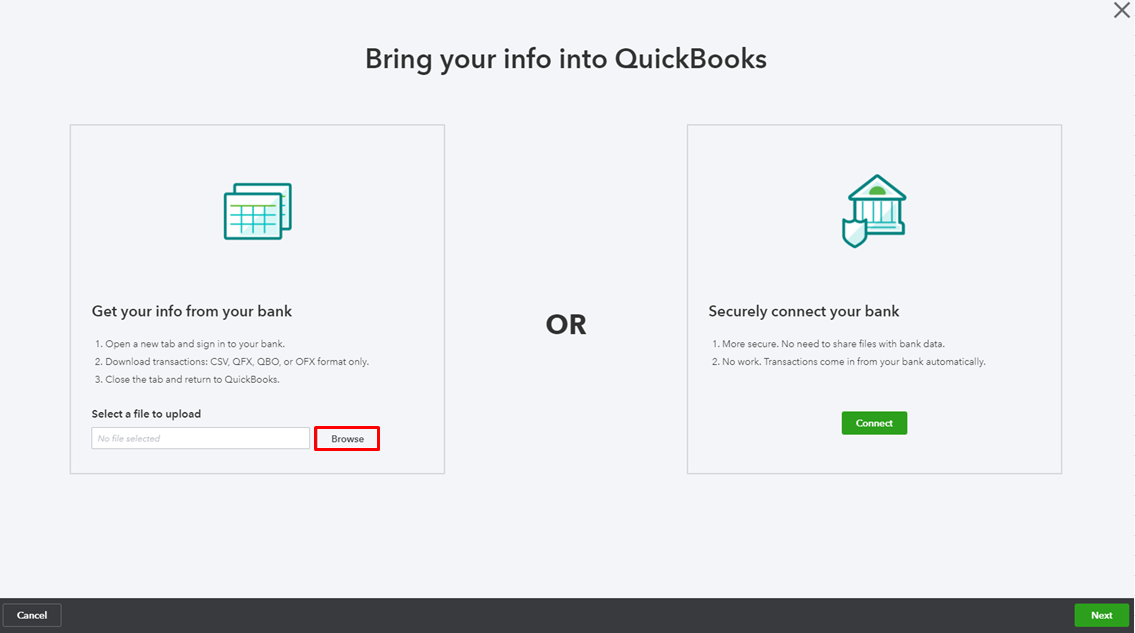
For the information and steps on importing these files, see this article: Manually upload transactions into QuickBooks Online.
Additionally, you can always use these resources attached to guide you in categorising and reconciling your accounts in QBO:
I'd be pleased to assist you if you have further questions with managing your bank transactions. Feel free to leave a reply below.
Enter your E-mail address. We'll send you an e-mail with instructions to reset your password.