
Solved
Can you match bills and sales invoices to one bank transaction? Our letting agent sends 1 lump sum which includes multiple tenants rents received less his invoiced fees?
Original commenter did not share additional details

Hello, j-addison86.
You can only match invoices to money in bank transactions (Money received). Money out transactions (the bills) would have to be selected and matched separately.
I have another way to handle the transactions based on your situation. You'll want to receive the invoice payments, then deposit them to the Undeposited Funds account. Next, create a bank deposit for the sum of all payments less the agent's fees using the Creditor account. Link the expense deposit to your bill, then wrap it up by matching the transactions. I'll show you the detailed steps below.
Create a payment for the invoices:
You'll want to do this for your other tenant payments until you get the sum.
To create a deposit:
This is what it will look like before saving (click the picture to enlarge it):
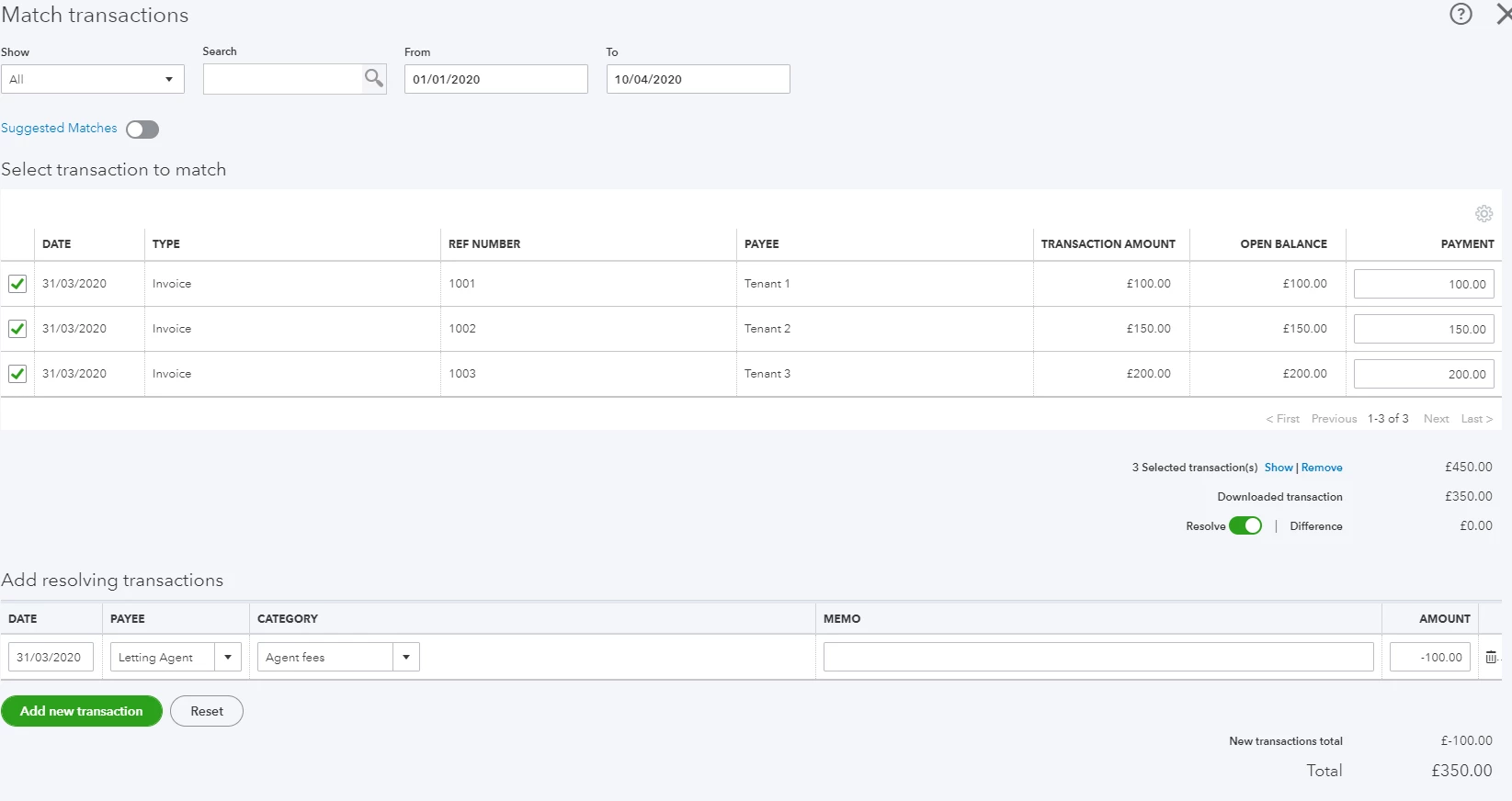
This will deposit the money to your bank account. The fees will appear as a supplier credit under their profile. You would just need to make a payment to link the deposited fees and the bill together. This will offset the amount to zero.
Here's how:
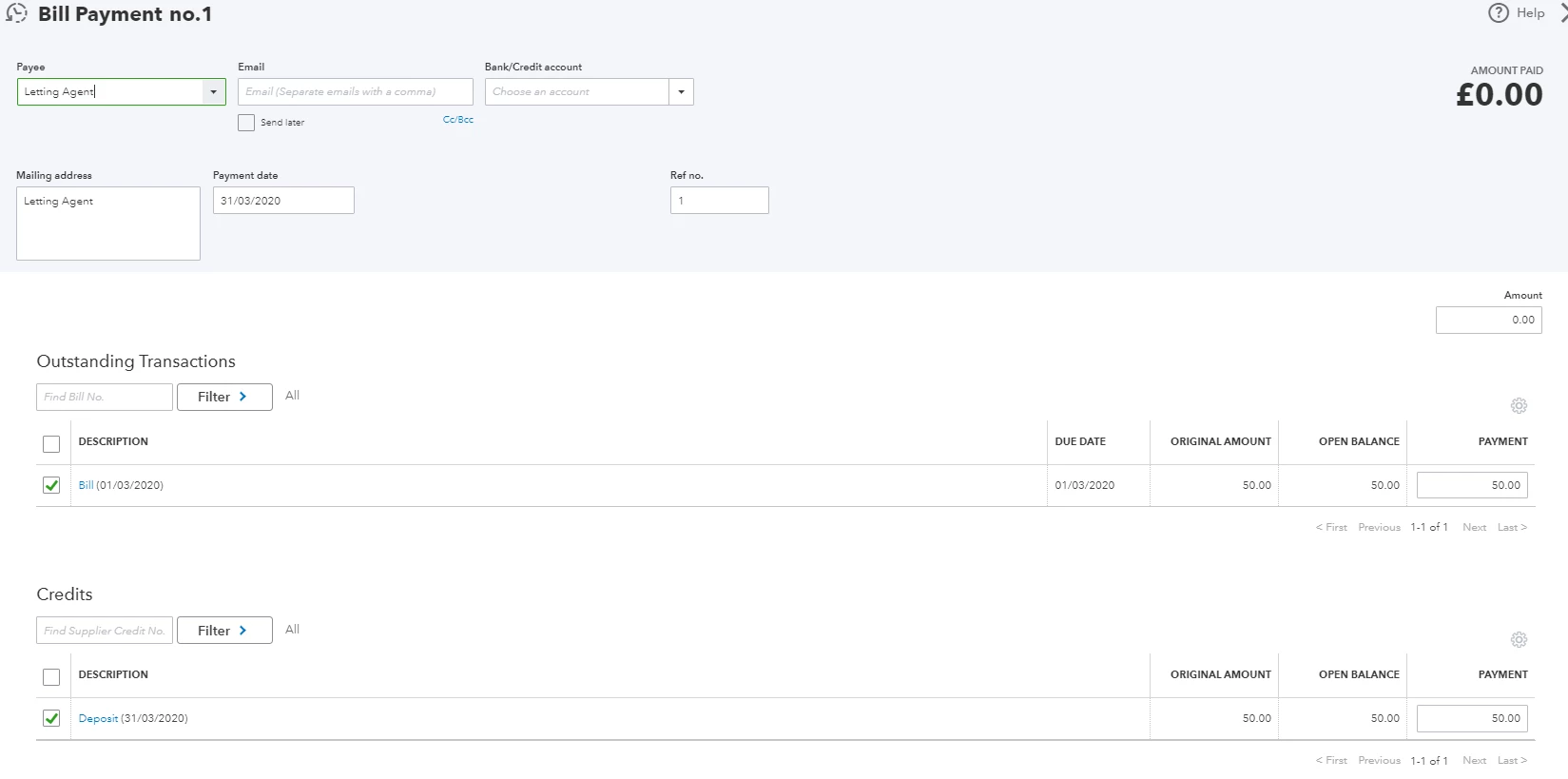
Finally, you'll want to match the payment with the bank transaction. Simply go back to the Banking page, then find the downloaded transaction. It will automatically recognize the transactions you made. Simply click on the Match button.
If not, tick the Find Match radio button, then find and check the Deposit transaction. Once done, click Save.
This is what will show in your bank's Account History after doing the process.
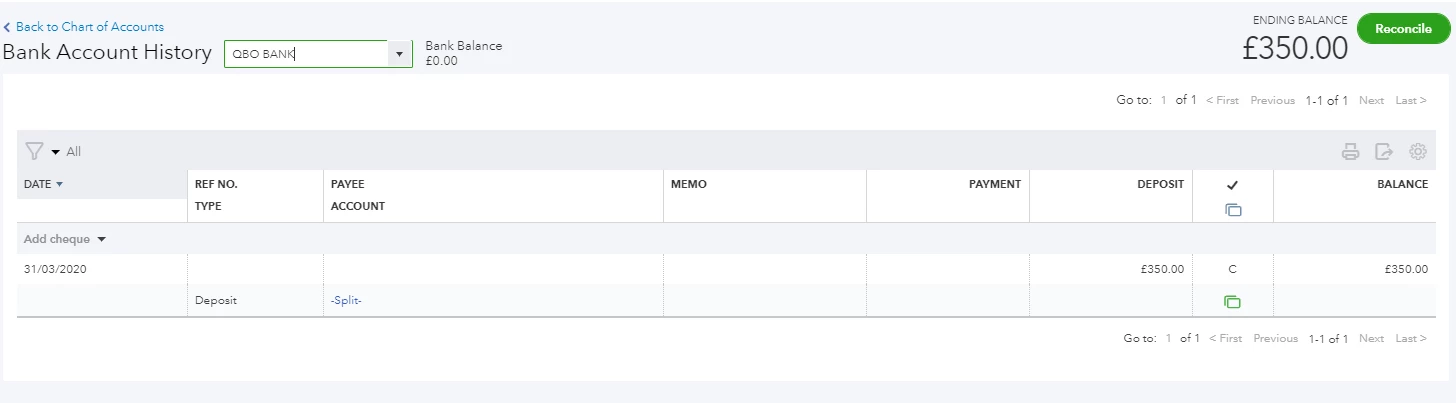
When you're ready to reconcile, you can check this article for your guide: How to reconcile a bank account and common troubleshooting tips.
That concludes my guide on how to handle the transactions. We're always open if you have other questions or concerns.
Enter your E-mail address. We'll send you an e-mail with instructions to reset your password.