October 1, 2019
Solved

How to show on current invoice the previous unpaid invoices or outstanding balances?

  • October 1, 2019
  • 1 reply
  • 0 views

We bill our tenants monthly for association dues. On our old software, we recur the invoices and only add the outstanding unpaid balances on every billing/invoice. After printing and sending them to the tenants, we delete the outstanding balances we put in order to leave the current bill. How do you do this in QB in a way that when I put the outstanding, it doesn't add more amount but only shows the unpaid previous billing?
Best answer by Angelyn_T

Hello there, @Arzini.


To be able to add the past due amount to your current invoices, you can simply follow these steps:


  1. Open your QBDT.
  2. Click on Customers at the top menu bar.
  3. Select Create invoices.
  4. On the Invoice page, click on Formatting.
  5. Select Customize Data Layout.
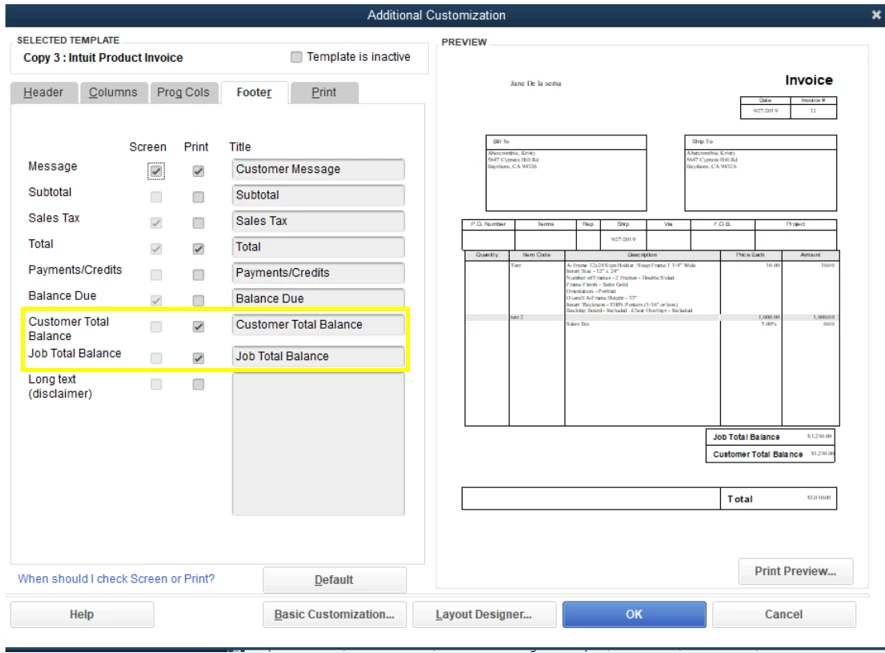
  6. Go to the Footer column then check on the box under Print for Customer Total Balance or Job Total Balance.
  7. Click on OK to save the changes.

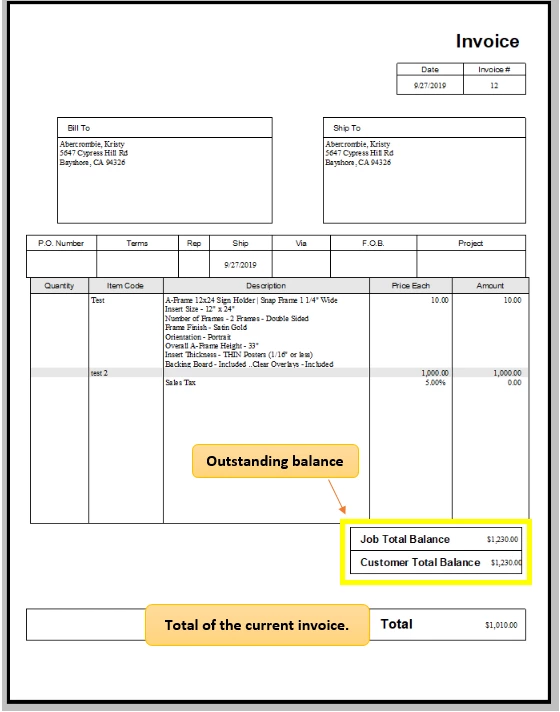
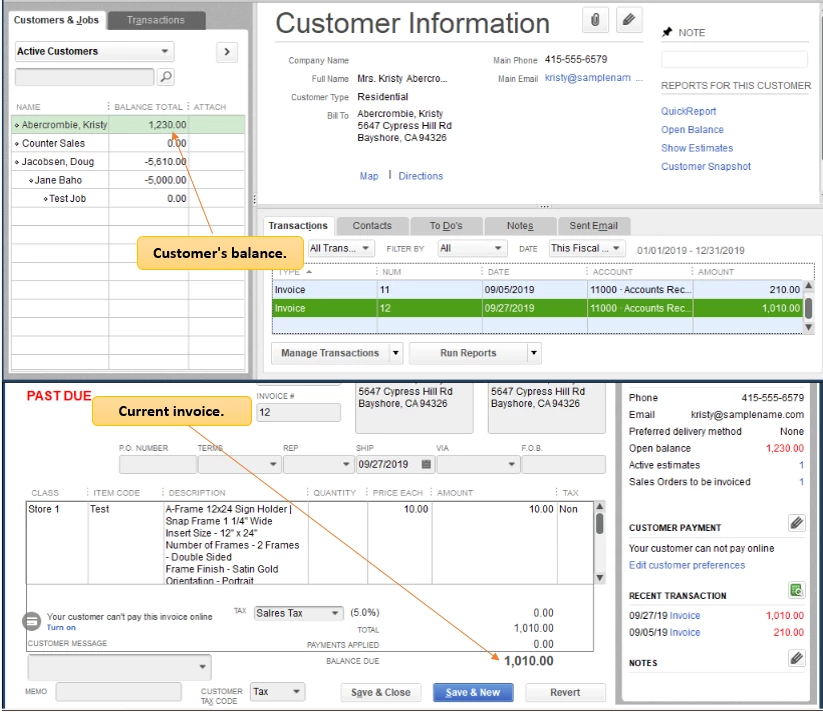
I've added these screenshots for additional reference.

To learn more about using and customizing form templates, you can read this article: Use and customize form templates.


I'm also adding this article as a future reference in case you'll encounter issues when using and customizing templates: Troubleshoot common issues when using and customizing templates.


Keep posted if you have any other questions. I'll always be here to help!

1 reply

Angelyn_T
Angelyn_TAnswer
October 1, 2019

Hello there, @Arzini.


To be able to add the past due amount to your current invoices, you can simply follow these steps:


  1. Open your QBDT.
  2. Click on Customers at the top menu bar.
  3. Select Create invoices.
  4. On the Invoice page, click on Formatting.
  5. Select Customize Data Layout.
  6. Go to the Footer column then check on the box under Print for Customer Total Balance or Job Total Balance.
  7. Click on OK to save the changes.

I've added these screenshots for additional reference.

To learn more about using and customizing form templates, you can read this article: Use and customize form templates.


I'm also adding this article as a future reference in case you'll encounter issues when using and customizing templates: Troubleshoot common issues when using and customizing templates.


Keep posted if you have any other questions. I'll always be here to help!

ArziniAuthor
October 1, 2019

Thank you for the response. I would also like to add 3% compounding penalty to every past due invoice.

October 1, 2019

You may want to create an item for the penalty charges, Arzini.


Here’s how:

  1. Go to List at the top. 
  2. Select Item List. 
  3. Click the arrow next to Item at the bottom and choose New. 
  4. Select Other Charge for Type. 
  5. Enter your desired item name, percentage amount and account. 
  6. Click Ok.  

Once the customer have overdue, create an invoice for the penalty. 

  1. Go to Customers at the top and select Create Invoice. 
  2. Enter the Item you’ve create for the penalty. 
  3. Enter the 3% penalty amount and the description. 
  4. Click Save and close. 


We have our doors open, so please visit us again if you have other questions.