June 3, 2019
Solved

I'm posting cust payments (before invoice raised) to their account as unapplied cash payment income. I don't seem to be able to then post that to the invoice when raised?

  • June 3, 2019
  • 1 reply
  • 0 views
How do I then apply that payment to the invoice raised without undoing all the transactions and applying them from the bank account. I must be doing something wrong as they don't show on the customer account even though I post them as a deposit on the customer account..? any ideas..?
Best answer by RaymondJayO

Hello there, @steve54


I'm here to share the steps on how you can apply the customer payment to your invoice. 


Since you recorded a customer payment through Bank Deposit instead of Receive Payment, it will not appear on your customer's account. This would not be linked to the invoice and the invoice will remain unpaid. 


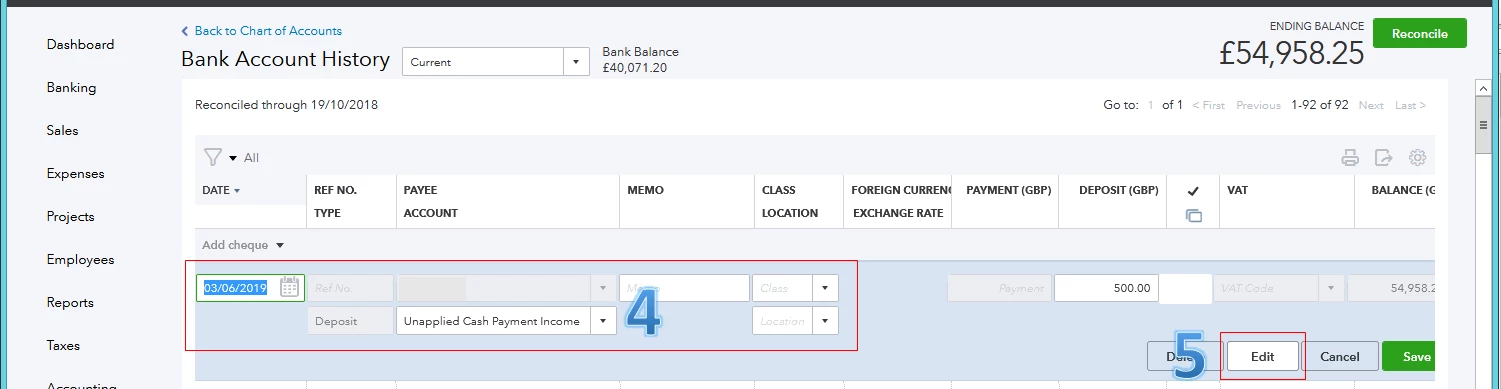
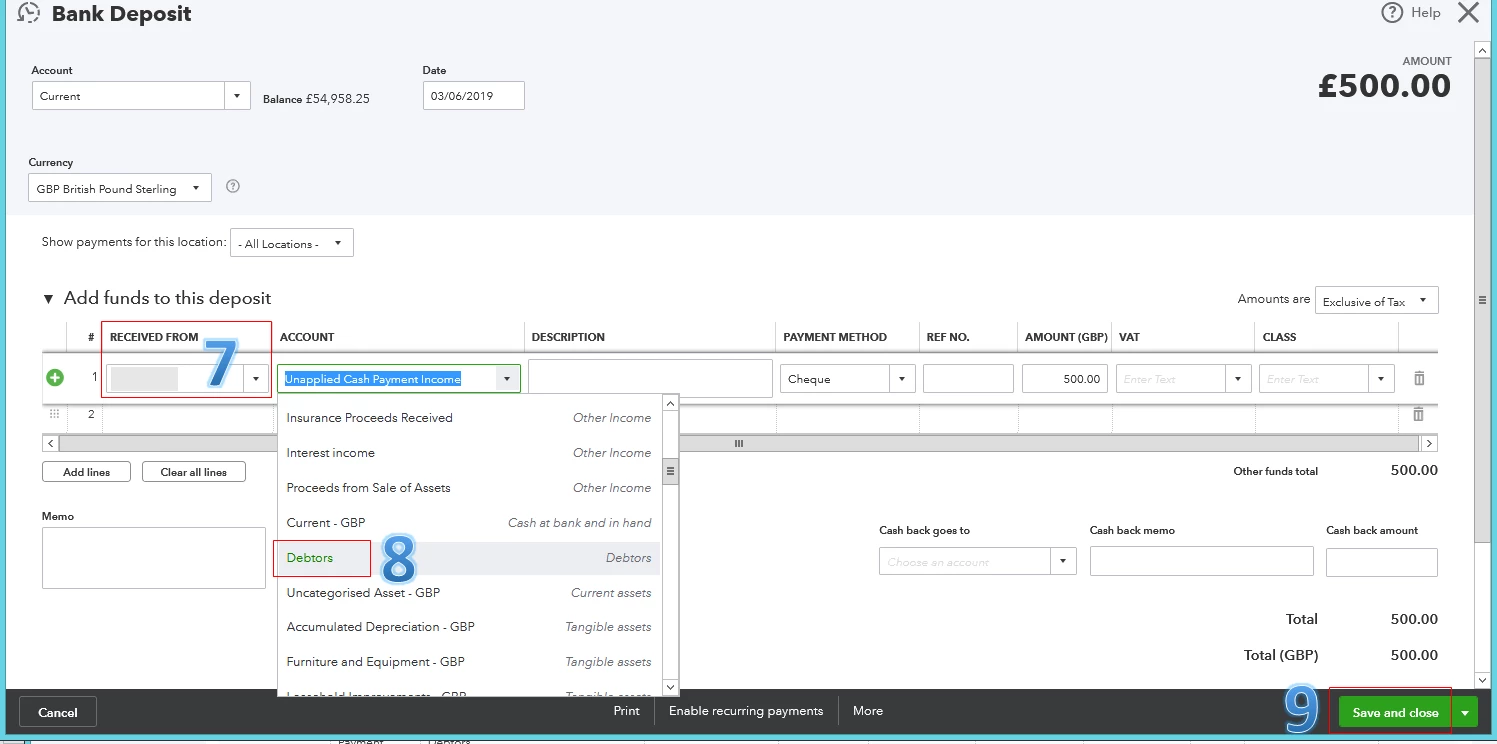
To help fix this, you'll first need to find the deposit entry in your bank register. Then, change the account from Unapplied Cash Payment Income to Debtors account. This will automatically reflect as deposit under the Credits section when you receive payments


Here's how to find the deposit in your register: 


  1. Go toAccounting from the left menu. 
  2. Select Chart of Accounts
  3. Find the account you deposited the payment to, then select Account History
  4. Locate and choose the correct deposit.
  5. Choose Edit.
  6. On the Bank Deposit screen, scroll down to Add funds to this deposit and find the fund you need to edit.
  7. In the Received From column, verify the appropriate customer name.
  8. In the Account column, search and select Debtors account. 
  9. Click Save and close.


For more information, you can check out this article: How to Link a Deposit to an Invoice


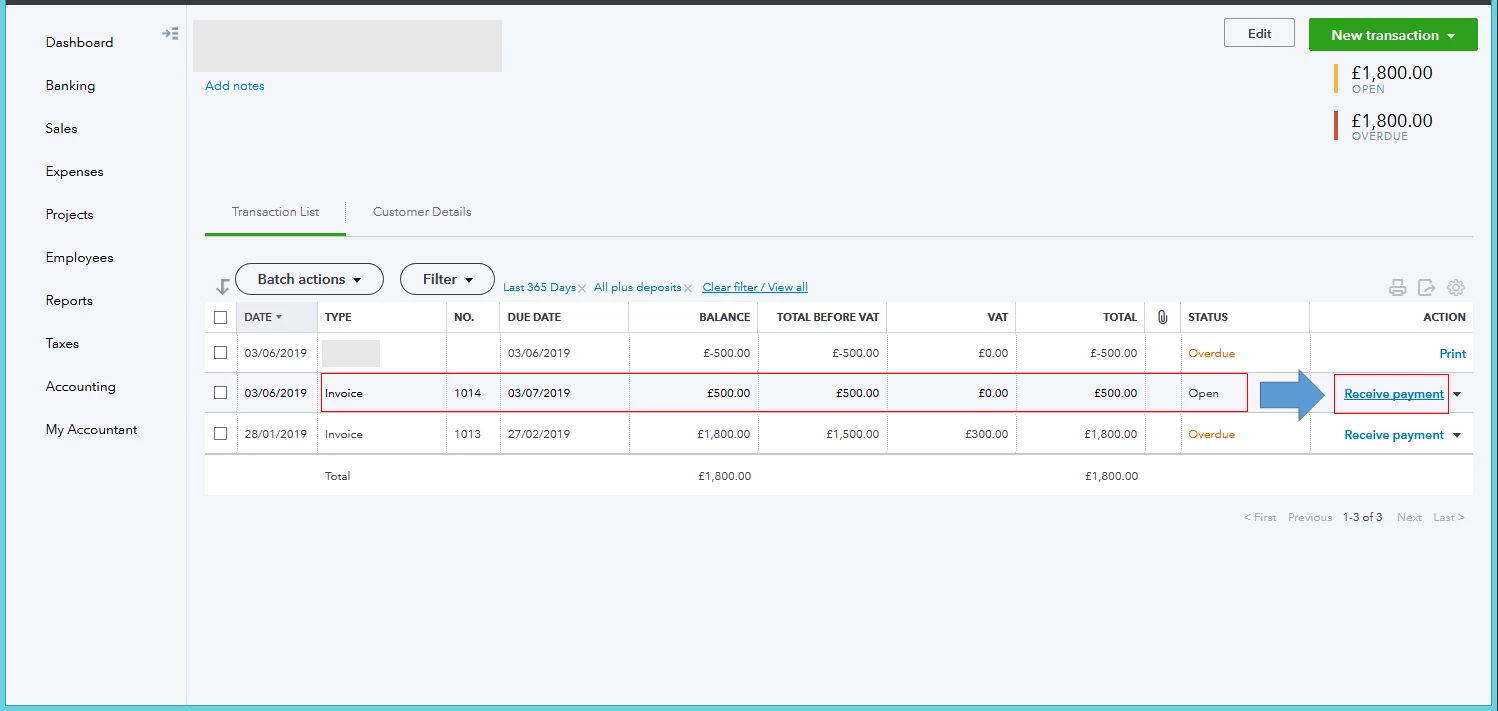
Once done, let's go to the Transaction list of your customer. Then, find the invoice you've just raised and click the Receive payment link (see the screenshot below). 


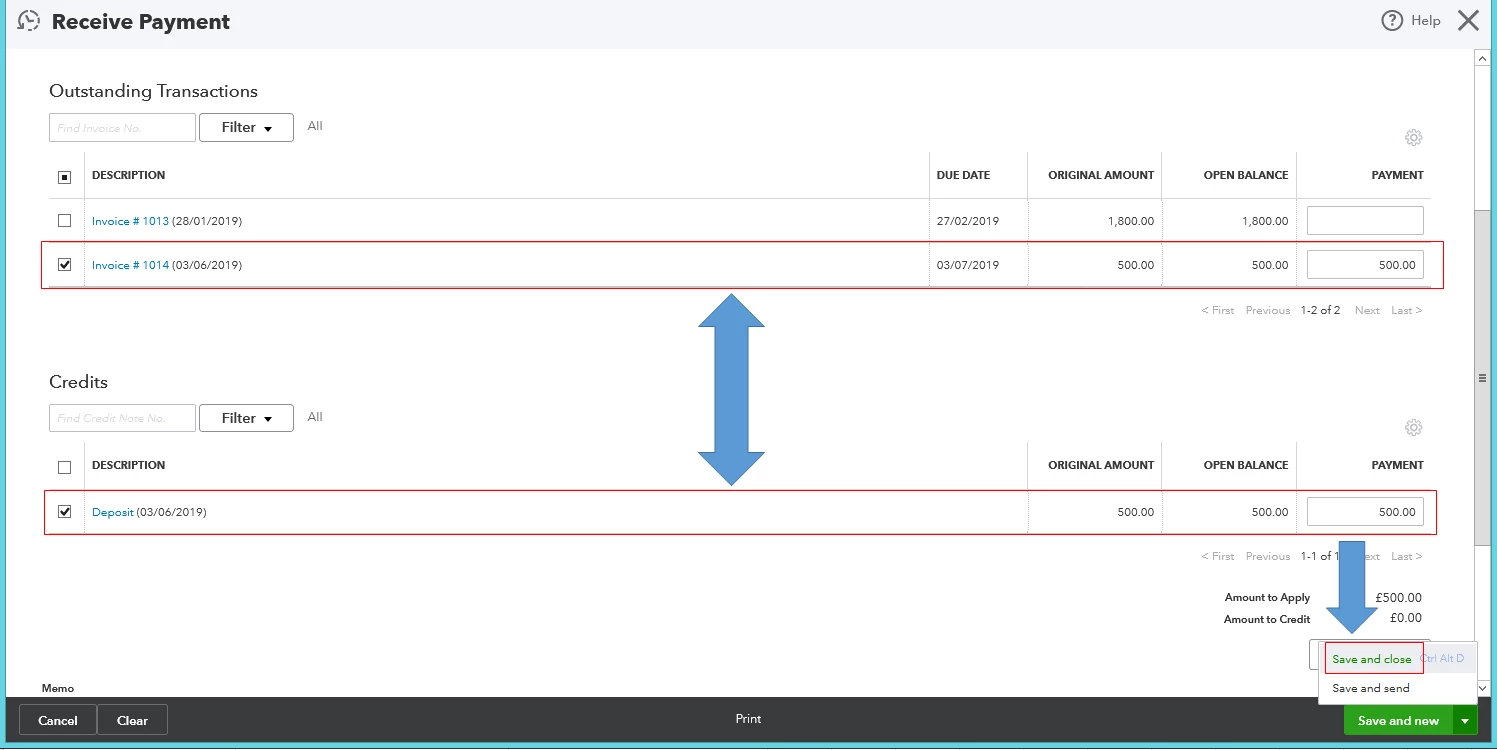
On the Receive Payment screen, check the appropriate invoice and verify its amount under the Outstanding Transactions section. Then, you can now see the deposit under the Credits section. You can click Save and close once you're ready to link them. Please see the screenshot below for your reference.  


I'd suggest running a Transaction List by Customer report to ensure your customer's balance is up to date and accurate. You can freely browse these helpful articles in our Community page to help you effectively manage your customers and income in the program. 


This will help you get back on track, @steve54


Please don't hesitate to let me know if you have other concerns. I'd be glad to help you out.

1 reply

June 4, 2019

Hello there, @steve54


I'm here to share the steps on how you can apply the customer payment to your invoice. 


Since you recorded a customer payment through Bank Deposit instead of Receive Payment, it will not appear on your customer's account. This would not be linked to the invoice and the invoice will remain unpaid. 


To help fix this, you'll first need to find the deposit entry in your bank register. Then, change the account from Unapplied Cash Payment Income to Debtors account. This will automatically reflect as deposit under the Credits section when you receive payments


Here's how to find the deposit in your register: 


  1. Go toAccounting from the left menu. 
  2. Select Chart of Accounts
  3. Find the account you deposited the payment to, then select Account History
  4. Locate and choose the correct deposit.
  5. Choose Edit.
  6. On the Bank Deposit screen, scroll down to Add funds to this deposit and find the fund you need to edit.
  7. In the Received From column, verify the appropriate customer name.
  8. In the Account column, search and select Debtors account. 
  9. Click Save and close.


For more information, you can check out this article: How to Link a Deposit to an Invoice


Once done, let's go to the Transaction list of your customer. Then, find the invoice you've just raised and click the Receive payment link (see the screenshot below). 


On the Receive Payment screen, check the appropriate invoice and verify its amount under the Outstanding Transactions section. Then, you can now see the deposit under the Credits section. You can click Save and close once you're ready to link them. Please see the screenshot below for your reference.  


I'd suggest running a Transaction List by Customer report to ensure your customer's balance is up to date and accurate. You can freely browse these helpful articles in our Community page to help you effectively manage your customers and income in the program. 


This will help you get back on track, @steve54


Please don't hesitate to let me know if you have other concerns. I'd be glad to help you out.