

May 28, 2025
Question

Invoice import - not recognising a customer

  • May 28, 2025
  • 1 reply
  • 0 views

I use a database for raising invoices for our workshop, and these need to be imported into QBO, we were using Sage, but we've now changed to QBO.


Yesterday I imported one invoice, there was issues - I'd exported the wrong field, but I corrected the issues within QBO, but the main point is QBO recognised the customer, and the import completed.


Today I've updated my export, and tried another, but QBO refuses to recognise the customer, saying that it does not exist, when it does!
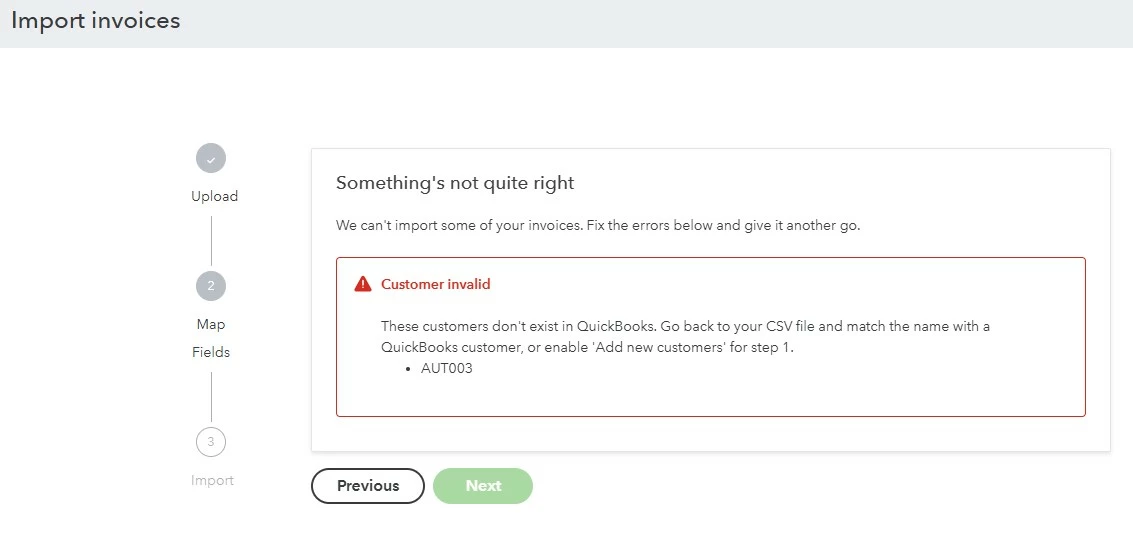
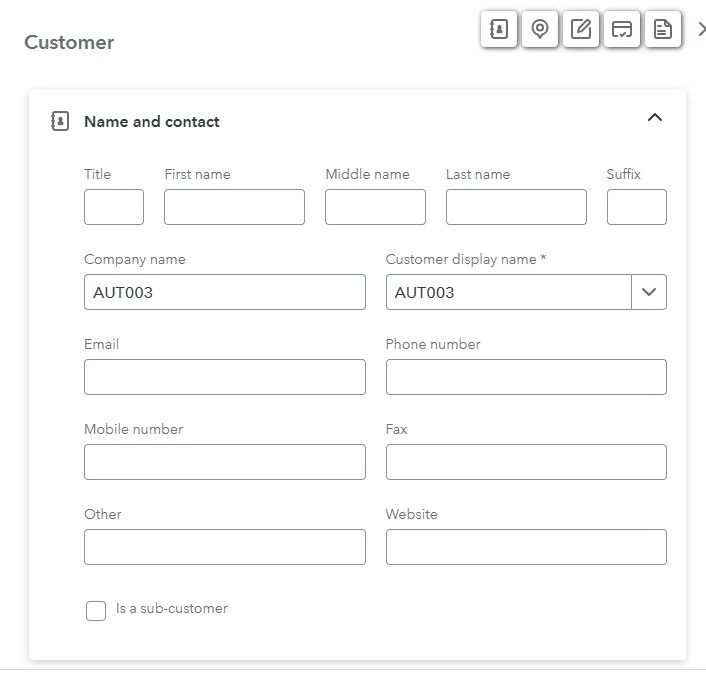
 

I've not blanked out any information in the above screenshot, I've actually deleted all other customer details and saved it, so the customer is literally just named AUT003 (where is the account number field?????), but it still fails.


The one I did yesterday had the account number as the first name which is how I initially had this one setup, and I did not have this problem, so why am I having it today? 


1 reply

May 28, 2025

Thank you for taking the time to inform us about this, Ron. I understand how important it is to have your invoice imported smoothly. I have a detailed guide that will help ensure the successful import of your invoice.


You can match your customer's name with the existing QuickBooks Online (QBO) customers, what's in the CSV file should exactly match the existing record in QBO.


Also, please check that there are no extra spaces before or after your customer's name, as this can lead to errors.


If the issue persists, it might be related to browser latency. We can perform some browser troubleshooting to identify and resolve any underlying problems.


Here are the steps for browser troubleshooting:


Open an Incognito Window: This helps bypass most browser-related issues. Access your QuickBooks account through an incognito window using these shortcuts:


  • Google Chrome: Ctrl + Shift + N
  • Mozilla Firefox and Microsoft Edge: Ctrl + Shift + P
  • Safari: Command + Shift + N


Clear Cache and Cookies: If accessing QuickBooks through an incognito window alleviates the problem, clearing your browser’s cache and cookies can help resolve loading and formatting issues and enhance your browser's performance.


Switch Browsers: If issues persist, consider switching to a different supported browser. Sometimes, temporary compatibility issues can arise between QuickBooks and your current browser.


For more information on importing multiple invoices to QuickBooks Online in one go, please refer to this article: Import various invoices at once in QuickBooks Online.


Moreover, you can check out this article to learn some frequently asked questions about importing data: Common questions about importing data to QuickBooks Online.


You're welcome to contact us anytime with additional questions about importing data or any other QuickBooks concerns. The Community team is always ready and eager to support you, Ron.