August 6, 2021
Solved

Marking Vendor Bills Paid without using bank account

  • August 6, 2021
  • 1 reply
  • 0 views

Hello,


I'm trying to figure out how to mark my vendor bills as paid without the payment going through the business checking acct.  The owner is having to pay some bills using personal checks and I'm not sure how to record this in QuickBooks Desktop version.  I know I need to do a Journal Entry, but not sure what accounts to use for the JE.  Any help would be greatly appreciated!

Best answer by CharleneMaeF

I've got you covered, boyd2828.


Mixing personal and business funds isn't advisable. Though, you may encounter situations that'll require you to do so. I'd suggest following these steps to record the funds accurately.


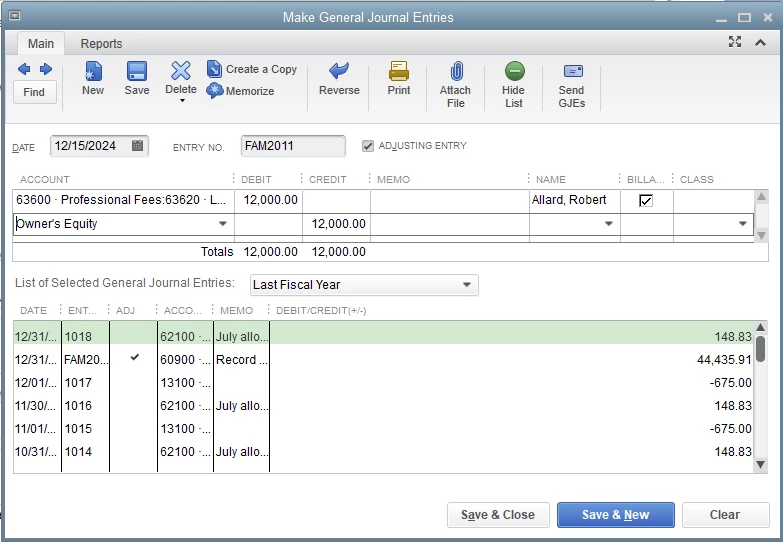
  1. Go to the Company menu and then select Make General Journal Entries.
  2. Pick the appropriate expense account in the first Account column.
  3. In the Debit column, type in the amount of the transaction.
  4. You can select the customer from the Name drop-down menu.
  5. Choose Owner’s Equity or Owner Investment in the second Account column.
  6. Click on Save and Close.

For more details about the process, please see this article: Create a Journal Entry in QuickBooks Desktop.


I'd also recommend consulting with an accountant for proper guidance. In case you don't have any, you can visit our Find an Accountant website to find one.


Additionally, I'm adding these articles that'll help you learn more about accounts receivable and payable workflow in QuickBooks Desktop.


Feel free to comment down below if you have any other concerns or questions about recording QuickBooks transactions. I'm always glad to help in any way I can.


1 reply

August 6, 2021

I've got you covered, boyd2828.


Mixing personal and business funds isn't advisable. Though, you may encounter situations that'll require you to do so. I'd suggest following these steps to record the funds accurately.


  1. Go to the Company menu and then select Make General Journal Entries.
  2. Pick the appropriate expense account in the first Account column.
  3. In the Debit column, type in the amount of the transaction.
  4. You can select the customer from the Name drop-down menu.
  5. Choose Owner’s Equity or Owner Investment in the second Account column.
  6. Click on Save and Close.

For more details about the process, please see this article: Create a Journal Entry in QuickBooks Desktop.


I'd also recommend consulting with an accountant for proper guidance. In case you don't have any, you can visit our Find an Accountant website to find one.


Additionally, I'm adding these articles that'll help you learn more about accounts receivable and payable workflow in QuickBooks Desktop.


Feel free to comment down below if you have any other concerns or questions about recording QuickBooks transactions. I'm always glad to help in any way I can.

boyd2828Author
August 11, 2021

Okay thank you so much!  I'll do a Journal Entry for those with a Debit going towards the Expense Acct. and a Credit to Owner's Equity Acct., but what should I do with the company bills my boss paid out of his personal account that I entered into Vendor Bills??  Should I do a Credit Memo towards those or just delete them as a vendor bill and just do the Journal Entry?  Yes, I have told my boss he should NOT being paying company bills with a personal check, but he hasn't listened, so as bad I as I hate to, I have to deal with it in QB and move on. :)

JenoP
August 11, 2021

Joining the thread to help with your question about how to manage the bill, boyd2828.


There's no need for you to create a credit memo or delete the vendor bill. For the journal entry that you'll be making, use the Accounts Payable instead of the Expense account. This way, it will automatically create a credit that can be applied to the open bill. Here's how: 


  1. Open the bill that you are working on and click Pay Bill.
  2. Click Set Credits.
  3. Look for the journal entry that you made under the Credits tab and put a checkmark beside it.
  4. Select Done.
  5. Click Pay Selected Bills


Feel free to check out these articles just in case you might need them in your future tasks:


Please know that you can always count on us if you need anything else while working in QuickBooks. We'll make sure everything is sorted out.