Thank you for following up with us, @Nicky12.
It's my pleasure to guide you on how to add the second receipt to your transaction.
At this time, you need to extract or convert the photo using the supported file types, then attach it to your transactions.
Here's how:
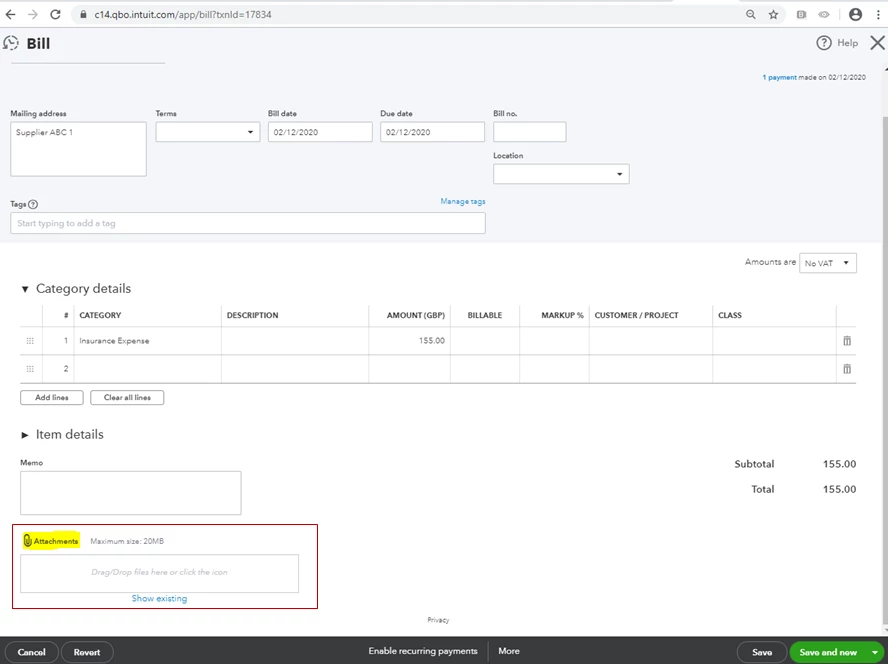
- Open the transaction, then click on the Attachments section.
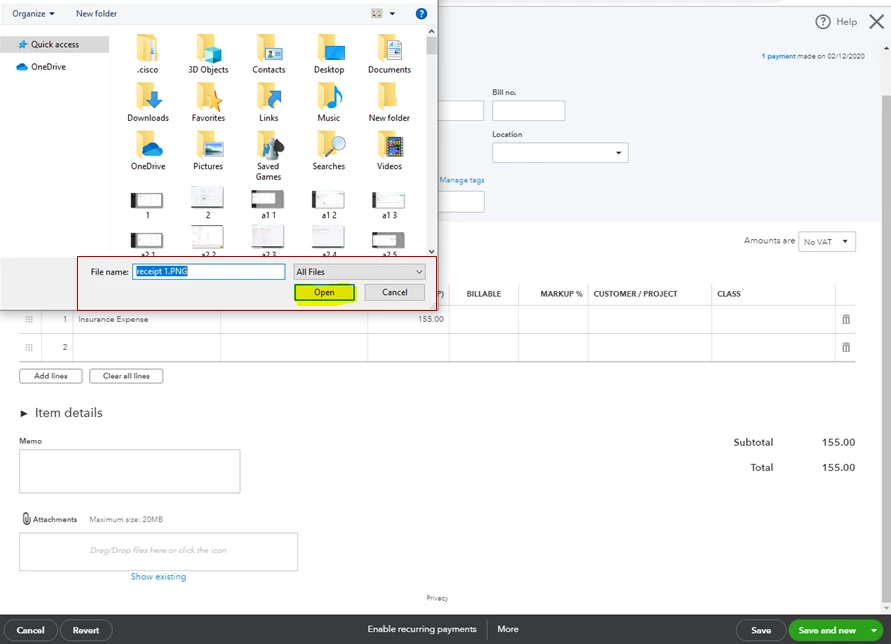
- Select the receipt saved on your file, then tap Open.
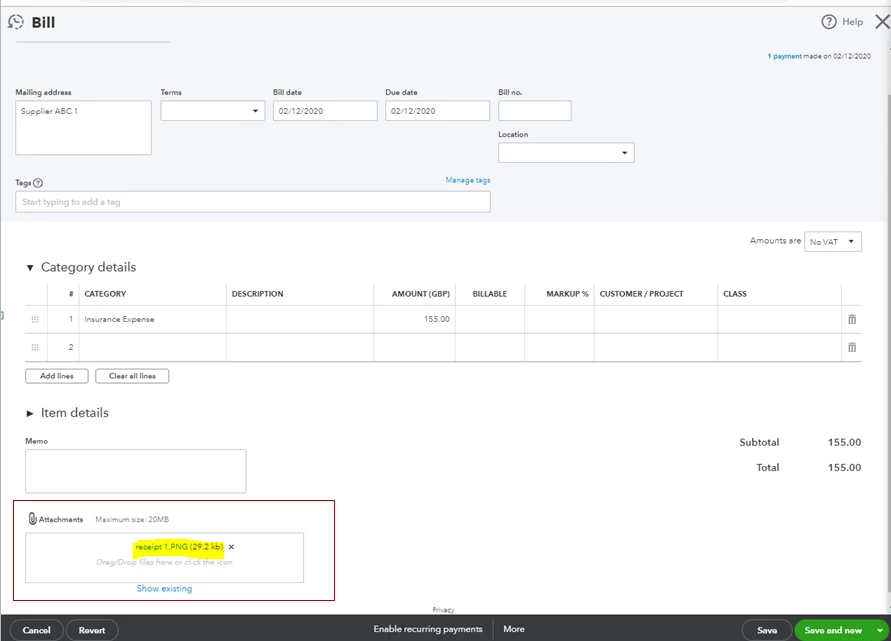
- Once the receipt is added, save the transaction.
To learn more about attachments and some frequently asked questions regarding technical limits, file sizes, transaction volumes, and data entry, you can check out these articles:
For additional tips, while working with receipts on the Banking page, you can as well open this link: Capture and categorise expense receipts and bills in QuickBooks Online.
If you have any other questions, please let me know by adding a comment below. I want to make sure everything is taken care of for you. Have a good day!

